Operating system (OS) updates and patches are essential components of maintaining a secure, efficient, and reliable computing environment. These updates are released by OS developers to address vulnerabilities, enhance performance, and introduce new features. In this blog post, we’ll explore why OS updates and patches are crucial, the benefits they provide, and best practices for managing them effectively.

1. Security Enhancements

**1.1. Vulnerability Fixes

  • Addressing Security Flaws: OS updates often include patches that fix security vulnerabilities identified in the system. These vulnerabilities can be exploited by attackers to gain unauthorized access or disrupt system operations. Applying updates helps protect your system from known threats.
  • Mitigating Exploits: Regularly updating your OS helps mitigate the risk of exploits and malware that target unpatched vulnerabilities. Security patches are designed to close loopholes and prevent potential attacks.

**1.2. Protection Against Threats

  • New Threats: The cybersecurity landscape is constantly evolving, with new threats emerging regularly. OS developers release updates to address these new threats and enhance the system’s defenses against malicious activities.
  • Zero-Day Vulnerabilities: Patches often address zero-day vulnerabilities, which are flaws that are exploited by attackers before the vendor is aware or has had the chance to release a fix. Keeping your OS updated helps protect against such vulnerabilities.

2. Performance Improvements

The Importance of OS Updates and Patches

**2.1. System Optimization

  • Bug Fixes: Updates frequently include bug fixes that address issues affecting system performance. By resolving these bugs, updates can improve the stability and efficiency of your OS.
  • Feature Enhancements: Updates may introduce performance enhancements, such as optimizations that improve the speed and responsiveness of the system. This can lead to a smoother and more productive user experience.

**2.2. Compatibility

  • Hardware and Software Compatibility: OS updates ensure compatibility with new hardware and software. As technology evolves, updates help maintain compatibility with the latest devices and applications, preventing conflicts and ensuring optimal performance.
  • Improved Support: Updates often include support for new technologies and standards, ensuring that your OS remains compatible with evolving industry trends and requirements.

3. Stability and Reliability

**3.1. System Stability

  • Reducing Crashes: By addressing bugs and stability issues, updates contribute to a more reliable and stable operating environment. This reduces the likelihood of system crashes and unexpected behavior.
  • Enhanced Reliability: Patches and updates improve the overall reliability of the OS by fixing known issues and preventing potential disruptions. This ensures that your system operates smoothly and consistently.

**3.2. User Experience

  • Improved Usability: Updates may include user interface enhancements and usability improvements, making the system easier to navigate and use. This can enhance the overall user experience and productivity.
  • New Features: Updates often introduce new features and functionality, providing users with additional tools and capabilities to enhance their work or leisure activities.

4. Compliance and Legal Requirements

**4.1. Regulatory Compliance

  • Data Protection Regulations: Many industries have regulatory requirements related to data protection and cybersecurity. Keeping your OS up-to-date helps ensure compliance with these regulations and avoid potential legal issues.
  • Industry Standards: OS updates often address security and performance standards required by industry best practices. Staying current with updates helps maintain compliance with these standards.

**4.2. Avoiding Penalties

  • Legal Obligations: Failure to apply security updates and patches can lead to vulnerabilities that result in data breaches or security incidents. This can result in legal penalties and damage to your organization’s reputation.

5. Best Practices for Managing OS Updates

**5.1. Regular Updates

  • Automated Updates: Enable automatic updates to ensure that your OS receives patches and updates as soon as they are released. This reduces the risk of missing critical updates and ensures timely protection.
  • Scheduled Maintenance: Implement a schedule for regular updates and maintenance to keep your system current. This can include periodic checks for updates and planned downtime for applying updates.

**5.2. Backup and Recovery

  • System Backups: Before applying updates, ensure that you have recent backups of your system and data. This allows you to recover your system in case of any issues arising from the update process.
  • Recovery Plans: Have a recovery plan in place to address potential problems that may occur after an update. This includes procedures for rolling back updates or restoring the system from backups.

**5.3. Testing and Validation

  • Test Environments: Use test environments to validate updates before deploying them to production systems. This helps identify potential issues and ensures that updates do not negatively impact system performance or functionality.
  • Monitor and Review: After applying updates, monitor your system for any issues or changes in performance. Regularly review update logs and feedback to address any concerns promptly.

**5.4. User Education

  • Training and Awareness: Educate users about the importance of OS updates and patches. Ensure that they understand the benefits and are aware of best practices for maintaining system security and performance.
  • Communication: Communicate update schedules and maintenance plans to users to minimize disruption and ensure that they are prepared for any system changes.

Conclusion

OS updates and patches are critical for maintaining the security, performance, and reliability of your computing environment. By understanding their importance and following best practices for managing updates, you can protect your system from vulnerabilities, enhance performance, and ensure compliance with regulatory requirements. Staying current with updates not only safeguards your system but also contributes to a more stable and productive computing experience.
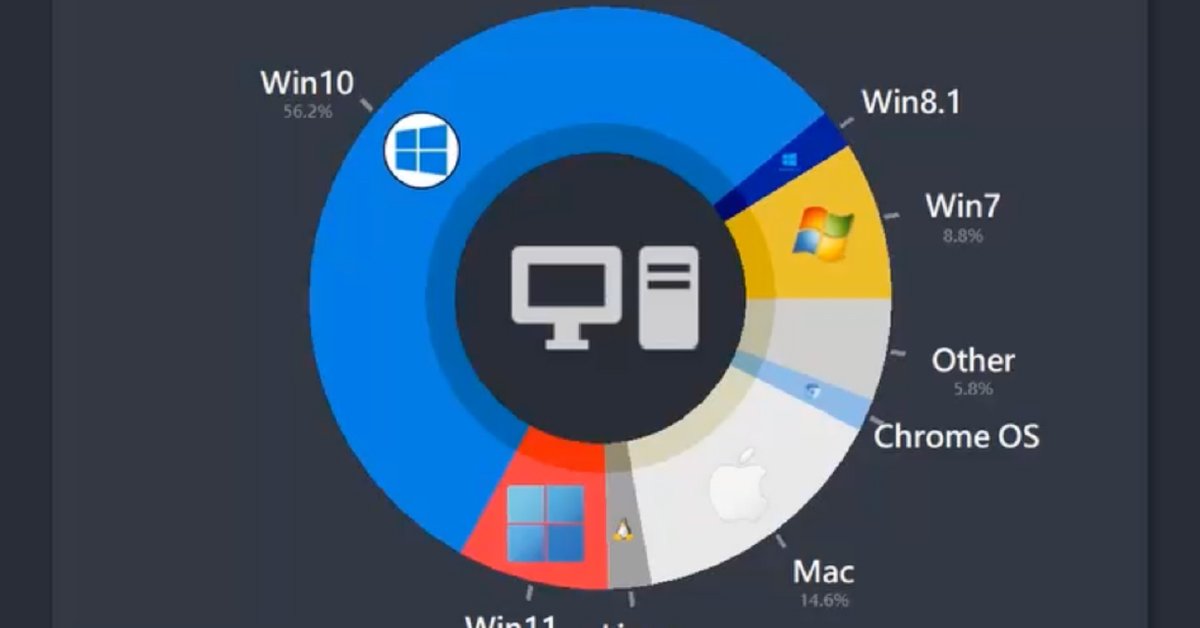
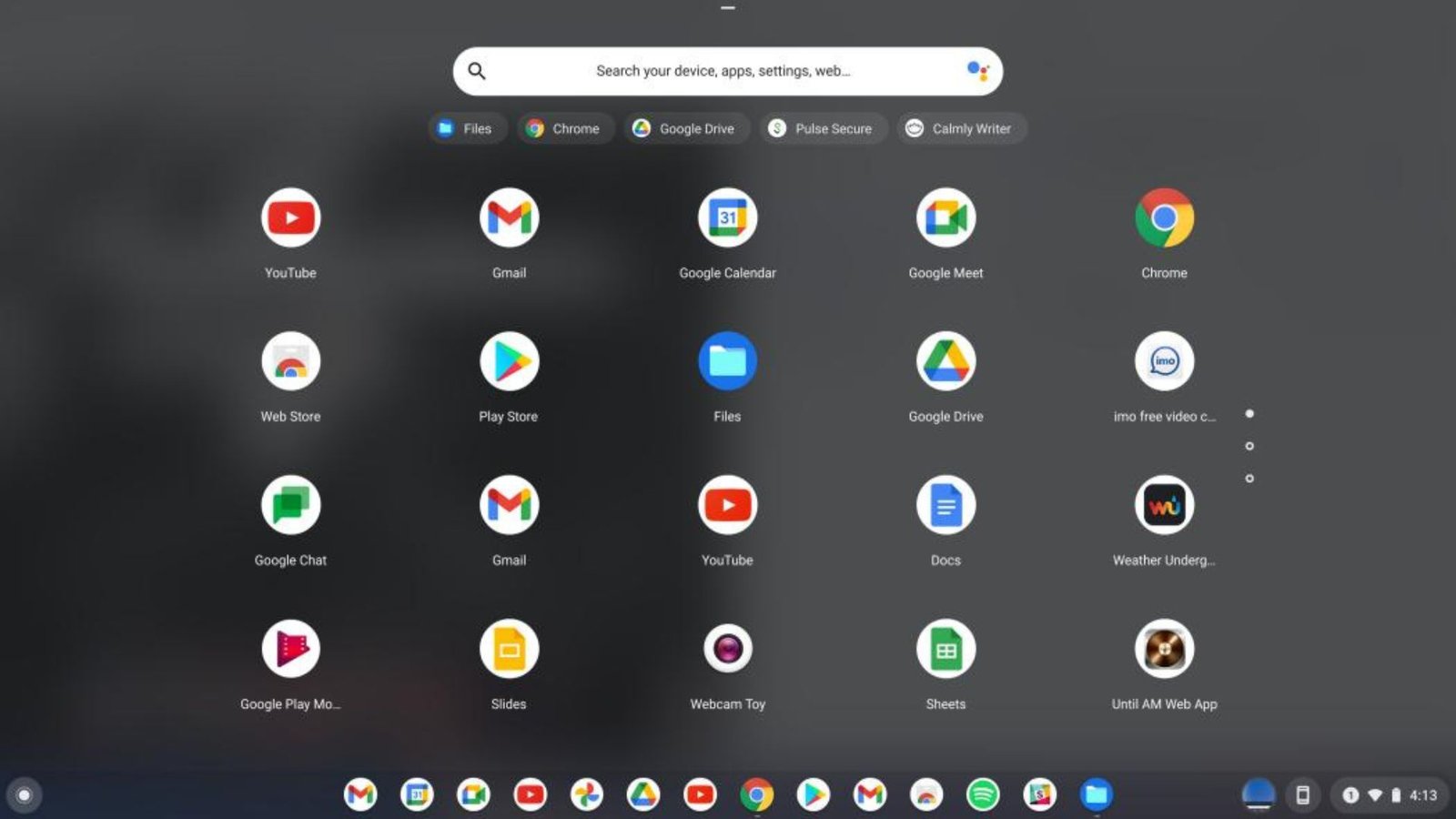
While Linux and Windows are among the most well-known operating systems, there are several other notable operating systems that play significant roles in various technology domains. Each of these operating systems has unique features and applications, catering to specific needs and environments. This article explores some of these notable operating systems, including Android, iOS, Unix, and Chrome OS, and highlights their key characteristics and use cases.

Notable Operating Systems

1. Android

Overview:

Android is a mobile operating system developed by Google, primarily designed for touchscreen devices such as smartphones and tablets. It is based on a modified version of the Linux kernel and includes a rich set of APIs and applications.

Key Features:

  • Open Source: Android’s core is open source, with the Android Open Source Project (AOSP) providing a foundation that device manufacturers and developers can customize. This openness contributes to the diversity of Android devices and applications.
  • Customizable Interface: Android allows extensive customization of its user interface, including home screens, widgets, and app icons. Users can tailor their devices to their preferences through various launchers and themes.
  • Google Services Integration: Android devices come with built-in Google services such as Google Play Store, Google Maps, and Google Drive. These services provide access to a wide range of applications, cloud storage, and productivity tools.
  • Wide Device Ecosystem: Android powers a vast array of devices from different manufacturers, including smartphones, tablets, wearables, and smart TVs. This extensive ecosystem offers users a broad selection of hardware and software options.

Use Cases:

Android is predominantly used in mobile devices and has become the leading operating system for smartphones and tablets worldwide. Its flexibility and wide adoption make it suitable for personal, professional, and enterprise applications.

2. iOS

Overview:

iOS is Apple’s proprietary operating system designed for its mobile devices, including iPhones, iPads, and iPods. Known for its smooth performance and user-friendly interface, iOS is tightly integrated with Apple’s hardware and ecosystem.

Key Features:

  • Intuitive Interface: iOS features a clean and intuitive user interface with a focus on simplicity and ease of use. The operating system supports gestures, multitasking, and app management that enhance the user experience.
  • App Store Ecosystem: The Apple App Store provides a curated selection of applications that meet Apple’s standards for quality and security. iOS apps are known for their seamless integration with the operating system and hardware.
  • Strong Security: iOS is designed with a strong focus on security and privacy. Features such as app sandboxing, frequent updates, and secure authentication mechanisms help protect user data and prevent unauthorized access.
  • Integration with Apple Ecosystem: iOS devices work seamlessly with other Apple products and services, including macOS, watchOS, and iCloud. Features like Handoff, Continuity, and iMessage enhance the integration across Apple’s ecosystem.

Use Cases:

iOS is used in Apple’s mobile devices, making it ideal for personal use, creative work, and professional applications. Its strong ecosystem and security features also make it popular in enterprise environments where device management and data protection are critical.

3. Unix

Overview:

Unix is a powerful and versatile operating system originally developed in the 1960s at AT&T’s Bell Labs. It has since evolved into various commercial and open-source versions, influencing many modern operating systems, including Linux and macOS.

Key Features:

  • Multiuser and Multitasking: Unix is designed to handle multiple users and processes simultaneously, making it suitable for multi-user environments and server applications.
  • Stability and Reliability: Unix is known for its stability and reliability, making it a popular choice for mission-critical systems and enterprise environments.
  • Modular Design: Unix follows a modular design philosophy, with small, specialized programs that can be combined to perform complex tasks. This design promotes flexibility and ease of maintenance.
  • Security and Permissions: Unix incorporates robust security features, including file permissions and user authentication, to protect system resources and data.

Use Cases:

Unix is widely used in server environments, scientific research, and high-performance computing. Its influence extends to modern operating systems, and its principles are foundational to many Unix-like systems, including Linux and macOS.

4. Chrome OS

Overview:

Chrome OS is a lightweight operating system developed by Google, designed primarily for Chromebooks and other devices. It is based on the Linux kernel and focuses on providing a fast, secure, and web-centric computing experience.
Key Features:

  • Web-Centric Design: Chrome OS emphasizes cloud-based computing and relies heavily on web applications and services. The operating system is optimized for use with the Google Chrome browser and integrates with Google’s suite of productivity tools.
  • Security and Updates: Chrome OS features automatic updates and built-in security features, including sandboxing, verified boot, and data encryption. These measures help protect users from malware and security threats.
  • Speed and Simplicity: Chrome OS is designed to boot quickly and provide a streamlined user experience. The operating system prioritizes simplicity and ease of use, making it suitable for users who primarily use web-based applications.
  • Android App Support: Recent versions of Chrome OS support running Android apps, expanding the range of available applications and enhancing the versatility of Chromebooks.

Use Cases:

Chrome OS is ideal for users who rely on web applications and cloud services. It is popular in educational environments, where its simplicity and security features make it a practical choice for students and teachers. It is also suitable for users who prefer a lightweight operating system with minimal maintenance.

Conclusion

The landscape of operating systems is diverse, with each system offering unique features and advantages tailored to specific use cases. Android and iOS dominate the mobile space, providing rich ecosystems and user experiences for smartphones and tablets. Unix, with its historical significance and influence, remains a cornerstone of server and high-performance computing environments. Chrome OS offers a streamlined and web-centric approach to computing, ideal for users who primarily interact with cloud-based applications. Understanding these operating systems’ characteristics and use cases helps users select the right system for their needs and preferences.

The kernel forms the core component of any operating system (OS). It acts as a bridge between the software and hardware of a computer, managing system resources and enabling communication between hardware and software components. When an application makes a request for a resource, such as memory or CPU time, the kernel determines how to allocate it effectively and securely.

An Introduction to Kernel Architecture in Operating Systems

Types of Kernel Architectures

Several types of kernel architectures exist, each with its own design philosophy and operational methodology. The most common architectures include monolithic kernels, microkernels, hybrid kernels, and exokernels. Each architecture has distinct advantages and disadvantages, influencing factors like performance, security, and complexity.

Monolithic Kernels

Monolithic kernels are characterized by their comprehensive approach, integrating a wide array of services within a single large binary. These services include device drivers, file system management, and system call handling. While this design can lead to better performance due to direct service access, it also introduces complexity and potential instability. Notable examples of operating systems using monolithic kernels include Linux and traditional UNIX.

Microkernels

Microkernels take a minimalist approach, implementing only the most essential functions, such as low-level address space management, thread management, and inter-process communication. Other services, like device drivers and file systems, run in user space. This separation enhances system stability and security since failures in user-space services do not directly affect the kernel. However, microkernels can experience performance overhead due to the increased context switching and communication between the kernel and user space. Examples of microkernel-based systems include QNX and the GNU Hurd.

Hybrid Kernels

Hybrid kernels combine elements of both monolithic and microkernel architectures. They aim to balance performance and modularity by running core services in the kernel space while maintaining other services in user space. This approach seeks to achieve the efficiency of monolithic kernels while retaining the stability and security benefits of microkernels. Modern operating systems like Windows and macOS utilize hybrid kernel architectures.

Exokernels

Exokernels represent a more experimental approach, focusing on minimalism and direct application control over hardware resources. The kernel designs provides basic abstractions, allowing applications to manage hardware directly. This design can lead to high performance and flexibility but requires applications to handle more complexity and responsibility for resource management. Exokernels are primarily used in research and specialized environments rather than mainstream operating systems.

Kernel Mode and User Mode

Operating systems utilize different modes of operation to enhance security and stability. Kernel mode, also known as supervisor mode, allows the kernel full access to system hardware and resources. User mode, on the other hand, restricts applications’ access to hardware and system functions, reducing the risk of system-wide crashes and security breaches. The kernel manages transitions between these modes, ensuring safe and controlled access to resources.

Kernel Security Mechanisms

Security remains a critical concern in kernel architecture design. Modern kernels implement various security mechanisms to protect the system from malicious activities and vulnerabilities. These mechanisms include access control lists (ACLs), mandatory access controls (MAC), secure boot processes, and regular security patches. By integrating robust security features, kernel architectures help safeguard the integrity and confidentiality of the operating system.

Conclusion

Kernel architecture serves as the foundation of any operating system, dictating its performance, security, and overall behavior. Understanding the different types of kernel architectures—monolithic, microkernels, hybrid, and exokernels—provides insight into the design decisions that impact system stability, efficiency, and functionality. As technology evolves, kernel architectures continue to adapt, striving to meet the growing demands for performance, security, and flexibility in modern computing environments.

Customizable operating systems offer flexibility and control over your computing experience. Whether you’re a developer, gamer, or enthusiast, these OS options allow extensive customization to suit various requirements.

1. Arch Linux

Arch Linux is renowned for its simplicity and DIY approach. It provides a minimal base that users can build upon, selecting only the components and software they need. The Arch User Repository (AUR) offers a vast collection of community-contributed packages for further customization.

Customizable Operating Systems

2. Ubuntu

Ubuntu is one of the most popular Linux distributions, known for its user-friendly interface and extensive customization options and it is one of the customizable operating systems. With variants like Ubuntu GNOME, Kubuntu (KDE Plasma), Xubuntu (XFCE), and more, you can choose the desktop environment that best suits your workflow.

3. Fedora

Fedora is a cutting-edge Linux distribution backed by Red Hat. It emphasizes innovation and features the latest software packages. Fedora Workstation allows users to customize their desktop environments and software stack according to their preferences.

4. Gentoo

Gentoo is a highly customizable Linux distribution known for its portage package management system. Users compile software from source code, enabling precise optimization for their hardware and specific requirements. Gentoo offers extensive control over system configuration.

5. openSUSE

openSUSE provides a stable and flexible platform with two main editions: Leap (stable, based on SUSE Linux Enterprise) and Tumbleweed (rolling release). It supports multiple desktop environments and includes tools like YaST for easy system configuration and customization.

6. Debian

Debian is a versatile Linux distribution favoured for its stability and extensive repository of software packages. It offers several flavors, including Debian GNOME, Debian KDE Plasma, and Debian XFCE, allowing users to choose their preferred desktop environment.

7. Void Linux

Void Linux is a lightweight and independently developed distribution known for its simplicity and flexibility. It uses its own package manager (XBPS) and allows users to customize every aspect of their system from the ground up.

8. Manjaro

Manjaro is based on Arch Linux and aims to provide a user-friendly experience with the power of Arch. It offers multiple desktop environments and window managers, making it easy for users to customize their system while benefiting from Arch’s rolling release model.

9. Solus

Solus is an independently developed Linux distribution known for its focus on desktop usability and performance. It features its desktop environment, Budgie, and supports other environments like GNOME and MATE. Solus offers curated software selections and easy customization options.

10. FreeBSD

FreeBSD is a Unix-like operating system known for its reliability, performance, and advanced networking capabilities. It’s highly customizable and suitable for server environments but also offers desktop options like TrueOS (formerly PC-BSD) for users seeking a FreeBSD-based desktop OS.

Conclusion

Choosing a customizable operating system allows you to tailor your computing experience to fit your exact needs. Whether you prioritize performance, stability, or specific software environments, these top 10 options provide the flexibility and control you seek.

Choosing the right operating system (OS) for your business is a critical decision that can significantly impact your organization’s efficiency, security, and overall productivity. The operating system forms the backbone of your IT infrastructure, influencing how software applications run, how data is managed, and how systems are secured. In this guide, we’ll explore the key requirements for selecting a business operating system and the factors to consider to ensure it aligns with your business needs.

1. Performance and Scalability

**1.1. System Performance

  • Resource Management: The OS should efficiently manage system resources such as CPU, memory, and storage to ensure smooth and responsive performance. Look for an OS that can handle the demands of your business applications and workloads.
  • Speed and Efficiency: Consider the OS’s impact on the speed and efficiency of operations. An OS with high performance can enhance productivity and reduce downtime.

**1.2. Scalability

  • Growth Adaptability: The OS should support scalability to accommodate the growth of your business. This includes the ability to handle increased numbers of users, devices, and data.
  • Modular Design: Choose an OS that allows for modular expansion and can integrate with additional services or components as your business needs evolve.
Business Operating System Requirements

2. Security and Compliance

**2.1. Data Protection

  • Encryption: The OS should support encryption features to protect sensitive data both at rest and in transit. Look for built-in encryption tools or support for third-party encryption solutions.
  • Access Controls: Implement robust access controls to manage user permissions and prevent unauthorized access to critical systems and data.

**2.2. Compliance

  • Regulatory Compliance: Ensure that the OS can help meet industry-specific regulatory requirements and standards (e.g., GDPR, HIPAA). Compliance features and certifications can aid in maintaining legal and regulatory adherence.
  • Audit and Monitoring: The OS should offer auditing and monitoring capabilities to track system activities and detect potential security threats or compliance issues.

3. Compatibility and Integration

**3.1. Software Compatibility

  • Application Support: The OS should be compatible with the business applications and software tools your organization uses. This includes productivity suites, ERP systems, and custom applications.
  • Legacy Systems: Consider the OS’s ability to work with legacy systems or older software that may still be critical to your operations.

**3.2. Hardware Compatibility

  • Device Support: Ensure that the OS supports the hardware devices used in your business, such as printers, scanners, and specialized equipment.
  • Driver Availability: Check for the availability of drivers and support for the hardware components you rely on.

**3.3. Integration Capabilities

  • Networking: The OS should facilitate seamless integration with your network infrastructure, including support for network protocols, file sharing, and communication services.
  • Cloud Services: If your business uses cloud services, ensure that the OS can integrate with cloud platforms and manage cloud-based resources effectively.

4. Cost and Licensing

**4.1. Cost Considerations

  • Initial Costs: Evaluate the upfront costs associated with acquiring and deploying the OS, including licensing fees or subscription costs.
  • Total Cost of Ownership: Consider the total cost of ownership, including maintenance, support, and upgrade costs. Open-source OSes may offer cost advantages, but consider the potential need for additional support or customization.

**4.2. Licensing and Support

  • Licensing Models: Understand the licensing models and terms for the OS, including any restrictions or requirements for use. Look for flexible licensing options that align with your business needs.
  • Support Options: Assess the availability and quality of support services, including technical support, updates, and patches. A reliable support system is essential for resolving issues and maintaining system stability.

5. User Experience and Usability

**5.1. Ease of Use

  • User Interface: The OS should offer an intuitive and user-friendly interface to enhance productivity and reduce the learning curve for employees.
  • Training and Documentation: Ensure that training resources and documentation are available to help users become proficient with the OS.

**5.2. Customization

  • Configuration Options: The OS should allow for customization to meet specific business needs and preferences. This includes configuring system settings, user interfaces, and application integrations.
  • Automation: Look for automation features that can streamline repetitive tasks and improve efficiency.

6. Reliability and Support

**6.1. System Stability

  • Reliability: Choose an OS known for its stability and reliability. An OS with a track record of minimal crashes and system failures contributes to consistent business operations.
  • Recovery and Backup: The OS should support reliable backup and recovery solutions to protect against data loss and ensure business continuity.

**6.2. Vendor Support

  • Updates and Patches: Ensure that the OS vendor provides regular updates and patches to address security vulnerabilities and improve system performance.
  • Community and Vendor Support: Consider the availability of community forums, knowledge bases, and vendor support channels for troubleshooting and assistance.

7. Examples of Popular Business Operating Systems

**7.1. Windows Server

  • Features: Windows Server offers comprehensive features for enterprise environments, including Active Directory, file and print services, and virtualization support.
  • Use Cases: Suitable for businesses that require robust networking capabilities, extensive application support, and integration with Microsoft products.

**7.2. Linux

  • Features: Linux provides flexibility, security, and cost-effectiveness with a range of distributions tailored for different business needs. It supports a variety of server and desktop applications.
  • Use Cases: Ideal for businesses seeking open-source solutions, cost savings, and customization options.

**7.3. macOS

  • Features: macOS offers a user-friendly interface and seamless integration with Apple’s ecosystem. It is known for its stability and security features.
  • Use Cases: Best for businesses that use Apple hardware and need a robust platform for creative and design-oriented applications.

**7.4. Unix

  • Features: Unix-based systems provide high stability, scalability, and security. They are commonly used in server and enterprise environments.
  • Use Cases: Suitable for businesses that require a reliable and scalable platform for critical applications and large-scale deployments.

Conclusion

Selecting the right operating system for your business involves evaluating various factors, including performance, security, compatibility, and cost. By understanding your organization’s specific needs and considering the key requirements outlined above, you can make an informed decision and choose an OS that supports your business objectives effectively. A well-chosen operating system can enhance productivity, improve security, and contribute to the overall success of your business operations.

Linux, as an open-source operating system, offers a wide range of applications and benefits across different sectors. Its versatility, stability, and community-driven nature make it suitable for various use cases, from personal computing to enterprise solutions. Additionally, the strong community support surrounding Linux enhances its usability and development. This article explores the diverse use cases of Linux and the role of community support in its ecosystem.

Community Support
Community Support

1. Use Cases of Linux

Personal Computing:

Linux provides a robust and customizable environment for personal computing. Popular distributions such as Ubuntu, Linux Mint, and Fedora offer user-friendly interfaces and extensive software repositories, making them accessible for everyday tasks like web browsing, document editing, and multimedia consumption. Users can tailor their Linux setup to their preferences, choosing from a variety of desktop environments and applications.

Development and Programming:

Linux is a favored platform for developers and programmers due to its flexibility and powerful tools. It supports a wide range of programming languages, development environments, and version control systems. Tools like GCC (GNU Compiler Collection), Python, and Node.js are readily available. The command-line interface in Linux also provides powerful scripting and automation capabilities, making it an ideal environment for software development and system administration.

Server Environments:

Linux dominates the server market, powering a significant portion of web servers, databases, and enterprise applications. Distributions such as CentOS, Ubuntu Server, and Debian are commonly used in server environments due to their stability, security, and performance. Linux servers are employed for various purposes, including web hosting, email servers, file servers, and application servers. The open-source nature of Linux allows for extensive customization and optimization based on specific requirements.

Cloud Computing and Virtualization:

Linux plays a critical role in cloud computing and virtualization. Major cloud service providers like Amazon Web Services (AWS), Google Cloud Platform (GCP), and Microsoft Azure offer Linux-based virtual machines and services. Linux’s lightweight nature and flexibility make it an ideal choice for cloud environments, where resource efficiency and scalability are crucial. Virtualization technologies such as Docker and Kubernetes also rely heavily on Linux for containerization and orchestration.

Embedded Systems:

Linux is widely used in embedded systems and Internet of Things (IoT) devices. Its open-source nature allows developers to create customized Linux distributions tailored for specific hardware and use cases. Linux-based embedded systems can be found in various devices, including routers, smart TVs, automotive systems, and industrial control systems. The flexibility and modularity of Linux make it suitable for a wide range of embedded applications.

Education and Research:

Linux is commonly used in educational institutions and research environments. Its open-source nature provides students and researchers with access to powerful tools and resources without incurring licensing costs. Linux-based systems are used for teaching programming, conducting research, and running simulations. The availability of scientific and mathematical software packages further supports its use in academic and research settings.

2. Community Support of Linux

Forums and Mailing Lists:

The Linux community is known for its active and supportive forums and mailing lists. Platforms like Stack Exchange, Reddit, and distribution-specific forums provide users with a space to seek help, share knowledge, and discuss issues. Mailing lists for specific distributions and projects facilitate communication between developers and users, enabling collaborative problem-solving and feedback.

Documentation and Wikis:

Comprehensive documentation and wikis are crucial aspects of community support for Linux. Official documentation, such as the Ubuntu Wiki, Fedora Documentation, and the Arch Wiki, offer detailed guides, troubleshooting tips, and best practices. These resources help users understand and effectively use Linux systems, providing valuable information on installation, configuration, and advanced usage.

Community-Driven Development:

The Linux development process is highly community-driven, with contributions from developers and users worldwide. The open-source model allows anyone to participate in the development, review, and improvement of Linux. Community contributions include code submissions, bug reports, feature requests, and documentation updates. This collaborative approach accelerates development and ensures that Linux evolves to meet the needs of its users.

Local User Groups and Meetups:

Local Linux User Groups (LUGs) and meetups play a significant role in fostering community support. These groups organize events, workshops, and presentations to promote Linux and open-source software. They provide opportunities for users to connect, learn, and share experiences in a social setting. LUGs also serve as a platform for newcomers to seek guidance and get involved in the Linux community.

Online Resources and Tutorials:

The Linux community provides a wealth of online resources and tutorials. Websites, blogs, and YouTube channels offer step-by-step guides, video tutorials, and tips for users at all skill levels. These resources help users learn how to use Linux, troubleshoot issues, and explore advanced features. The abundance of online content reflects the community’s commitment to education and support.

Contribution Opportunities:

The open-source nature of Linux invites users to contribute in various ways. Whether through coding, testing, documentation, or community support, there are numerous opportunities to get involved. Contributing to Linux projects not only helps improve the software but also strengthens the community. Newcomers can start by participating in forums, reporting bugs, or contributing to documentation.

Conclusion

Linux offers a wide range of use cases, from personal computing and development to server environments and embedded systems. Its flexibility, stability, and open-source nature make it a versatile and powerful operating system. Community support is a cornerstone of the Linux ecosystem, providing users with resources, assistance, and opportunities for collaboration. The strong and active Linux community ensures that users have access to the support they need and can contribute to the ongoing development and improvement of Linux.

Operating systems (OS) play a crucial role in educational environments, providing the foundation for computers and devices used in schools and universities. The choice of OS can significantly impact teaching, learning, and administrative processes. In this guide, we’ll explore the benefits of using operating systems in educational settings, key considerations for selecting an OS, and best practices for managing OS in schools and universities.

1. Benefits of Using Operating Systems in Education

**1.1. Enhanced Learning Experience

  • Interactive Learning Tools: Modern operating systems support a range of educational software and interactive tools that can enhance the learning experience. These tools include multimedia applications, educational games, and virtual simulations.
  • Collaboration and Communication: OSes with integrated communication and collaboration tools (e.g., email, chat, video conferencing) facilitate teamwork and communication among students and educators.

**1.2. Accessibility and Inclusivity

  • Assistive Technologies: Many operating systems offer built-in assistive technologies and accessibility features (e.g., screen readers, magnifiers, voice recognition) that support students with disabilities.
  • Multi-Language Support: OSes with multi-language support make it easier for students from diverse linguistic backgrounds to access educational resources and participate in classroom activities.

**1.3. Security and Management

  • User Management: Educational OSes often include features for managing user accounts and permissions, ensuring that students and staff have appropriate access to resources and tools.
  • Data Protection: Features such as user authentication, encryption, and backup tools help protect sensitive educational data and maintain privacy.

**1.4. Cost-Effectiveness

  • Open Source Options: Many open-source operating systems are available for free, reducing the cost of acquiring and maintaining software licenses for educational institutions.
  • Efficient Resource Utilization: Some OSes are designed to run efficiently on older or less powerful hardware, extending the life of existing computer equipment.

2. Key Considerations for Selecting an OS

**2.1. Educational Needs

  • Curriculum Requirements: Consider the specific needs of the curriculum and the types of educational software and tools that will be used. Choose an OS that supports these requirements effectively.
  • Compatibility: Ensure that the OS is compatible with existing educational applications and resources. This includes compatibility with specialized software and hardware used in the classroom.

**2.2. Ease of Use

  • User-Friendly Interface: Select an OS with an intuitive and user-friendly interface to minimize the learning curve for students and educators. A familiar interface can enhance productivity and reduce frustration.
  • Support and Training: Consider the availability of support resources and training materials for the chosen OS. Effective training can help educators and students become proficient with the system.

**2.3. Scalability and Flexibility

  • Future Growth: Choose an OS that can scale with the institution’s growth and evolving technology needs. This includes support for additional users, devices, and software.
  • Customization: Look for an OS that offers customization options to tailor the system to the specific needs of the educational environment.

**2.4. Security and Compliance

  • Data Security: Ensure that the OS provides robust security features to protect student and institutional data. Compliance with data protection regulations (e.g., GDPR, FERPA) is essential.
  • Regular Updates: Choose an OS that receives regular security updates and patches to address vulnerabilities and protect against threats.

3. Best Practices for Managing OS in Educational Environments

**3.1. Centralized Management

  • Network Management Tools: Use centralized network management tools to monitor and manage OS installations across multiple devices. This can streamline administrative tasks and ensure consistency.
  • User Account Management: Implement tools for managing user accounts, permissions, and access controls. This helps maintain security and ensures that users have appropriate access to resources.
Using OS in Educational Environments

**3.2. Regular Updates and Maintenance

  • Patch Management: Establish a routine for applying updates and patches to keep the OS and software up to date. This helps address security vulnerabilities and improve system performance.
  • System Backups: Regularly back up system data and configurations to prevent data loss and ensure quick recovery in case of system failures.

**3.3. Training and Support

  • Professional Development: Provide training and professional development opportunities for educators and IT staff to familiarize them with the OS and its features.
  • Technical Support: Ensure access to technical support resources for troubleshooting and resolving issues related to the OS.

**3.4. Student and Staff Engagement

  • Feedback Mechanisms: Implement mechanisms for collecting feedback from students and staff on their experiences with the OS. Use this feedback to make informed decisions about OS selection and improvements.
  • User Empowerment: Encourage students and staff to explore and utilize the features of the OS. Provide resources and support to help them maximize the benefits of the system.

4. Examples of Popular OSes for Educational Environments

**4.1. Windows

  • Features: Widely used in educational settings, Windows offers a broad range of educational software compatibility, user-friendly interfaces, and extensive support resources.
  • Use Cases: Suitable for institutions that require compatibility with mainstream educational applications and administrative tools.

**4.2. macOS

  • Features: Known for its intuitive design and integration with Apple’s ecosystem, macOS is popular in creative and technical education fields.
  • Use Cases: Ideal for institutions that emphasize multimedia, design, and technology programs.

**4.3. Linux

  • Features: Open-source and highly customizable, Linux offers cost-effective solutions and robust security features.
  • Use Cases: A good choice for institutions looking to reduce software costs, leverage open-source tools, or teach students about operating system development.

**4.4. Chrome OS

  • Features: Cloud-based and designed for ease of use, Chrome OS is optimized for web-based applications and collaboration.
  • Use Cases: Suitable for schools that focus on cloud computing, collaboration tools, and web-based learning resources.

Conclusion

Using operating systems in educational environments provides numerous benefits, including cost-effectiveness, flexibility, security, and enhanced learning experiences. By carefully selecting and managing the right OS, educational institutions can support diverse teaching and learning needs while ensuring a secure and efficient computing environment. Adopting best practices for OS management and staying informed about the latest developments in educational technology will help institutions maximize the value of their OS investments.

Choosing  operating system (OS) begins with understanding your primary use cases. Consider whether you need the OS for gaming, programming, multimedia editing, or general office tasks. Different operating systems excel in various areas. For instance, Windows is known for its gaming and broad software compatibility, macOS is favored for multimedia editing and a sleek user interface, while Linux is highly regarded for programming, security, and customization.

How to Choose the Right Operating System for Your Needs

Evaluating Software Compatibility

Software compatibility is a crucial factor in selecting an OS. Ensure that the OS you choose supports the applications you use frequently. Windows boasts the most extensive software library, including many popular commercial applications. macOS also supports a wide range of professional software, particularly in creative fields. Linux, while having a smaller library of native applications, offers many powerful open-source alternatives and supports various programming languages and development tools.

Considering Hardware Requirements

Hardware compatibility and performance are essential when choosing an OS. Some operating systems require more robust hardware specifications to run smoothly. Windows and macOS typically need more powerful hardware compared to most Linux distributions. However, certain lightweight Linux distributions can run efficiently on older or less powerful hardware, making them a good choice for repurposing older machines or using on lower-spec devices.

Evaluating Security Features

Security is a paramount consideration in today’s digital landscape. Linux is often praised for its security due to its open-source nature, which allows for continuous community scrutiny and quick patching of vulnerabilities. macOS also provides robust security features, including built-in encryption and a secure boot process. Windows has significantly improved its security features over the years, offering built-in antivirus software and advanced threat protection, though it remains a common target for malware due to its widespread use.

User Experience and Interface

The user experience and interface design can significantly influence your choice of an OS. Windows provides a familiar interface for many users and offers extensive customization options. macOS is known for its sleek, intuitive design and seamless integration with other Apple products. Linux offers a wide variety of desktop environments, allowing users to customize their experience extensively, though it may require a steeper learning curve for those unfamiliar with it.

Cost Considerations

Cost is another important factor. Windows and macOS generally come with the cost of the hardware they run on, with macOS being exclusive to Apple’s hardware. Linux, on the other hand, is free and open-source, which can be a significant advantage for budget-conscious users or those wanting to avoid software licensing fees.

Community and Support

Community and support availability can make a big difference, especially for troubleshooting and learning. Windows has extensive official support and a large user community. macOS users benefit from Apple’s robust customer support and user forums. Linux has a passionate and knowledgeable community, offering extensive online resources, forums, and documentation, though official support may vary depending on the distribution.

Future Needs and Scalability

Consider your future needs and how your choice of OS will scale with them. If you foresee needing advanced features, additional software, or enhanced security in the future, choose an OS that can grow with you. Windows and macOS provide regular updates and new features, while Linux distributions offer frequent updates and the flexibility to scale and adapt to new requirements.

Conclusion

Choosing the right operating system depends on a careful assessment of your needs, software compatibility, hardware requirements, security, user experience, cost, support, and future scalability. By weighing these factors, you can make an informed decision that aligns with your current and future needs, ensuring a smooth and efficient computing experience.

Ensuring your operating system is up-to-date with the latest operating system patches is crucial for security and performance. This guide will walk you through the steps to check for and install patches effectively.

Why Installing Operating System Patches Is Important

Installing operating system patches is vital to protect your computer from security vulnerabilities and ensure it operates smoothly. Patches often include bug fixes, performance improvements, and updates to enhance compatibility with software and hardware.

How to Check for and Install Operating System Patches

How to Check for Operating System Patches

To check for operating system patches, follow these steps depending on your operating system:

Looking for Patches on Windows

  1. Open Settings: Click on the Start menu, then go to Settings > Update & Security.
  2. Check for Updates: Click on “Check for updates” to see if there are any available operating system patches. Windows will automatically download and install updates.

Checking for Patches on macOS

  1. Open System Preferences: Click on the Apple menu, then select System Preferences > Software Update.
  2. Check for Updates: macOS will automatically check for updates. Click “Update Now” if updates are available to install the latest operating system patches.

Checking for Patches on Linux (Ubuntu Example)

  1. Open Software Updater: Use the Dash or press Super key (Windows key) to open the Activities overview. Type “Software Updater” and click on the icon.
  2. Install Updates: Click “Install Now” to install available updates, including operating system patches.

Understanding Types of Operating System Patches

Operating system patches can be categorized into several types:

Security Patches

Security patches are critical updates that fix vulnerabilities that could be exploited by attackers. It’s essential to install these operating system patches promptly to protect your system from cyber threats.

Bug Fixes

Bug fix patches address issues or errors in the operating system, improving stability and performance. Installing these patches ensures a smoother user experience and fewer crashes.

Feature Updates

Feature updates introduce new functionalities or improvements to existing features. These operating system patches often enhance usability and support for new technologies.

Best Practices for Installing Operating System Patches

Follow these best practices to install operating system patches safely and effectively:

  1. Back Up Your Data: Before installing patches, back up your important files to prevent data loss in case of unforeseen issues.
  2. Schedule Updates: Set aside time for updates during off-peak hours to minimize disruptions to your work.
  3. Read Release Notes: Review release notes accompanying updates to understand changes and potential impacts on your system.
  4. Install Critical Patches First: Prioritize security patches and critical updates to address vulnerabilities promptly.
  5. Restart Your Computer: Some updates may require a restart to take effect. Restart your computer as needed to complete the installation of operating system patches.

Common Issues When Installing Operating System Patches

Be aware of common issues that may occur when installing operating system patches:

  • Installation Failures: Updates may fail due to network issues or conflicts with existing software.
  • Performance Issues: In rare cases, updates may cause performance degradation or compatibility issues with certain applications.
  • Post-Update Bugs: Some updates may introduce new bugs. Monitor your system after updates and report any issues to the vendor.

Automating Patch Management

Consider using automated tools or services for operating system patches management. These tools can streamline the process, ensuring updates are applied promptly across multiple devices or servers.

Conclusion

In conclusion, staying proactive with operating system patches is essential for maintaining the security and performance of your computer. By following the steps outlined in this guide and adopting best practices, you can ensure your operating system is always up-to-date and protected against potential threats.

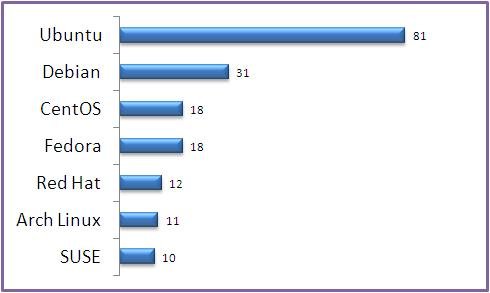
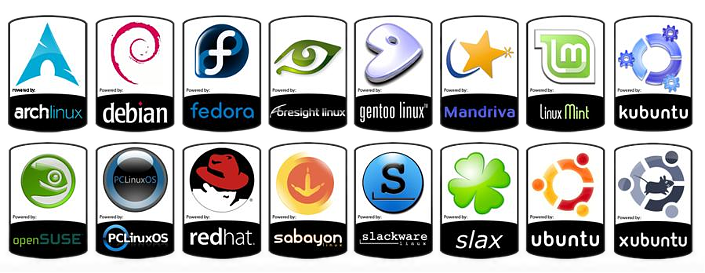
Linux distributions, or distros, are versions of the Linux operating system tailored for different needs and preferences. Each distribution builds on the core Linux kernel but varies in its choice of software, package management, user interface, and overall goals. This diversity allows users to select a distribution that best fits their requirements, whether for personal use, enterprise environments, or specialized tasks. This article provides an overview of some of the most popular Linux distributions, including Ubuntu, Fedora, and CentOS, highlighting their unique features and use cases.

1. Ubuntu

Overview:

Ubuntu is one of the most popular and user-friendly Linux distributions. Developed and maintained by Canonical Ltd., Ubuntu aims to provide an easy-to-use and reliable operating system for both new and experienced users. It is based on Debian and is known for its strong community support and regular updates.

Key Features:

  • User-Friendly Interface: Ubuntu features the GNOME desktop environment by default, offering a clean and intuitive interface that is accessible to new users. It also provides alternative flavors with different desktop environments, such as Kubuntu (KDE), Xubuntu (Xfce), and Lubuntu (LXQt).
  • Regular Releases: Ubuntu follows a predictable release schedule with Long-Term Support (LTS) versions released every two years and interim releases every six months. LTS versions receive updates and support for five years, making them a stable choice for production environments.
  • Extensive Software Repositories: Ubuntu offers access to a vast repository of software through its package management system, APT. Users can easily install and update applications using the Ubuntu Software Center or command-line tools.
  • Strong Community and Documentation: Ubuntu has a large and active community that provides extensive documentation, forums, and support. This makes it easier for users to find help and resources when needed.

Use Cases:

Ubuntu is suitable for a wide range of applications, including personal desktops, laptops, and servers. Its ease of use and extensive support make it a popular choice for new Linux users and developers looking for a reliable and versatile operating system.

2. Fedora

Overview:

Fedora is a cutting-edge Linux distribution sponsored by Red Hat and developed by the Fedora Project community. It focuses on integrating the latest technologies and innovations while maintaining stability and reliability. Fedora is known for its commitment to free and open-source software and its close relationship with Red Hat Enterprise Linux (RHEL).

Key Features:

  • Latest Technologies: Fedora is known for incorporating the latest advancements in the Linux ecosystem. It serves as a testing ground for new technologies and features that may eventually make their way into RHEL and other distributions.
  • Modular Design: Fedora offers a modular approach to software management, allowing users to choose different versions of packages and components based on their needs. This modularity provides flexibility and control over the system’s software stack.
  • GNOME Desktop Environment: Fedora Workstation, the desktop variant of Fedora, uses the GNOME desktop environment by default, providing a modern and streamlined user interface. Fedora also offers spins with other desktop environments, such as KDE, Xfce, and LXQt.
  • Focus on Security: Fedora emphasizes security and privacy, with features like SELinux (Security-Enhanced Linux) enabled by default and regular updates to address vulnerabilities.

Use Cases:

Fedora is well-suited for developers, technology enthusiasts, and users who want to experience the latest features in the Linux world. It is also a good choice for those who contribute to open-source projects and want to work with cutting-edge software.

3. CentOS

Overview:

CentOS (Community ENTerprise Operating System) is a Linux distribution designed to provide a free and open-source alternative to Red Hat Enterprise Linux (RHEL). It is built from RHEL’s source code, offering a similar enterprise-level environment without the cost associated with commercial support.


Ke

Linux Distributions
Linux Distributions

y Features:

  • RHEL Compatibility: CentOS aims to provide a binary-compatible version of RHEL, meaning it shares the same software and functionality but without the official Red Hat support and subscription. This makes it a popular choice for users who need an enterprise-grade operating system at no cost.
  • Stability and Reliability: CentOS is known for its stability and reliability, with a focus on long-term support and minimal changes to ensure a consistent and secure environment. It follows the same release cycle as RHEL, with updates and security patches released in alignment with RHEL’s schedule.
  • Enterprise-Grade Features: CentOS includes features and tools designed for enterprise environments, such as robust security, virtualization support, and advanced system management capabilities. It is commonly used in server and data center environments.
  • Community Support: Although CentOS does not offer commercial support, it has a strong community that provides assistance, documentation, and resources. Users can access forums, mailing lists, and other community-driven support channels.

Use Cases:

CentOS is ideal for server environments, data centers, and enterprises looking for a cost-effective alternative to RHEL. It is also used by organizations and developers who need a stable and reliable operating system for production environments.

4. Other Notable Linux Distributions

Debian:

Debian is a versatile and stable distribution known for its extensive software repositories and strong community support. It serves as the foundation for many other distributions, including Ubuntu.

Arch Linux:

Arch Linux is a rolling-release distribution known for its simplicity and customization options. It follows a “keep it simple” philosophy, allowing users to build their system from the ground up.

Linux Mint:

Linux Mint is designed to be a user-friendly and comfortable alternative to Ubuntu, featuring a traditional desktop environment and a focus on ease of use.

Conclusion

Linux distributions offer a wide range of options tailored to different needs and preferences. Ubuntu, Fedora, and CentOS each bring unique features and benefits to the table, catering to various user requirements from personal desktops to enterprise servers. By understanding the key features and use cases of these distributions, users can select the one that best fits their needs and enjoy the benefits of Linux’s open-source ecosystem.