Operating systems (OS) significantly influence gaming performance, dictating how games run and how hardware components communicate. Whether you’re using Windows, macOS, or Linux, the OS manages system resources, including CPU, GPU, and RAM, affecting game performance and user experience. Understanding these impacts can help gamers optimize their setups and choose the best OS for their needs.

The Impact of Operating Systems on Gaming Performance

Windows: The Gaming Powerhouse

Windows has long been the preferred choice for gamers due to its extensive support for a wide range of games and hardware. With DirectX, Windows offers a high-performance API specifically designed for gaming, ensuring smoother graphics and better overall performance. Most game developers prioritize Windows, resulting in better optimization and more frequent updates. This OS also supports a broad range of gaming peripherals and software, enhancing the overall gaming experience.

macOS: Aesthetic and Functional

While not traditionally associated with gaming, macOS has made significant strides in recent years. The Metal API, introduced by Apple, offers a performance boost for games and graphics-intensive applications. However, the game library for macOS is more limited compared to Windows. Despite this, macOS excels in providing a stable and visually appealing user experience. For gamers who prefer occasional gaming and value aesthetics and functionality, macOS can be a suitable choice.

Linux: The Open-Source Contender

Linux offers a unique experience for gamers, especially those who prefer open-source software. With tools like Steam Proton and Wine, Linux users can play many Windows games. While not all games are natively supported, the community-driven nature of Linux means continuous improvements and support for more titles. Linux also provides excellent performance optimization opportunities, allowing advanced users to tweak their systems for better gaming performance.

Influence of Drivers and APIs

Drivers and APIs play a crucial role in gaming performance. Windows benefits from extensive driver support from hardware manufacturers, ensuring optimal performance and compatibility. DirectX on Windows provides a robust framework for game development, enhancing performance. macOS uses Metal for improved graphics performance, while Linux relies on Vulkan and OpenGL. Each OS’s support for these drivers and APIs can significantly impact gaming performance.

Game Optimization and Compatibility

Game optimization varies across operating systems. Developers often optimize games for Windows first due to its dominant market share. This results in better performance and fewer bugs on Windows. macOS and Linux, while improving, still lag in game optimization and compatibility. However, popular games and major titles are increasingly becoming available on these platforms, thanks to advancements in compatibility tools and APIs.

System Resource Management

Effective management of system resources is essential for gaming. Windows provides extensive customization options for managing CPU and GPU resources, allowing gamers to prioritize gaming performance. macOS offers a streamlined experience with efficient resource management, though with fewer customization options. Linux, with its open-source nature, allows advanced users to fine-tune resource allocation, potentially leading to superior performance if configured correctly.

Impact on Hardware Performance

The operating system influences how well hardware components perform. Windows, with its broad driver support and optimization, maximizes hardware performance, especially with high-end gaming rigs. macOS, designed for Apple’s hardware, offers a seamless experience but may not fully utilize third-party gaming hardware. Linux, though requiring more setup, can deliver excellent performance with the right configurations, especially on gaming-optimized distributions.

Future Trends and Developments

The future of operating systems in gaming looks promising, with ongoing advancements aimed at improving performance and compatibility. Windows continues to evolve with enhancements in DirectX and game mode features. Apple is investing in gaming performance with macOS updates and the Metal API. Linux, driven by its community, is seeing continuous improvements in game support and performance optimization. These trends suggest a more competitive and diverse gaming landscape across all operating systems.

Conclusion

Operating systems play a critical role in gaming performance, influencing everything from game compatibility to hardware utilization. Windows remains the dominant platform for gamers, offering extensive support and optimization. macOS provides a stable and visually appealing experience, suitable for casual gamers. Linux, with its open-source nature, offers flexibility and performance optimization opportunities. Understanding the impact of each OS can help gamers make informed decisions and optimize their gaming setups for the best possible experience.

As technology continues to advance, operating system (OS) architectures are evolving to meet the demands of modern computing environments. In 2024, new OS architectures are significantly influencing system performance, optimizing efficiency, and enhancing user experiences. This blog post explores the impact of these innovative OS designs on performance and highlights key trends shaping the future of operating systems.

1. Modular OS Architectures

**1.1. Microkernel Design

  • Reduced Overhead: The microkernel architecture minimizes the core functions of the OS, moving many services to user space. This reduction in kernel complexity leads to lower overhead and improved system performance.
  • Enhanced Stability: By isolating critical functions from the kernel, microkernel designs enhance system stability and security. Faults or crashes in user-space services have less impact on the core OS, leading to more reliable performance.

**1.2. Modular Components

The Impact of New OS Architectures on Performance in 2024
  • Customizable Environments: Modern OSes are adopting modular designs that allow users to customize and optimize their environments by adding or removing components. This flexibility enables users to tailor the OS to their specific needs, improving performance by reducing unnecessary services.
  • Efficient Resource Management: Modular architectures enable efficient resource management by loading only the necessary components. This reduces resource consumption and enhances overall system performance.

2. High-Performance Computing (HPC) Optimizations

**2.1. Scalable Architectures

  • Parallel Processing: New OS architectures are designed to support parallel processing, allowing multiple tasks to be executed simultaneously. This scalability is crucial for high-performance computing environments, where large-scale data processing and complex calculations are common.
  • Optimized Scheduling: Advanced scheduling algorithms in HPC-oriented OSes ensure that computational resources are allocated efficiently, reducing latency and improving throughput.

**2.2. Low-Latency Performance

  • Real-Time Processing: OSes are incorporating real-time processing capabilities to handle time-sensitive tasks with minimal delay. This is essential for applications requiring low-latency performance, such as financial trading platforms and industrial control systems.
  • Enhanced I/O Performance: Innovations in I/O management and buffering techniques contribute to reduced latency and improved performance for data-intensive applications.

3. Cloud-Native and Distributed OS Architectures

**3.1. Containerization and Orchestration

  • Efficient Deployment: Cloud-native OS architectures support containerization and orchestration technologies, such as Docker and Kubernetes. These technologies enable efficient deployment, scaling, and management of applications in cloud environments, enhancing performance through optimized resource utilization.
  • Dynamic Scaling: Containerized environments allow for dynamic scaling based on workload demands, ensuring that resources are allocated effectively and performance remains consistent.

**3.2. Edge Computing Integration

  • Local Processing: Distributed OS architectures are designed to integrate with edge computing, where processing is performed closer to the data source. This reduces the need for data transfer to central servers, improving performance and reducing latency.
  • Decentralized Resources: By leveraging edge computing, OSes can distribute computational tasks across a network of devices, enhancing overall system performance and resilience.

4. Security-Driven Performance Enhancements

**4.1. Built-In Security Features

  • Performance Impact: New OS architectures are incorporating security features directly into the core design, such as hardware-based encryption and secure boot mechanisms. These features enhance security without significantly impacting performance.
  • Efficient Threat Management: OSes are optimizing security threat management processes to minimize performance overhead. This includes advanced threat detection algorithms that operate efficiently in the background.

**4.2. Isolation and Sandboxing

  • Protected Environments: Enhanced isolation and sandboxing techniques improve security by isolating applications and processes. This isolation helps prevent malicious activities from affecting system performance while maintaining a secure operating environment.
  • Resource Allocation: OSes are designed to manage resources effectively within isolated environments, ensuring that performance remains optimal even when running multiple sandboxed applications.

5. AI and Machine Learning Integration

**5.1. Adaptive Performance Tuning

  • AI-Driven Optimization: OS architectures are leveraging AI and machine learning to dynamically tune performance based on usage patterns and system conditions. This adaptive approach ensures optimal performance by adjusting resource allocation and system settings in real-time.
  • Predictive Maintenance: AI technologies are used to predict and address potential performance issues before they impact the system. Predictive maintenance helps maintain high performance and reliability by anticipating and mitigating problems.

**5.2. Enhanced User Experience

  • Smart Resource Management: AI-driven resource management enhances the user experience by prioritizing critical tasks and optimizing resource usage. This leads to smoother performance and faster response times for end-users.
  • Personalized Performance: Machine learning algorithms can personalize performance settings based on individual user preferences and behavior, providing a more tailored and efficient computing experience.

Conclusion

The impact of new OS architectures on performance in 2024 is profound, with innovations in modular design, HPC optimizations, cloud-native integration, security enhancements, and AI-driven features shaping the future of operating systems. These advancements contribute to improved efficiency, scalability, and user experience, addressing the demands of modern computing environments. As OS architectures continue to evolve, they will play a crucial role in enhancing system performance and meeting the needs of diverse applications and workloads.

Command-Line Interface (CLI)

A Command-Line Interface (CLI) is a text-based interface used for interacting with computer systems and software. Unlike graphical user interfaces (GUIs) that rely on visual elements, CLIs allow users to input commands via a terminal or console to execute tasks and manage system resources. This article explores the key features, advantages, and uses of CLIs, highlighting their role in computing and their impact on user productivity.

Command-Line Interface (CLI)

1. Key Features of CLI

Text-Based Input:

In a CLI, users interact with the system by typing commands into a terminal or command prompt. Commands are usually composed of keywords, options, and arguments that specify the action to be performed and any parameters required.

Command Syntax:

CLI commands follow a specific syntax that must be adhered to for the system to interpret and execute them correctly. This syntax typically includes the command itself, followed by options (or flags) and arguments that provide additional instructions or data.

Output Display:

After executing a command, the CLI displays output in text form, which can include results, status messages, or error notifications. The output is shown directly in the terminal, providing immediate feedback on the command’s execution.

Scripting and Automation:

CLIs support scripting, which allows users to write and execute sequences of commands automatically. Scripting languages, such as Bash, PowerShell, or Python, enable users to automate repetitive tasks, perform batch processing, and create complex workflows.

Environment Variables:

CLI environments often use environment variables to store configuration settings and system information. Users can define and modify these variables to customize the behavior of commands and applications.

Command History:

Most CLIs maintain a history of previously entered commands, allowing users to recall and reuse past commands. This feature enhances productivity by reducing the need to retype commands and facilitating quick adjustments.

2. Advantages of CLI

Efficiency:

CLIs are highly efficient for experienced users who are familiar with command syntax and options. Commands can be executed quickly, and users can perform complex tasks with a single line of input, reducing the time required for operations compared to GUIs.

Powerful and Flexible:

CLIs offer powerful and flexible control over system operations. Advanced users can access a wide range of system functions, customize commands, and chain multiple commands together to perform sophisticated tasks.

Resource Usage:

CLI environments consume fewer system resources compared to GUIs. Since CLIs do not require graphical rendering, they are ideal for low-resource systems, remote access, and environments where performance is a priority.

Remote Management:

CLI is commonly used for remote system management through tools like SSH (Secure Shell). It allows administrators to manage and configure servers and devices remotely, making it a valuable tool for system administration and troubleshooting.

Learning and Documentation:

Using a CLI encourages users to learn and understand the underlying commands and system functions. Comprehensive documentation, including man pages (manual pages) and help commands, provides detailed information on command usage and options.

3. Common Uses of CLI

System Administration:

CLI is extensively used in system administration for managing operating systems, configuring hardware, and performing maintenance tasks. Administrators use CLI commands to manage user accounts, monitor system performance, and configure network settings.

Development and Programming:

Developers and programmers use CLI tools for coding, compiling, and debugging software. CLI-based development environments, build systems, and version control systems (e.g., Git) provide powerful capabilities for managing code and development workflows.

Data Processing:

CLI is often used for data processing tasks, such as manipulating files, extracting information, and transforming data. Command-line tools like grep, awk, and sed are commonly used for text processing and data analysis.

Networking:

Network administrators use CLI commands to configure and troubleshoot network settings, manage network interfaces, and monitor network traffic. Tools like ping, traceroute, and netstat provide valuable insights into network performance and connectivity.

Automation and Scripting:

CLI scripting allows users to automate repetitive tasks and create custom workflows. Scripts can be used to perform batch operations, schedule tasks, and integrate various tools and services, enhancing productivity and efficiency.

4. Evolution of CLI

Early Interfaces:

The concept of command-line interfaces dates back to the early days of computing, with systems like Unix providing text-based interfaces for user interaction. Early command-line environments were basic but provided powerful control over system operations.

Modern CLI Environments:

Over time, CLI environments have evolved to include more advanced features, such as improved scripting languages, enhanced command-line editors, and support for modern development tools. Modern CLIs offer a range of utilities and options for efficient system management and programming.

Integration with GUIs:

Many operating systems and applications now integrate CLI functionality with GUIs, allowing users to switch between text-based and graphical interfaces as needed. This hybrid approach provides the flexibility to use the most suitable interface for different tasks.

Conclusion

The Command-Line Interface (CLI) remains a fundamental tool in computing, offering a powerful and efficient way to interact with systems and software. With its text-based input, scripting capabilities, and flexibility, the CLI is an essential component for system administration, development, data processing, and automation. Despite the rise of graphical user interfaces, CLIs continue to play a crucial role in modern computing environments, providing users with direct and efficient control over their systems.

A Graphical User Interface (GUI) is a type of user interface that allows users to interact with a computer system through graphical elements such as windows, icons, buttons, and menus. Unlike command-line interfaces, which rely on text-based commands, GUIs provide a visual and intuitive way for users to control and manage their computer systems. This article explores the key components, advantages, and evolution of GUIs, highlighting their significance in modern computing.

Graphical User Interface (GUI)

1. Key Components of GUI

Windows:

Windows are rectangular areas on the screen that display the content of applications and allow users to interact with multiple programs simultaneously. Each window typically includes a title bar, borders, and buttons for minimizing, maximizing, or closing the window. Users can resize, move, and organize windows to suit their needs.

Icons:

Icons are small graphical representations of files, applications, and system functions. They provide a visual shorthand for users to access and manage resources. Icons are often displayed on the desktop or within application windows, allowing users to quickly locate and open files or programs.

Buttons:

Buttons are clickable elements that perform specific actions when activated. They are commonly used in dialogs, toolbars, and forms. Buttons may include text labels, icons, or both, and are designed to trigger commands such as saving a file, opening a menu, or executing a function.

Menus:

Menus are lists of options or commands that users can select from. They are typically accessed through a menu bar or context menu and provide a way to navigate through various functions and settings. Menus may include drop-down, pop-up, or contextual options, allowing users to choose commands and settings relevant to their current task.

Toolbars:

Toolbars are collections of buttons or icons that provide quick access to commonly used commands and functions. They are usually located at the top or side of an application window and offer shortcuts for tasks such as formatting text, saving files, or navigating through documents.

Dialog Boxes:

Dialog boxes are small windows that prompt users for input or provide information. They are used to request specific actions, such as entering data, confirming choices, or displaying messages. Dialog boxes often include input fields, buttons, and other controls for user interaction.

Scroll Bars:

Scroll bars are graphical elements that allow users to navigate through content that extends beyond the visible area of a window. They typically include horizontal and vertical scroll bars that enable users to move the viewable area and access additional content.

2. Advantages of GUI

User-Friendly:

GUIs are designed to be user-friendly, providing a visual and intuitive way for users to interact with computer systems. The use of graphical elements, such as icons and buttons, simplifies complex tasks and makes it easier for users to understand and operate software.

Visual Feedback:

GUIs offer visual feedback, such as highlighting selected items or displaying progress indicators, which helps users understand the current state of the system and their actions. This immediate feedback improves the overall user experience and reduces the likelihood of errors.

Multitasking:

GUIs support multitasking by allowing users to manage multiple windows and applications simultaneously. Users can switch between different tasks, compare documents, and perform various activities without the need for complex command-line operations.

Accessibility:

GUIs improve accessibility by providing visual and interactive elements that can be customized to meet individual needs. Features such as screen readers, magnifiers, and high-contrast modes make GUIs more accessible to users with disabilities.

Ease of Learning:

GUIs are generally easier to learn compared to command-line interfaces. The visual representation of functions and actions helps users quickly grasp how to use software and perform tasks without needing to memorize commands or syntax.

3. Evolution of GUI

Early GUIs:

The concept of GUIs dates back to the 1960s with the development of early graphical systems such as the Xerox Alto, which introduced the use of windows, icons, and a mouse for interaction. This pioneering work laid the foundation for modern GUIs.

Personal Computers:

In the 1980s, GUIs became widely popular with the advent of personal computers. Apple’s Macintosh, released in 1984, was one of the first commercially successful systems to use a GUI, followed by Microsoft Windows, which brought GUI-based computing to a broader audience.

Modern GUIs:

Today, GUIs have evolved to include advanced features such as touch interfaces, gesture controls, and high-resolution displays. Modern operating systems and applications incorporate sophisticated graphical elements and user interactions, enhancing usability and providing a rich user experience.

Web and Mobile GUIs:

The rise of the internet and mobile devices has led to the development of web and mobile GUIs. Web-based applications use browser-based interfaces, while mobile devices utilize touch-based GUIs optimized for small screens and touch input.

Conclusion

The Graphical User Interface (GUI) has revolutionized the way users interact with computer systems by providing a visual and intuitive approach to software management. Through key components such as windows, icons, buttons, and menus, GUIs enhance user experience by making complex tasks more accessible and manageable. The evolution of GUIs has led to more sophisticated and user-friendly interfaces, contributing to the widespread adoption of personal computers, web applications, and mobile devices. As technology continues to advance, GUIs will remain a critical aspect of user interaction, shaping the future of computing.

In today’s digital age, selecting the right operating system for multimedia creation Operating Systems for Multimedia Creation is crucial for professionals and enthusiasts alike. Each operating system offers unique features and tools that cater to different aspects of multimedia production. This guide explores some of the best operating systems for multimedia creation, highlighting their strengths and suitability for various creative tasks.

Windows 10

Windows 10 remains a popular choice among multimedia creators due to its widespread compatibility with a vast array of software and hardware. Operating Systems for Multimedia Creation It supports industry-standard applications like Adobe Creative Suite, allowing users to edit videos, create animations, and design graphics with ease. The robust driver support for graphics cards and peripherals ensures smooth performance even during resource-intensive tasks.

Operating Systems for Multimedia Creation

macOS

macOS is renowned for its intuitive user interface and seamless integration with Apple’s hardware ecosystem. Operating Systems for Multimedia Creation It comes pre-loaded with powerful multimedia tools such as Final Cut Pro for video editing, Logic Pro for audio production, and GarageBand for music composition. macOS’s stability and efficiency make it a preferred choice for professional multimedia projects.

Linux (Ubuntu Studio)

Ubuntu Studio is a specialized Linux distribution tailored specifically for multimedia professionals. Operating Systems for Multimedia Creation It includes a comprehensive suite of open-source software for video editing (e.g., Kdenlive), audio production (e.g., Ardour), and graphic design (e.g., GIMP). Linux’s customization options and robust performance make it ideal for users who prefer open-source solutions and desire extensive control over their multimedia workflows.

Chrome OS (Chromebooks)

Chrome OS, primarily known for its simplicity and cloud-based functionality, has also ventured into multimedia creation capabilities. Operating Systems for Multimedia Creation With support for Android apps and web-based tools, Chromebooks are suitable for basic photo editing, video streaming, and music composition tasks. They offer portability and affordability, making them accessible for users who prioritize mobility and online collaboration.

Benefits of Using Operating Systems for Multimedia Creation

  1. Versatility: Each operating system offers a unique set of tools and applications tailored to multimedia creation, catering to diverse creative needs.
  2. Performance: Optimized performance ensures the smooth operation of multimedia applications, enhancing productivity and creativity.
  3. Compatibility: Extensive compatibility with multimedia software and hardware peripherals allows seamless integration and efficient workflow management.
  4. User Interface: Intuitive interfaces facilitate ease of use and navigation, reducing learning curves and enhancing user experience.

Considerations When Choosing an Operating System for Multimedia Creation

  • Software Requirements: Ensure that the operating system supports the multimedia editing software essential for your projects.
  • Hardware Compatibility: Verify that the hardware specifications meet the demands of multimedia applications, such as processor speed, RAM, and graphics capabilities.
  • Workflow Preferences: Choose an operating system that aligns with your workflow preferences, whether it’s based on familiarity, performance, or specific creative tools.

Conclusion

In conclusion, selecting the best operating system Operating Systems for Multimedia Creation for multimedia creation depends on your specific requirements and preferences. Whether you prioritize robust performance, intuitive design interfaces, or extensive software compatibility, each operating system offers distinct advantages tailored to enhance your creative endeavours. Evaluate your needs carefully to make an informed decision that optimizes your multimedia production workflow.

As cyber threats become increasingly sophisticated, operating systems (OS) are evolving to incorporate cutting-edge security features designed to protect users from emerging threats. In 2024, several key advancements are shaping the security landscape of modern OSes. This blog post explores the latest security innovations and how they enhance the protection of operating systems.

1. Enhanced Threat Detection and Response

**1.1. AI-Powered Threat Detection

  • Behavioral Analysis: Operating systems are integrating AI-powered threat detection that utilizes behavioral analysis to identify and respond to unusual activities. Machine learning algorithms analyze patterns and anomalies to detect potential threats in real-time.
  • Predictive Analytics: AI technologies are employed to predict potential security breaches based on historical data and emerging threat patterns, enabling proactive measures to prevent attacks.

**1.2. Automated Incident Response

  • Real-Time Response: OSes are adopting automated incident response systems that can take immediate action when a threat is detected. This includes isolating affected systems, blocking malicious processes, and notifying administrators.
  • Adaptive Security Policies: Automated systems adjust security policies dynamically based on detected threats, ensuring that the OS responds effectively to evolving attack vectors.

2. Advanced Data Protection Mechanisms

**2.1. Encryption Innovations

  • End-to-End Encryption: OSes are enhancing data protection with end-to-end encryption, ensuring that data remains secure during transmission and storage. This feature prevents unauthorized access by encrypting data from the point of origin to its destination.
  • Hardware-Based Encryption: Integration with hardware-based encryption technologies, such as Trusted Platform Modules (TPMs) and Hardware Security Modules (HSMs), provides additional layers of protection for sensitive data.

**2.2. Data Loss Prevention (DLP)

  • Content Inspection: Modern OSes incorporate DLP technologies that inspect and classify data based on its sensitivity. This helps prevent unauthorized access and accidental data leakage by monitoring and controlling data movement.
  • Policy Enforcement: DLP features enforce security policies by restricting the transfer of sensitive information through various channels, including email, cloud storage, and removable devices.

3. Enhanced Authentication and Access Control

**3.1. Biometric Authentication

  • Multi-Factor Authentication (MFA): OSes are integrating advanced biometric authentication methods, such as fingerprint scanners, facial recognition, and iris scans, to enhance user authentication. MFA provides an additional layer of security by combining biometric data with traditional credentials.
  • Adaptive Authentication: Adaptive authentication adjusts security measures based on the context of the login attempt, such as the user’s location or device. This helps prevent unauthorized access from unusual or risky environments.

**3.2. Zero Trust Architecture

  • Granular Access Control: OSes are adopting Zero Trust principles, which require continuous verification of users and devices regardless of their location. This approach enforces strict access controls and minimizes the risk of internal and external threats.
  • Micro-Segmentation: Zero Trust architecture includes micro-segmentation techniques that divide networks into smaller segments, limiting the lateral movement of threats and containing potential breaches.
2024 OS security features

4. Secure Software Development Practices

**4.1. Secure Coding Standards

  • Code Review and Analysis: OS developers are adopting secure coding practices and conducting thorough code reviews to identify and fix vulnerabilities during the development phase. This reduces the risk of introducing security flaws into the OS.
  • Automated Security Testing: Integration with automated security testing tools helps detect vulnerabilities and security issues in real-time, ensuring that the OS remains resilient against potential exploits.

**4.2. Patch Management

  • Timely Updates: OSes are focusing on timely patch management to address known vulnerabilities. Automated patch deployment systems ensure that security updates are applied promptly, reducing the window of opportunity for attackers.
  • Vulnerability Assessment: Continuous vulnerability assessment tools are employed to identify and prioritize security weaknesses, enabling targeted patching and remediation efforts.

5. Resilience Against Emerging Threats

**5.1. Threat Intelligence Integration

  • Global Threat Databases: OSes are leveraging threat intelligence feeds and global databases to stay informed about emerging threats and attack trends. This information is used to enhance security defenses and update threat detection mechanisms.
  • Collaborative Defense: Integration with threat intelligence networks enables collaborative defense efforts, where OSes share information about threats and vulnerabilities to improve collective security.

**5.2. Adaptive Security Frameworks

  • Self-Healing Systems: Modern OSes incorporate self-healing capabilities that automatically detect and repair compromised components or configurations. This helps maintain system integrity and minimize downtime in the event of an attack.
  • Resilient Architectures: OSes are designed with resilient architectures that can withstand and recover from attacks, ensuring continuous availability and operational stability.

Conclusion

In 2024, operating systems are at the forefront of cybersecurity innovation, incorporating advanced threat detection, data protection, authentication, and resilience features. By leveraging AI, encryption technologies, Zero Trust principles, and secure development practices, modern OSes are enhancing their defenses against evolving cyber threats. Staying informed about these cutting-edge security features can help organizations and individuals protect their systems and data more effectively.

Customizing your operating system can significantly enhance your user experience, allowing you to tailor the environment to your preferences and needs. Whether you use Windows, macOS, or Linux, there are numerous ways to personalize your system. From changing the desktop appearance to modifying system settings, customization can improve productivity and make your OS feel truly your own.

Customizing Your Operating System Tips and Tricks

Customizing the Desktop Environment

Start by customizing the desktop environment to suit your style. Change the wallpaper to something that inspires you or use dynamic wallpapers that change throughout the day. Adjust the icon sizes and layout to keep your desktop organized. Many operating systems also allow you to add widgets or gadgets, providing quick access to important information like the weather, calendar, and system performance.

Modifying System Themes

System themes can dramatically alter the look and feel of your OS. Windows and macOS offer built-in themes and dark mode options. For a more personalized touch, you can download custom themes from the internet. Linux users have even more flexibility with themes, as different desktop environments (like GNOME, KDE, and XFCE) offer a variety of customization options. Experiment with different themes until you find one that fits your aesthetic preferences.

Enhancing System Performance

Customizing your operating system isn’t just about looks; it’s also about performance. You can optimize system settings to make your OS run more efficiently. Disable unnecessary startup programs to speed up boot times. Adjust power settings to balance performance and energy consumption. On Windows, you can use the Performance Options menu to fine-tune visual effects. MacOS users can manage system resources through Activity Monitor, while Linux users have tools like htop and systemd-analyze.

Personalizing Keyboard Shortcuts

Custom keyboard shortcuts can streamline your workflow and save time. Most operating systems allow you to create custom shortcuts for frequently used commands and applications. On Windows, use the Shortcut Properties menu to set custom key combinations. MacOS users can configure shortcuts through System Preferences, and Linux users can modify key bindings using desktop environment settings. Customized shortcuts enhance efficiency and make navigation quicker and more intuitive.

Installing Custom Applications and Utilities

Explore custom applications and utilities to enhance your OS functionality. For Windows, tools like Rainmeter can add custom widgets to your desktop, while macOS users might enjoy Bartender for menu bar customization. Linux offers a plethora of open-source applications that can be tailored to fit your needs. Custom applications can add new features, improve system management, and provide better integration with your workflow.

Tweaking System Sounds and Notifications

Personalize your system sounds and notifications to create a more pleasant computing environment. Change the default sounds for actions like startup, shutdown, and error alerts. Customize notification settings to prioritize important alerts and minimize distractions. On Windows, you can adjust sound settings through the Control Panel. MacOS users can make changes in System Preferences, and Linux users can modify sound schemes using desktop environment settings.

Configuring Advanced System Settings

Dive into advanced system settings to unlock more customization options. Windows users can use the Registry Editor to make deeper system changes, while macOS users can access hidden settings through Terminal commands. Linux offers extensive customization through configuration files and command-line tools. Advanced settings allow you to tweak system behavior, manage user permissions, and optimize network settings.

Backup and Restore Custom Settings

After spending time customizing your operating system, ensure you back up your settings. Windows users can use System Restore or third-party tools to create system backups. MacOS users have Time Machine, and Linux users can use rsync or other backup utilities. Regular backups ensure you don’t lose your customizations in case of system failures or updates.

Conclusion

Operating system personalization can transform your computing experience, making it more efficient, aesthetically pleasing, and tailored to your needs. By exploring the various customization options available, you can create an OS environment that boosts productivity and reflects your personal style. Remember to back up your settings to preserve your customizations and enjoy a truly personalized computing experience.

As we move through 2024, the debate between open-source and proprietary operating systems (OS) remains as relevant as ever. Both types of OSes offer distinct advantages and come with their own set of challenges. This blog post delves into the key differences between open-source and proprietary OSes, highlighting their benefits and helping you decide which might be the best fit for your needs.

1. Definition and Philosophy

**1.1. Open Source Operating Systems

  • Transparency: Open-source operating systems are developed with source code that is freely available to the public. This transparency allows users to inspect, modify, and enhance the code. Examples include Linux and BSD variants.
  • Community-Driven Development: These OSes often rely on community contributions for development and support, fostering innovation through collaborative efforts.

**1.2. Proprietary Operating Systems

  • Closed Source: Proprietary operating systems are developed and maintained by specific companies, with their source code kept confidential. Examples include Microsoft Windows and Apple macOS.
  • Company-Driven Development: Development, support, and updates are controlled by the company that owns the OS, with limited user modification.

2. Cost and Licensing

**2.1. Open Source Operating Systems

  • Cost-Effective: Open-source OSes are typically available at no cost. Users can download, install, and use them without incurring licensing fees. However, there may be costs associated with support and customization.
  • Flexible Licensing: Open-source licenses (such as GPL and MIT) provide flexibility in how the software can be used, modified, and redistributed.

**2.2. Proprietary Operating Systems

  • Licensing Fees: Proprietary OSes often require users to purchase licenses or subscriptions. The cost can vary depending on the edition and intended use.
  • Restricted Usage: Licensing agreements usually restrict how the OS can be used and modified, with strict terms of service.

3. Customization and Flexibility

 open source operating systems 2024
open source operating systems 2024

**3.1. Open Source Operating Systems

  • High Customizability: Open-source OSes offer extensive customization options, allowing users to modify the source code and tailor the OS to their specific needs. This flexibility can be particularly valuable for developers and businesses with unique requirements.
  • Wide Range of Distributions: For example, Linux offers various distributions (distros) like Ubuntu, Fedora, and Debian, each tailored for different use cases and user preferences.

**3.2. Proprietary Operating Systems

  • Limited Customization: Customization options are generally restricted in proprietary OSes. Users are limited to the features and settings provided by the OS developer.
  • Consistent Experience: Proprietary OSes provide a consistent user experience, with standardized interfaces and features that are designed to work seamlessly with the hardware and software ecosystem.

4. Security and Updates

**4.1. Open Source Operating Systems

  • Community Vigilance: Security vulnerabilities in open-source OSes are often identified and addressed by the community. This can lead to rapid patching and enhanced security.
  • Frequent Updates: Open-source projects may receive frequent updates from contributors, offering the latest features and security fixes. However, the update process can vary depending on the distribution and community involvement.

**4.2. Proprietary Operating Systems

  • Controlled Security: Proprietary OSes have dedicated security teams that manage updates and patches. This can lead to a well-defined security framework and systematic patch management.
  • Scheduled Updates: Updates are typically released on a regular schedule, and users may need to follow specific procedures to apply them. Proprietary OSes often offer streamlined update processes and support.

5. Support and Documentation

**5.1. Open Source Operating Systems

  • Community Support: Support for open-source OSes is primarily community-driven, with forums, wikis, and user groups providing assistance. This can be a valuable resource but may lack the structure of professional support.
  • Extensive Documentation: Many open-source projects offer comprehensive documentation and guides, though the quality and availability can vary.

**5.2. Proprietary Operating Systems

  • Professional Support: Proprietary OSes come with dedicated customer support services, including help desks, technical support, and professional services. This can provide a more structured and reliable support experience.
  • Vendor Documentation: Official documentation and training materials are provided by the OS developer, ensuring consistent and up-to-date information.

6. Market Penetration and Usage

**6.1. Open Source Operating Systems

  • Growing Popularity: Open-source OSes are gaining traction in various sectors, including education, server environments, and embedded systems. Their flexibility and cost-effectiveness contribute to their growing popularity.
  • Enterprise Adoption: Many organizations are adopting open-source OSes for their servers and cloud environments due to their scalability and customization options.

**6.2. Proprietary Operating Systems

  • Widespread Use: Proprietary OSes, particularly Microsoft Windows and macOS, dominate the desktop and laptop markets. Their extensive software ecosystems and user familiarity drive widespread adoption.
  • Consumer and Business Use: Proprietary OSes are commonly used in both consumer and business settings, offering a familiar and polished user experience.

Conclusion

In 2024, the choice between open-source and proprietary operating systems continues to be shaped by factors such as cost, customization, security, support, and market penetration. Open-source OSes offer transparency, flexibility, and cost advantages, while proprietary OSes provide a controlled environment with professional support and consistent user experiences. Understanding these differences can help you make an informed decision based on your specific needs and preferences.

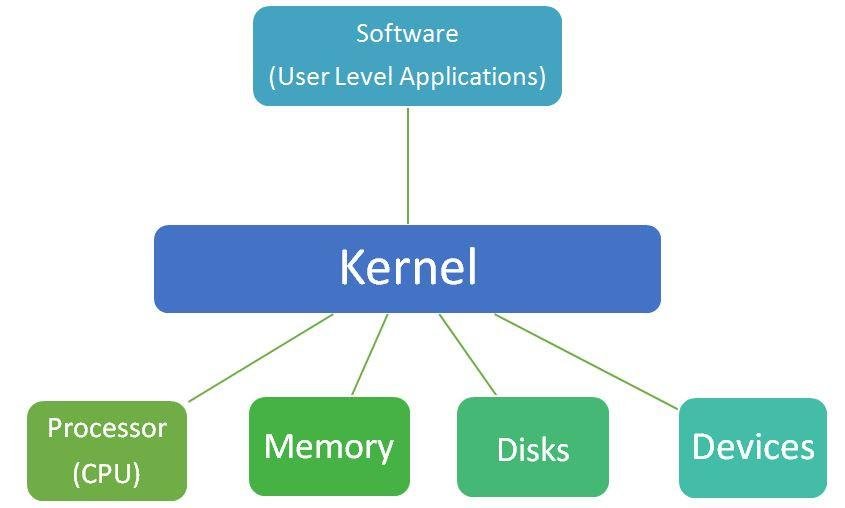
The kernel is the central component of an operating system, playing a crucial role in managing hardware and software resources. It operates at the core of the system, providing essential services and ensuring smooth interaction between applications and hardware. This article explores the fundamental functions of the kernel in operating systems, highlighting its role in process management, memory management, device management, file system management, and system calls.

Kernel Functions in Operating Systems

1. Process Management

Overview:

Process management is a critical function of the kernel, responsible for handling the execution of processes within the system. A process is an instance of a program in execution, and the kernel ensures that processes run efficiently and without interference.

Key Functions:

  • Process Creation and Termination: The kernel manages the creation and termination of processes. When a program is executed, the kernel allocates resources and creates a process. Upon completion or termination, the kernel deallocates resources and removes the process from the system.
  • Process Scheduling: The kernel uses scheduling algorithms to determine the order in which processes are executed. It ensures that processes are allocated CPU time fairly and efficiently, balancing between different tasks and optimizing system performance.
  • Context Switching: The kernel performs context switching to switch the CPU’s attention between different processes. This involves saving the state of the current process and loading the state of the next process, allowing multiple processes to share the CPU effectively.
  • Inter-Process Communication (IPC): The kernel facilitates communication between processes through mechanisms like pipes, message queues, and shared memory. IPC allows processes to exchange data and synchronize their actions.

2. Memory Management

Overview:

Memory management is another fundamental function of the kernel, responsible for managing the system’s memory resources. The kernel ensures that memory is allocated and deallocated efficiently, preventing conflicts and optimizing performance.

Key Functions:

  • Memory Allocation: The kernel allocates memory to processes based on their requirements. It tracks the usage of memory and ensures that each process receives the necessary resources while avoiding fragmentation.
  • Virtual Memory: The kernel implements virtual memory to provide processes with an abstraction of a larger memory space than physically available. Virtual memory allows for efficient multitasking and ensures that processes can run independently without interfering with each other.
  • Paging and Swapping: The kernel uses paging to divide memory into fixed-size pages, which can be swapped in and out of physical memory as needed. Swapping involves moving entire processes between physical memory and disk storage to manage memory usage and performance.
  • Memory Protection: The kernel enforces memory protection to prevent processes from accessing memory that does not belong to them. This helps maintain system stability and security by isolating processes and protecting critical system areas.

3. Device Management

Overview:

Device management is a crucial function of the kernel, responsible for managing hardware devices and providing an interface for applications to interact with them. The kernel handles communication between hardware and software components.

Key Functions:

  • Device Drivers: The kernel uses device drivers to interface with hardware devices. Device drivers are software components that translate high-level commands into low-level instructions understood by the hardware. The kernel manages these drivers and ensures they operate correctly.
  • I/O Operations: The kernel handles input and output (I/O) operations for devices such as disks, keyboards, and network interfaces. It provides a standardized interface for applications to perform I/O operations, abstracting the complexities of hardware interactions.
  • Device Scheduling: The kernel manages access to devices by scheduling I/O operations and coordinating the use of shared resources. It ensures that devices are utilized efficiently and that multiple processes can access them without conflicts.

4. File System Management

Overview:

File system management is another essential function of the kernel, responsible for managing files and directories on storage devices. The kernel provides an interface for applications to create, read, write, and delete files.

Key Functions:

  • File Operations: The kernel handles file operations such as opening, reading, writing, and closing files. It provides a set of system calls that applications use to perform these operations, ensuring consistent and reliable file access.
  • Directory Management: The kernel manages directories and file organization on storage devices. It maintains the hierarchical structure of directories and ensures that files are correctly located and accessed.
  • File Permissions: The kernel enforces file permissions to control access to files and directories. It manages user and group permissions, ensuring that only authorized users can access or modify files based on their permissions.

5. System Calls

Overview:

System calls are the interface between user applications and the kernel. They provide a mechanism for applications to request services from the operating system, such as process management, memory allocation, and file operations.

Key Functions:

  • Service Requests: Applications use system calls to request various services from the kernel. These requests include operations like creating processes, allocating memory, and performing I/O tasks.
  • Context Switching: System calls involve context switching between user space and kernel space. When a system call is made, the kernel switches to kernel mode to execute the requested service and then returns to user mode to continue the application’s execution.
  • Error Handling: The kernel handles errors and exceptions related to system calls. It provides feedback to applications if a system call fails or encounters issues, allowing applications to respond appropriately.

Conclusion

The kernel is a fundamental component of an operating system, responsible for managing system resources and providing essential services to applications. Its functions, including process management, memory management, device management, file system management, and system calls, are crucial for ensuring the smooth operation and efficiency of the system. Understanding these functions provides insight into the complex workings of operating systems and the critical role of the kernel in managing and optimizing computer systems.

Automating tasks on your operating system can save time and effort by allowing repetitive actions to be performed automatically. This guide explores various methods and tools available to automate tasks effectively.

Why Automate Tasks on Your Operating System?

Automating tasks on your operating system automating tasks on your operating system can streamline your workflow and improve productivity. Instead of manually executing repetitive tasks, automation allows you to focus on more critical activities while ensuring routine processes are completed efficiently.

Automating Tasks on Your Operating System

Built-in Automation Tools

Task Scheduler (Windows)

Windows includes Task Scheduler, a built-in tool that allows you to schedule tasks to run at specified times or events. You can automate tasks such as running scripts, launching applications, or performing system maintenance.

Cron (Unix-like Systems)

Unix-like systems (e.g., Linux, macOS) utilize Cron, a command-line utility for scheduling tasks. Cron jobs can be configured to execute commands or scripts at predefined intervals, automating routine system maintenance, backups, and other tasks.

Scripting for Automation

Batch Scripts (Windows)

Batch scripting on Windows allows you to write sequences of commands that the system can execute automatically. You can automate file operations, software installations, and more using simple batch files.

Shell Scripts (Unix-like Systems)

Shell scripting on Unix-like systems leverages shell languages like Bash to automate complex tasks.

Automation with Task Automation Software

AutoHotkey (Windows)

AutoHotkey is a powerful scripting language for Windows that enables automation of keystrokes, mouse movements, and window manipulations. It’s ideal for creating custom macros and automating repetitive tasks across applications.

Automator (macOS)

Automator is a graphical automation tool for macOS that allows users to create workflows by chaining together pre-built actions. It simplifies tasks such as renaming files, resizing images, and batch-processing files.

Using Third-party Automation Tools

Zapier

Zapier is a web-based automation tool that connects apps and services to automate workflows. It allows you to create “Zaps” that trigger actions between different applications, automating data synchronization and task management.

IFTTT (If This, Then That)

IFTTT is a free web-based service that allows users to create chains of conditional statements called applets. These applets automate tasks across various online services and platforms based on triggers and actions.

Automating Tasks with Virtual Assistants

Siri (macOS and iOS)

Siri is Apple’s virtual assistant that can automate tasks such as sending messages, setting reminders, and controlling smart home devices through voice commands, enhancing productivity and convenience.

Cortana (Windows)

Cortana is Microsoft’s virtual assistant available on Windows 10 that can perform tasks like scheduling appointments, searching the web, and opening applications based on voice commands or typed queries.

Benefits of Automating Tasks on Your Operating System

  1. Time Savings: Automating repetitive tasks reduces manual intervention, saving time for more critical activities.
  2. Consistency: Automated tasks ensure consistency in execution, minimizing errors and improving reliability.
  3. Productivity Boost: By eliminating mundane tasks, automation allows you to focus on creative and strategic aspects of your work.
  4. Efficiency: Automating workflows enhances overall efficiency by streamlining processes and reducing workflow bottlenecks.

Challenges and Considerations

While automating tasks offers significant benefits, consider the following:

  • Learning Curve: Some automation tools require a learning curve to use effectively.
  • Maintenance: Automated tasks may require periodic updates and maintenance to adapt to system changes.
  • Security: Ensure automated processes are secure to prevent unauthorized access or unintended consequences.

Conclusion

In conclusion, automating tasks on your operating system can transform your productivity by reducing manual effort and optimizing workflow efficiency. Whether using built-in tools, scripting languages, or third-party applications, automation empowers users to work smarter and accomplish more in less time.