
Developing an operating system (OS) is a complex task that requires a deep understanding of hardware and software interactions. To facilitate this process, developers rely on various Application Programming Interfaces (APIs) and Software Development Kits (SDKs). These tools provide essential functionality, streamline development, and help manage the intricacies of OS development. Here’s a comprehensive guide to the key APIs and SDKs for OS development.

1. What are APIs and SDKs?

  • APIs (Application Programming Interfaces): APIs are sets of rules and protocols that allow different software applications to communicate with each other. In OS development, APIs provide standardized methods for interacting with hardware and system resources.
  • SDKs (Software Development Kits): SDKs are collections of tools, libraries, and documentation that assist developers in creating software for specific platforms or environments. SDKs often include APIs, compilers, debuggers, and other utilities necessary for development.

2. Key APIs for OS Development

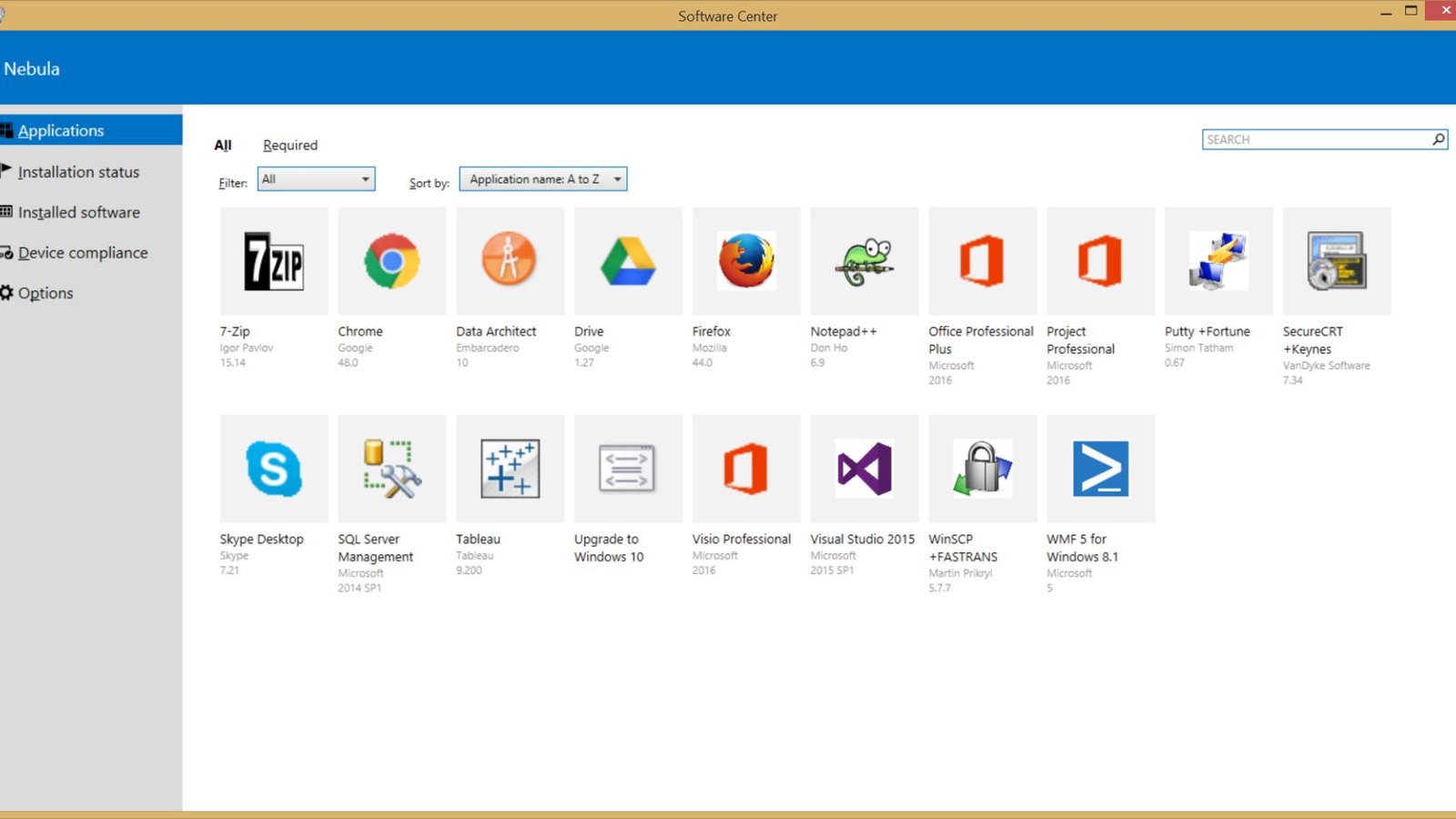
APIs and SDKs for OS Development
**2.1. Windows API
  • Overview: The Windows API (WinAPI) is a set of APIs provided by Microsoft for developing applications and interacting with the Windows operating system.
  • Key Features:
    • Access to system functions, such as file handling, memory management, and process control.
    • Support for creating graphical user interfaces (GUIs) with Windows forms and controls.
    • Integration with various Windows services and components.
  • Best For: Developing applications and system components for Windows operating systems.
**2.2. POSIX API
  • Overview: The POSIX (Portable Operating System Interface) API is a standard set of APIs for Unix-like operating systems, including Linux and macOS.
  • Key Features:
    • Standardized interface for file operations, process management, and threading.
    • Provides compatibility and portability across different Unix-based systems.
    • Supports multi-threading and inter-process communication.
  • Best For: Developing cross-platform applications and system software for Unix-like operating systems.
**2.3. WinRT (Windows Runtime) API
  • Overview: The Windows Runtime (WinRT) API is a modern API framework provided by Microsoft for developing Windows Store apps and Universal Windows Platform (UWP) apps.
  • Key Features:
    • Provides a unified API for building applications that run across different Windows devices.
    • Supports asynchronous programming and modern UI frameworks.
    • Integration with Windows services and components.
  • Best For: Developing modern, cross-device applications for the Windows ecosystem.
**2.4. Android NDK (Native Development Kit)
  • Overview: The Android NDK is a set of tools and libraries that allows developers to write native code for Android devices.
  • Key Features:
    • Provides APIs for low-level access to system resources and hardware.
    • Supports C and C++ programming for performance-critical applications.
    • Integration with the Android SDK for building and deploying Android apps.
  • Best For: Developing high-performance and system-level components for Android devices.
**2.5. iOS SDK
  • Overview: The iOS SDK is a development kit provided by Apple for building applications for iOS devices, including iPhones and iPads.
  • Key Features:
    • Includes APIs for accessing system resources, user interfaces, and hardware features.
    • Provides tools for developing, testing, and debugging iOS applications.
    • Integration with Xcode, Apple’s integrated development environment (IDE).
  • Best For: Developing applications for the iOS platform.

3. Essential SDKs for OS Development

**3.1. GNU Toolchain
  • Overview: The GNU Toolchain is a collection of development tools for Unix-like systems, including compilers, debuggers, and build systems.
  • Key Features:
    • Includes GCC (GNU Compiler Collection) for compiling C, C++, and other languages.
    • Provides GDB (GNU Debugger) for debugging applications.
    • Supports building and linking libraries and executables.
  • Best For: Developing and debugging software for Unix-like operating systems.
**3.2. Intel System Studio
  • Overview: Intel System Studio is a suite of development tools for optimizing and debugging applications on Intel processors.
  • Key Features:
    • Provides compilers, debuggers, and performance analysis tools.
    • Supports development for a wide range of Intel architectures and platforms.
    • Integration with various development environments and build systems.
  • Best For: Optimizing and debugging applications for Intel-based systems.
**3.3. Visual Studio
  • Overview: Visual Studio is an integrated development environment (IDE) from Microsoft that provides a comprehensive set of tools for developing Windows applications and system software.
  • Key Features:
    • Includes a powerful editor, debugger, and build system.
    • Supports multiple programming languages, including C++, C#, and .NET.
    • Integration with Azure and other Microsoft services.
  • Best For: Developing and managing Windows applications and system components.
**3.4. Xcode
  • Overview: Xcode is Apple’s integrated development environment for macOS, used for building applications for macOS, iOS, watchOS, and tvOS.
  • Key Features:
    • Provides a comprehensive suite of tools for development, testing, and debugging.
    • Includes Interface Builder for designing user interfaces.
    • Integration with Apple’s development and deployment services.
  • Best For: Developing applications for Apple’s operating systems.

4. Best Practices for Using APIs and SDKs

  • Understand the Documentation: Thoroughly read and understand the documentation provided with APIs and SDKs to make the most of their features and capabilities.
  • Stay Updated: Keep APIs and SDKs up to date to benefit from the latest features, bug fixes, and security updates.
  • Test Extensively: Test applications thoroughly to ensure compatibility and performance across different environments and configurations.
  • Leverage Community Support: Utilize community forums, online resources, and developer communities for support and best practices related to APIs and SDKs.

Conclusion

APIs and SDKs play a crucial role in operating system development, providing the tools and resources needed to build, manage, and enhance systems and applications. Understanding and utilizing these tools effectively can streamline development, improve performance, and ensure compatibility across different platforms. Whether you’re developing for Windows, Unix-like systems, Android, iOS, or other environments, leveraging the right APIs and SDKs is key to successful OS development.

Switching to a new operating system can bring numerous advantages to your computing experience. Whether you’re looking for better performance, enhanced security, or improved features, making the switch can be a game-changer. In this article, we’ll explain the benefits of switching to a new operating system, ensuring you understand why it might be the right move for you.

Enhanced Security

One of the primary benefits of switching to a new operating system is enhanced security. Newer operating systems are designed with the latest security features to protect against malware, viruses, and cyber threats. Regular updates and patches are provided to keep your system secure, giving you peace of mind while you work or browse the web.

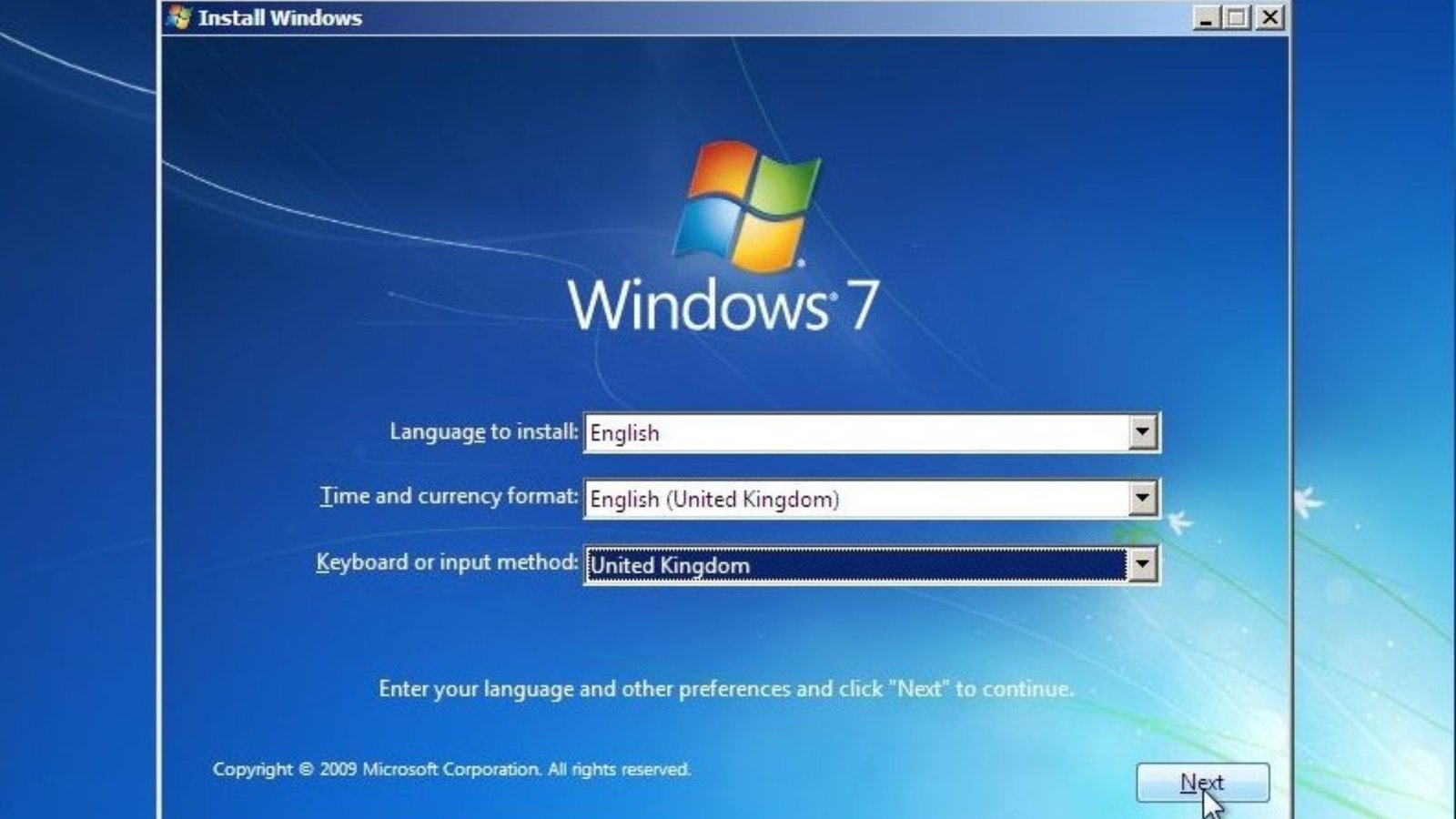
Switching to a New Operating System

Improved Performance

Switching to a new operating system can significantly improve your computer’s performance. Newer systems are optimized to run faster and more efficiently. They use advanced algorithms and better resource management, ensuring your computer operates smoothly. This can be particularly beneficial if your current system feels sluggish or outdated.

Access to New Features

Another advantage of switching to a new operating system is access to new features. Modern operating systems come with a host of new functionalities that can enhance your productivity and user experience. From improved user interfaces to advanced software capabilities, these features can make your computing tasks easier and more enjoyable.

Better Compatibility

A new operating system often offers better compatibility with the latest hardware and software. This means you can take advantage of new technologies and applications that may not be supported by older systems. Whether it’s a new printer, graphics card, or software suite, switching to a new operating system ensures you can use the latest tools without compatibility issues.

Enhanced User Experience

Switching to a new operating system can provide an enhanced user experience.  This can lead to increased productivity and a more enjoyable computing experience.

Support for the Latest Applications

New operating systems support the latest applications, ensuring you can run the most up-to-date software. This is crucial for both work and leisure, as new applications often come with improved features and better performance. By switching to a new operating system, you can stay current with the latest technology trends.

Increased Stability

Stability is another key benefit of switching to a new system. This reliability is essential for maintaining productivity and avoiding data loss.

Improved Multitasking

They offer better memory management and CPU allocation, allowing you to run multiple applications simultaneously without slowing down your system. This is particularly useful for users who need to juggle various tasks at once.

Energy Efficiency

Switching to a new operating system can also lead to better energy efficiency.  This is not only good for your device but also the environment.

Enhanced Support and Updates

When you switch to a new operating system, you benefit from enhanced support and regular updates. Manufacturers provide continuous support for their latest systems, offering troubleshooting assistance and updates to fix bugs and improve performance. This ongoing support ensures your system remains in top condition.

Customization Options

New operating systems often come with a variety of customization options, allowing you to tailor the system to your preferences. From changing the appearance to adjusting system settings, these customization features can help you create a computing environment that suits your needs.

Integration with Modern Devices

Modern operating systems offer better integration with other devices such as smartphones, tablets, and smart home gadgets. This seamless integration allows for easy file sharing, synchronization, and remote access, enhancing your overall digital ecosystem.

Advanced Security Features

New operating systems come with advanced security features such as biometric authentication, encryption, and secure boot processes. These features add an extra layer of protection to your data and privacy, making your computing experience safer.

Future-Proofing

By switching to a new operating system, you future-proof your computer. Staying updated with the latest operating system ensures long-term usability.

Conclusion

Switching to a new operating system offers numerous benefits, from enhanced security and improved performance to better compatibility and access to new features. Whether you’re seeking a more stable system, better multitasking capabilities, or advanced security, making the switch can greatly enhance your computing experience. Consider these benefits and decide if it’s time for an upgrade.

Monitoring system performance is crucial for maintaining the health and efficiency of computing environments. Effective performance monitoring helps identify bottlenecks, troubleshoot issues, and ensure optimal system operation. Here’s a comprehensive guide to some of the best tools for monitoring system performance.

1. Top Tools for Monitoring System Performance

**1.1. Task Manager (Windows)
  • Overview: Task Manager is a built-in tool in Windows that provides a snapshot of system performance, including CPU, memory, disk, and network usage.
  • Key Features:
    • Real-time monitoring of system resources
    • Process management
    • Performance graphs for CPU, memory, disk, and network
  • Best For: Quick performance checks and basic troubleshooting.
**1.2. Activity Monitor (macOS)
  • Overview: Activity Monitor is a native macOS application that offers a detailed view of system resource usage.
  • Key Features:
    • Real-time monitoring of CPU, memory, energy, disk, and network usage
    • Process management and detailed resource breakdown
  • Best For: Monitoring system performance on macOS and managing processes.
**1.3. top and htop (Linux)
  • Overview: top and htop are command-line tools for monitoring system performance in Linux environments.
  • Key Features:
    • top: Provides a real-time overview of CPU, memory, and process information.
    • htop: An enhanced version of top with a more user-friendly interface and additional features.
  • Best For: Real-time performance monitoring and process management in Linux systems.
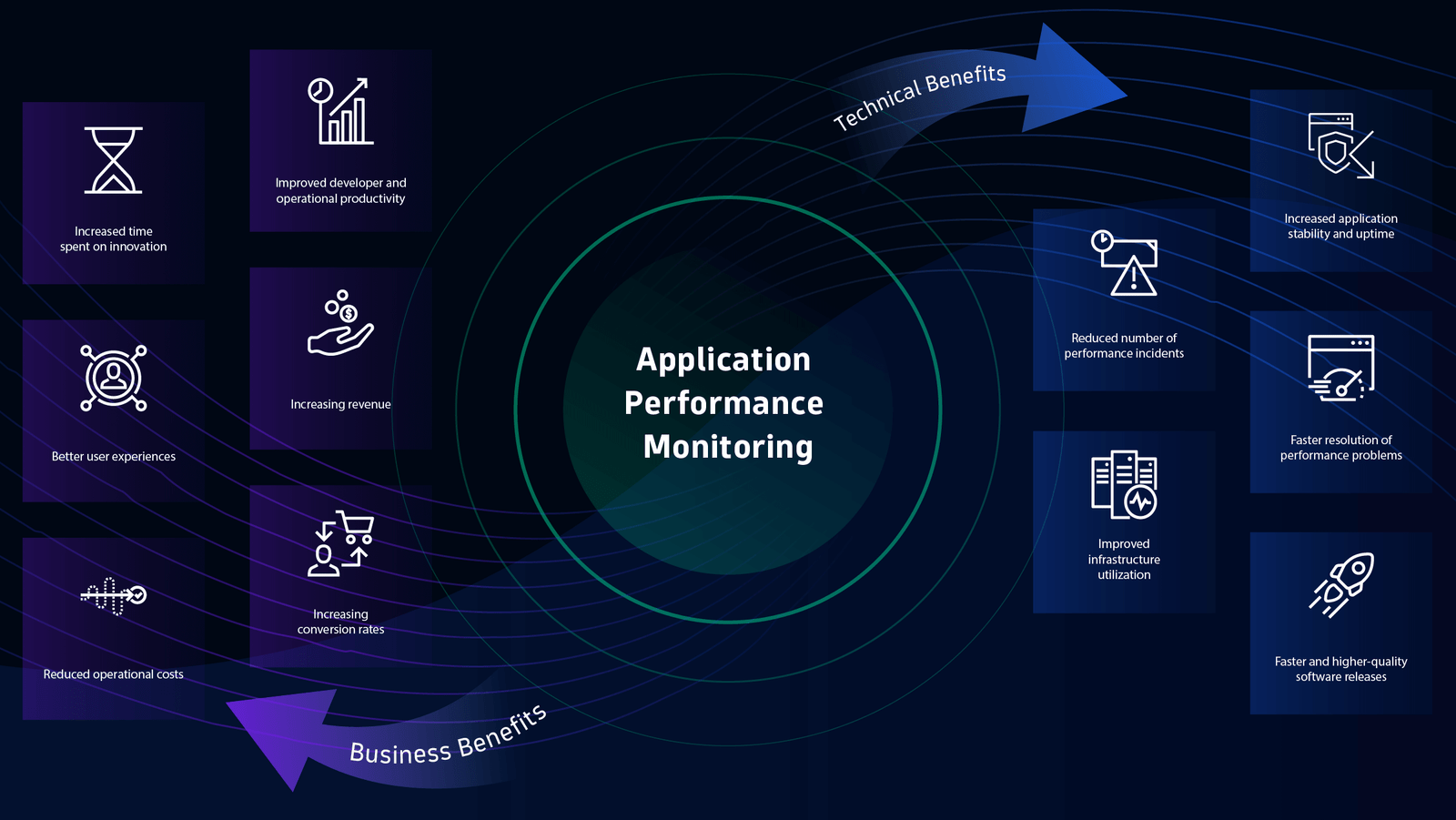
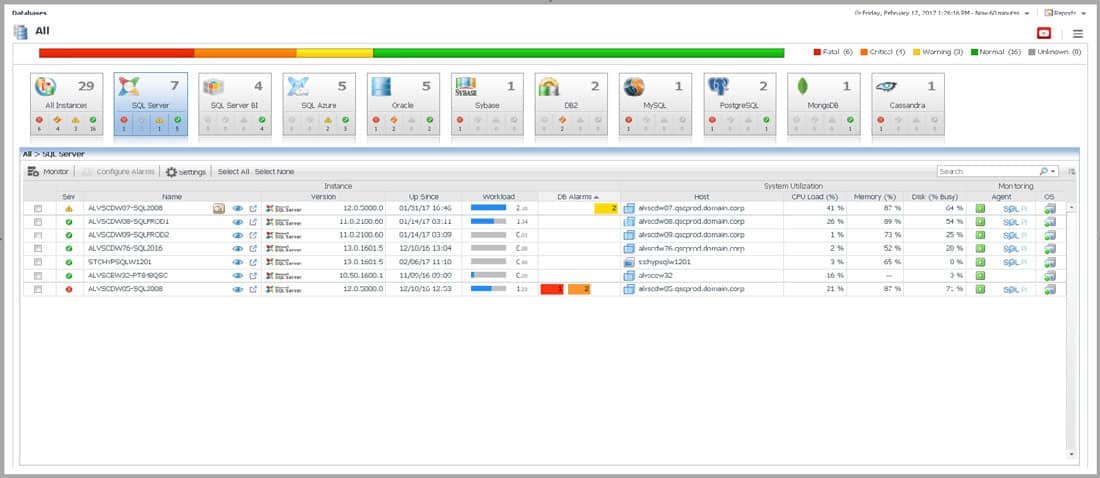
Tools for Monitoring System Performance
**1.4. Nagios
  • Overview: Nagios is an open-source network monitoring tool that provides comprehensive monitoring of systems, networks, and infrastructure.
  • Key Features:
    • Real-time monitoring and alerting for system performance and network status
    • Customizable monitoring and reporting
    • Extensible with plugins for additional functionality
  • Best For: Enterprise-level monitoring and network infrastructure management.
**1.5. Zabbix
  • Overview: Zabbix is an open-source monitoring solution for network, server, and application performance.
  • Key Features:
    • Real-time performance monitoring and alerting
    • Visualizations and customizable dashboards
    • Support for a wide range of data sources and integrations
  • Best For: Comprehensive monitoring and visualization of system performance and network health.
**1.6. Prometheus
  • Overview: Prometheus is an open-source monitoring and alerting toolkit designed for reliability and scalability.
  • Key Features:
    • Metric collection and querying using a powerful query language (PromQL)
    • Built-in alerting and visualization with Grafana integration
    • Time-series data storage and analysis
  • Best For: Advanced monitoring and alerting for dynamic and distributed environments.
**1.7. New Relic
  • Overview: New Relic is a cloud-based performance monitoring platform that provides insights into application performance and system health.
  • Key Features:
    • Real-time application performance monitoring
    • Detailed performance metrics and error tracking
    • Integration with various cloud services and platforms
  • Best For: Application performance monitoring and cloud-based environments.
**1.8. Datadog
  • Overview: Datadog is a cloud-based monitoring and analytics platform for infrastructure and application performance.
  • Key Features:
    • Real-time monitoring of system and application performance
    • Customizable dashboards and alerts
    • Integration with a wide range of cloud and on-premises technologies
  • Best For: Comprehensive monitoring and analytics for modern infrastructure and applications.
**1.9. SolarWinds
  • Overview: SolarWinds provides a suite of network and system monitoring tools designed for IT management.
  • Key Features:
    • Performance monitoring, alerting, and reporting
    • Network traffic analysis and diagnostics
    • Integration with various IT management tools
  • Best For: Network and system monitoring in enterprise environments.
**1.10. Sysinternals Suite (Windows)
  • Overview: The Sysinternals Suite is a collection of advanced system utilities for Windows, including performance monitoring tools.
  • Key Features:
    • Tools for monitoring CPU, memory, disk, and network usage
    • Detailed process and system information
    • Advanced troubleshooting capabilities
  • Best For: In-depth performance analysis and troubleshooting on Windows systems.

2. Key Metrics to Monitor

When using these tools, it’s important to focus on key performance metrics:

  • CPU Usage: Measures the percentage of CPU resources being utilized. High CPU usage can indicate a bottleneck or process issue.
  • Memory Usage: Tracks the amount of RAM being used by applications and processes. High memory usage may suggest a need for additional RAM or memory optimization.
  • Disk Activity: Monitors disk read and write operations. High disk activity can affect system performance and may require disk optimization.
  • Network Performance: Measures network traffic, latency, and bandwidth usage. Network performance issues can impact application responsiveness and connectivity.

3. Best Practices for System Performance Monitoring

  • Regular Monitoring: Continuously monitor system performance to identify issues before they impact operations.
  • Custom Alerts: Configure alerts for critical performance thresholds to ensure timely response to potential issues.
  • Historical Data Analysis: Analyze historical performance data to identify trends and make informed decisions about system upgrades or optimizations.
  • Comprehensive Coverage: Use a combination of tools to monitor different aspects of system performance, including hardware, applications, and network.

Conclusion

Effective system performance monitoring is essential for maintaining the health and efficiency of computing environments. By utilizing the right tools and focusing on key metrics, you can ensure optimal performance, identify issues early, and keep your systems running smoothly. Whether you’re managing a single system or an enterprise-level infrastructure, understanding and implementing performance monitoring practices will help you achieve and maintain peak performance.

Optimizing your operating system performance is key to maintaining a fast, efficient, and reliable computer. With a few simple strategies, you can ensure your system runs smoothly and efficiently. Here are some tips to help you get the most out of your operating system performance.

Keep Your Operating System Updated

One of the most important steps in optimizing your operating system performance is to keep it updated. Regular updates provide critical security patches, bug fixes, and performance improvements. Enabling automatic updates ensures you always have the latest enhancements and protection.

Optimizing Your Operating System Performance

Manage Startup Programs

Many programs automatically start when your computer boots up, which can slow down your system. To optimize your operating system performance, review and disable unnecessary startup programs.

Clean Up Disk Space

Freeing up disk space can significantly improve your operating system performance. Regularly delete temporary files, uninstall unused programs, and clear your recycle bin. Additionally, consider using disk cleanup tools to remove unnecessary system files and optimize disk space.

Defragment Your Hard Drive

If you’re using a traditional hard drive (HDD), defragmenting it can help improve performance. Defragmentation reorganizes fragmented data, making it easier for your system to access files quickly. Most operating systems have built-in defragmentation tools that you can use.

Upgrade to an SSD

Switching from a traditional HDD to a solid-state drive (SSD) can drastically enhance your operating system performance. SSDs have faster read and write speeds, which means your computer can boot up faster and access files more quickly.

Increase RAM

Adding more RAM (Random Access Memory) can improve your operating performance by allowing your computer to handle more tasks simultaneously. This is especially useful if you run multiple applications at once or use memory-intensive programs.

Use Performance Optimization Tools

Many operating systems come with built-in tools to help optimize performance. For example, Windows has a Performance Troubleshooter, while macOS has an Activity Monitor. These tools can identify and resolve issues that may be slowing down your system.

Adjust Power Settings

Power settings can affect your operating performance. On laptops, choosing a high-performance power plan can improve performance by allocating more resources to active tasks. However, be aware that this may reduce battery life.

Disable Visual Effects

Fancy visual effects, such as animations and transparency, can consume system resources. Disabling these effects can improve your operating performance.

Regularly Restart Your Computer

Restarting your computer can help clear temporary files and refresh system resources. Regular restarts can prevent slowdowns and improve overall operating system performance.

Scan for Malware

Malware and viruses can significantly impact your operating performance. Regularly scan your computer with a reputable antivirus program to detect and remove malicious software. Keeping your system protected ensures optimal performance.

Update Drivers

Outdated drivers can cause performance issues and hardware malfunctions.

Optimize Internet Settings

Slow internet speeds can affect your overall computing experience. Optimizing your internet settings, such as updating your network drivers and adjusting your DNS settings, can improve your system’s performance when online.

Monitor System Performance

Furthermore, use performance monitoring tools to keep an eye on your system’s performance. These tools can help you identify any bottlenecks or issues that may be affecting your operating system performance. Hence, windows users can use the Resource Monitor, while macOS users can use the Activity Monitor.

Conclusion

By following these strategies, you can significantly enhance your operating system performance. Regular maintenance, updates, and optimization can keep your system running smoothly and efficiently, providing a better overall computing experience.

Unix, a pioneering operating system, emerged from the research lab at AT&T’s Bell Labs in the late 1960s. Developed by Ken Thompson, Dennis Ritchie, and their colleagues, Unix was designed to be a simple, multiuser, multitasking system. Its creators aimed to develop an operating system that could handle multiple tasks simultaneously and support multiple users.  Its simplicity and flexibility made it revolutionary for its time.

The History and Impact of Unix on Modern Operating Systems

Unix’s Influence on Modern OS

Unix’s design and philosophy significantly influenced the development of many modern operating systems. Its modular architecture, which uses small, single-purpose programs that can be combined to perform complex tasks, inspired the design of many subsequent systems. The principles of Unix, including its hierarchical file system and command-line interface, have become foundational elements in various operating systems today.

The Birth of Unix Variants

As Unix grew in popularity, several variants emerged, each tailored to different needs and environments. For example, BSD (Berkeley Software Distribution) Unix introduced enhancements and features that influenced other operating systems. Similarly, System V Unix contributed critical advancements, such as improved system administration tools. These variants laid the groundwork for future developments in operating systems.

The Open Source Movement

The 1990s saw a significant shift with the rise of the open-source movement. The release of the Unix-like Linux kernel by Linus Torvalds marked a turning point. Linux, combined with GNU tools, created a Unix-like operating system that was freely available and modifiable. This movement demonstrated the power of collaborative development and greatly influenced the evolution of modern operating systems.

Unix and the Evolution of Unix-like Systems

Unix’s influence extends beyond Linux to include various Unix-like systems. For instance, macOS, developed by Apple Inc., is built on a Unix-based foundation known as Darwin. This integration ensures that macOS benefits from Unix’s stability and security features while offering a user-friendly interface. Similarly, many enterprise systems rely on Unix-based or Unix-like operating systems for their robustness and reliability.

Unix’s Impact on System Security

Unix’s security model has significantly impacted modern operating systems. The concept of user permissions and file ownership, which Unix pioneered, remains central to system security. By controlling access to files and resources based on user roles, Unix laid the foundation for modern security practices that protect systems from unauthorized access and malicious activities.

Challenges and Adaptations

Despite its many benefits, Unix has faced challenges over the years. As technology evolved, so did the need for systems that could handle new types of hardware and software requirements. Unix and its derivatives have adapted to these changes, incorporating new features and improving performance. This adaptability has helped Unix-based systems remain relevant in an ever-changing technological landscape.

The Legacy of Unix

Unix’s legacy is evident in the widespread use of its principles and design in contemporary operating systems. Its emphasis on simplicity, modularity, and portability has influenced the development of numerous systems. The continued relevance of Unix principles highlights its enduring impact on the field of computing.

Conclusion

Unix in operating systems has profoundly influenced modern operating systems through its innovative design and architecture. From its early development to its role in shaping open-source software, Unix’s legacy endures in the systems we use today. Its contributions to system security, modular design, and collaborative development have left an indelible mark on the evolution of operating systems.

Networking is a fundamental aspect of modern computing, enabling devices to communicate, share resources, and access information over networks. For operating systems, understanding networking essentials is crucial for managing network connections, ensuring security, and optimizing performance. Here’s a comprehensive guide to the key networking concepts relevant to operating systems.

1. Network Protocols

Network protocols are standardized rules and conventions that govern how data is transmitted and received over a network. They ensure reliable communication between devices and can be categorized into several layers:

  • Transmission Control Protocol (TCP): TCP is a connection-oriented protocol that ensures reliable and ordered delivery of data between applications. It manages data packet sequencing and error correction.
  • User Datagram Protocol (UDP): UDP is a connectionless protocol that provides faster but less reliable data transmission. It is used in applications where speed is critical, such as video streaming or online gaming.
  • Internet Protocol (IP): IP is responsible for addressing and routing data packets across networks. It defines IP addresses and ensures that packets are sent to the correct destination.
  • Hypertext Transfer Protocol (HTTP) and Hypertext Transfer Protocol Secure (HTTPS): HTTP is used for transmitting web pages, while HTTPS provides a secure version of HTTP by encrypting data.
  • File Transfer Protocol (FTP): FTP is used for transferring files between systems over a network. It supports both uploading and downloading of files.
Networking Essentials for Operating Systems

2. IP Addressing

IP addressing is a method used to uniquely identify devices on a network. Each device on a network is assigned an IP address, which can be either:

  • IPv4: IPv4 addresses are 32-bit numerical addresses written in decimal format (e.g., 192.168.1.1). They are divided into four octets, each ranging from 0 to 255.
  • IPv6: IPv6 addresses are 128-bit alphanumeric addresses written in hexadecimal format (e.g., 2001:0db8:85a3:0000:0000:8a2e:0370:7334). IPv6 addresses provide a larger address space to accommodate the growing number of devices.

Subnetting: Subnetting divides a network into smaller, manageable segments. It helps optimize network performance and improves security by isolating different network segments.

3. Domain Name System (DNS)

The Domain Name System (DNS) translates human-readable domain names (e.g., www.example.com) into IP addresses that computers can understand. DNS consists of several components:

  • DNS Resolver: A DNS resolver is a client-side service that queries DNS servers to resolve domain names into IP addresses.
  • DNS Server: A DNS server stores and provides mappings of domain names to IP addresses. It includes authoritative DNS servers that manage specific domains and recursive DNS servers that perform queries on behalf of clients.
  • DNS Records: DNS records are used to store various types of information about domain names, such as A records (address records), MX records (mail exchange records), and CNAME records (canonical name records).

4. Network Interface Cards (NICs)

Network Interface Cards (NICs) are hardware components that connect a computer to a network. NICs can be:

  • Wired NICs: Wired NICs use Ethernet cables to connect devices to a network. They provide stable and high-speed connections.
  • Wireless NICs: Wireless NICs use Wi-Fi to connect devices to a wireless network. They offer mobility but may have variable performance compared to wired connections.

5. Network Configuration and Management

Proper network configuration and management are essential for maintaining network performance and security:

  • IP Configuration: IP configuration involves setting static or dynamic IP addresses for devices. Dynamic Host Configuration Protocol (DHCP) is commonly used to automatically assign IP addresses to devices on a network.
  • Network Address Translation (NAT): NAT is used to map private IP addresses within a local network to a public IP address for internet access. It helps conserve public IP addresses and enhances security.
  • Firewalls: Firewalls are security devices or software that monitor and control network traffic based on predefined security rules. They help protect networks from unauthorized access and threats.
  • Network Monitoring: Network monitoring tools track network performance, identify issues, and ensure that network resources are used efficiently. Common monitoring tools include Wireshark, Nagios, and PRTG Network Monitor.

6. Network Security

Network security is crucial for protecting data and preventing unauthorized access:

  • Encryption: Encryption techniques such as SSL/TLS (for web traffic) and IPsec (for secure IP communications) are used to secure data transmitted over networks.
  • Authentication: Authentication mechanisms ensure that only authorized users and devices can access network resources. Common methods include usernames and passwords, multi-factor authentication (MFA), and digital certificates.
  • Access Control: Access control policies define who can access specific network resources and what actions they can perform. Role-based access control (RBAC) and discretionary access control (DAC) are common models.

7. Troubleshooting Network Issues

Effective troubleshooting is essential for resolving network issues:

  • Ping and Traceroute: Tools like ping and traceroute help diagnose connectivity issues by testing network reachability and identifying routing paths.
  • Network Logs: Analyzing network logs can provide insights into network traffic patterns, errors, and potential security incidents.
  • Network Performance Testing: Performance testing tools measure network speed, latency, and bandwidth to identify bottlenecks and performance issues.

Conclusion

Networking is a critical component of modern operating systems, enabling communication and resource sharing across devices and networks. Understanding networking essentials such as protocols, IP addressing, DNS, and network security helps in managing and optimizing network performance. By mastering these fundamentals, system administrators and IT professionals can ensure smooth, secure, and efficient network operations.

User interfaces are crucial in computing, providing the means for users to interact with software and hardware. Two of the most common types of interfaces are the Command-Line Interface (CLI) and the Graphical User Interface (GUI). Each has its own set of advantages and challenges, and understanding these can help in choosing the right tool for the task. Here’s a detailed comparison of CLI and GUI.

1. What is a Command-Line Interface (CLI)?

A Command-Line Interface (CLI) is a text-based interface where users interact with the computer by typing commands into a terminal or command prompt. Commands are executed by pressing Enter, and the system responds with text-based output.

Key Features:

  • Text-Based: Users input commands as text and receive text-based responses.
  • Scripting and Automation: CLI supports scripting and automation, allowing users to write scripts for repetitive tasks.
  • Resource Efficiency: CLI requires fewer system resources compared to GUI, making it suitable for resource-constrained environments.
Command-Line vs Graphical Interfaces

Advantages:

  • Efficiency for Advanced Users: Experienced users can perform complex tasks more quickly through command inputs and keyboard shortcuts.
  • Powerful Automation: CLI excels in automation through scripting, making it ideal for managing large-scale systems and performing batch operations.
  • Low Resource Consumption: CLI interfaces are lightweight and require minimal system resources, which can be advantageous on older or less powerful hardware.

Disadvantages:

  • Steep Learning Curve: CLI commands and syntax can be difficult to learn for beginners. Mastery requires practice and familiarity with command structures.
  • Lack of Visual Feedback: CLI lacks visual elements, which can make it harder to understand complex tasks or troubleshoot issues without specific commands.

2. What is a Graphical User Interface (GUI)?

A Graphical User Interface (GUI) is a visual-based interface that allows users to interact with the computer using graphical elements such as windows, icons, buttons, and menus. Users perform tasks by clicking on these elements using a mouse or touch input.

Key Features:

  • Visual Interaction: Users interact with the system through graphical elements, which can be more intuitive and user-friendly.
  • WYSIWYG (What You See Is What You Get): GUIs often provide a direct representation of the work being done, which helps in understanding and managing tasks.
  • Drag-and-Drop: GUIs support drag-and-drop functionality, making it easier to manipulate files and objects.

Advantages:

  • User-Friendly: GUIs are generally easier to use and understand, especially for beginners. They provide visual feedback that makes interactions more intuitive.
  • Rich Media: GUIs support rich media elements such as images, videos, and animations, enhancing user experience and interaction.
  • Reduced Learning Curve: The visual nature of GUIs simplifies learning and reduces the need to memorize commands, making it accessible to a broader audience.

Disadvantages:

  • Resource Intensive: GUIs require more system resources (CPU, memory, and graphics) compared to CLI, which can be a drawback on less powerful hardware.
  • Less Efficient for Power Users: Performing complex tasks may be slower in a GUI compared to a CLI, where commands and scripts can be executed more quickly.

3. Use Cases and Best Applications

Both CLI and GUI have specific scenarios where they excel:

  • Command-Line Interface (CLI):
    • System Administration: CLI is ideal for managing servers and performing administrative tasks where efficiency and automation are crucial.
    • Development and Scripting: Developers and IT professionals use CLI for scripting and coding due to its precision and automation capabilities.
    • Remote Access: CLI is often used for remote management of systems where graphical elements are impractical.
  • Graphical User Interface (GUI):
    • End-User Applications: GUIs are preferred for applications where user interaction and visual feedback are important, such as office productivity tools, web browsers, and graphic design software.
    • Design and Multimedia: GUIs are essential for creative tasks like graphic design, video editing, and multimedia management, where visual elements are central.
    • General Use: GUIs are typically used in everyday computing tasks by non-technical users due to their ease of use and visual appeal.

4. Integration and Hybrid Approaches

In many modern computing environments, CLI and GUI are not mutually exclusive. Many systems and applications offer hybrid approaches:

  • Integrated Tools: Some applications provide both CLI and GUI options, allowing users to choose based on their preference or task requirements.
  • GUI for CLI Tools: Tools and environments that offer GUIs for configuring and managing CLI-based applications help bridge the gap between usability and functionality.

Conclusion

Both Command-Line Interfaces (CLI) and Graphical User Interfaces (GUI) play important roles in computing, each with its own strengths and weaknesses. CLI excels in efficiency, automation, and resource management, making it ideal for advanced users and system administrators. GUI, on the other hand, offers a user-friendly experience with visual elements that simplify interactions and enhance productivity for general users. Understanding the strengths of each interface helps in choosing the right tool for the task, whether it’s managing systems, developing software, or performing everyday computing tasks.

Virtualization technology has revolutionized computing by enabling users to run multiple operating systems (OS) on a single machine. This technique allows one physical computer to host multiple virtual environments, each running its own OS and applications. As businesses and individuals seek more efficient ways to utilize hardware resources, virtualization offers a flexible and cost-effective solution.

Virtualization: Running Multiple Operating Systems on One Machine

Understanding Virtual Machines

At the core of virtualization are virtual machines (VMs). A VM is an emulation of a physical computer, complete with its own OS and applications. By using software called a hypervisor, users can create, manage, and run VMs on a single physical machine. The hypervisor acts as an intermediary between the physical hardware and the virtual environments, ensuring that each VM operates independently and efficiently.

Benefits of Virtualization

Virtualization offers numerous benefits. First, it enhances resource utilization by allowing multiple VMs to share the same physical hardware. This leads to cost savings, as users can maximize the use of their existing resources. Additionally, virtualization simplifies software testing and development by enabling users to run different OS versions and configurations without needing separate physical machines.

Improving System Flexibility

Flexibility is another significant advantage of virtualization. Users can quickly create, modify, or delete VMs as needed, allowing for rapid deployment of new environments. This flexibility also facilitates easier management of different OS and applications, as changes can be made without affecting the host machine or other VMs. Consequently, virtualization enhances overall system agility and responsiveness.

Enhanced Security and Isolation

Security is a crucial aspect of virtualization. By running applications and services in separate VMs, users can isolate potential threats and prevent them from affecting the entire system. For example, if one VM becomes compromised, the other VMs and the host machine remain secure. This isolation enhances overall system security and minimizes the risk of widespread damage from malware or other security breaches.

Challenges and Considerations

Despite its advantages, virtualization presents some challenges. Performance overhead can occur, as the hypervisor and VMs require additional resources compared to running a single OS directly on the hardware. Additionally, managing multiple VMs can be complex, requiring careful configuration and monitoring to ensure optimal performance and security. Users must weigh these factors when implementing virtualization solutions.

Virtualization in Business Environments

In business environments, virtualization plays a vital role in IT infrastructure management. Companies use virtualization to consolidate servers, reduce hardware costs, and streamline operations. It also supports disaster recovery by enabling quick replication and restoration of virtual environments. As businesses continue to seek efficient and scalable solutions, virtualization remains a critical component of modern IT strategies.

Future Trends in Virtualization

Looking ahead, virtualization technology is expected to continue evolving. Emerging trends include the integration of virtualization with cloud computing, enabling seamless scaling and resource allocation. Additionally, advancements in hypervisor technology and VM management tools will enhance performance, security, and usability. As these trends develop, virtualization will likely offer even more powerful and versatile solutions for managing multiple operating systems.

Conclusion

Virtualization has transformed the way we manage and utilize computing resources, allowing for the efficient operation of multiple operating systems on a single machine. By providing benefits such as enhanced resource utilization, flexibility, and security, virtualization supports a wide range of applications and environments. As technology continues to advance, virtualization will remain a crucial tool in optimizing IT infrastructure and driving innovation.

Keeping your operating system up to date is crucial for maintaining security, performance, and compatibility with the latest software. Regular updates ensure that your system remains protected from vulnerabilities and runs smoothly. Here are some essential tips for keeping your operating system up to date.

Enable Automatic Updates

One of the easiest ways to ensure that your operating system stays updated is to enable automatic updates. This setting allows your system to download and install updates automatically without requiring your intervention. By enabling automatic updates, you can ensure that you never miss a critical update that could enhance your system’s security or performance.

Keeping Your Operating System Up to Date

Check for Updates Regularly

Even if you have automatic updates enabled, it’s a good idea to manually check for updates regularly. Sometimes, certain updates may not install automatically due to specific settings or errors. By checking for updates yourself, you can ensure that your system is always running the latest version.

Schedule Updates During Downtime

Scheduling updates during periods when you are not using your computer can help avoid interruptions. Most operating systems allow you to set specific times for updates to install, such as late at night or early in the morning. This ensures that updates don’t disrupt your work or leisure activities.

Keep Your Applications Updated

While keeping your operating system up to date is important, it’s equally crucial to update your applications. Outdated applications can introduce security vulnerabilities and compatibility issues. Moreover, make it a habit to check for updates for your installed software and enable automatic updates whenever possible.

Use a Reliable Internet Connection

A stable and reliable internet connection is essential for downloading updates efficiently. Slow or intermittent connections can cause update failures or take longer to complete.

Read Update Notes

Before installing updates, take a moment to read the update notes provided by the operating system. These notes often contain important information about what changes or improvements the update includes. Understanding what the update entails can help you make informed decisions and anticipate any potential changes to your system.

Backup Your Data

Before applying significant updates, it’s wise to back up your data. By backing up your data, you can safeguard your important files and restore them if necessary.

Monitor Update Progress

Keep an eye on the update progress to ensure that everything is proceeding as expected. Monitoring the process helps you address any problems immediately.

Free Up Disk Space

Updates often require a certain amount of free disk space to install correctly. If your system is running low on space, clear out unnecessary files and programs to make room for the update. Ensuring adequate disk space helps avoid update errors and keeps your system running smoothly.

Keep Your Device Charged

Running out of battery during an update can cause incomplete installations and potential system issues.

Use Trusted Sources

Only download updates from trusted sources, such as the official website of your operating system or through its built-in update mechanism. Avoid third-party websites that may offer updates, as they could contain malware or malicious software.

Restart Your System

Some updates require a restart to complete the installation process, so make sure to reboot your device if prompted.

Stay Informed About New Updates

Stay informed about the latest updates and patches for your operating system by following tech news or subscribing to official update notifications. Being aware of new updates helps you stay proactive in maintaining your system’s security and performance.

Seek Professional Help If Needed

Furthermore, if you encounter issues with updates or are unsure about certain update processes, don’t hesitate to seek professional help. Tech support services can provide guidance and assistance to ensure that your operating system remains up-to-date and secure.

Conclusion

In conclusion, keeping your operating system up to date is essential for maintaining a secure and efficient computing environment. By following these tips, you can ensure that your system is always running the latest software and protected from potential threats. Regular updates are a simple yet powerful way to enhance your overall computing experience.

Device drivers are a fundamental component of operating systems, bridging the gap between hardware devices and the software that utilizes them. They ensure that hardware devices function correctly and communicate effectively with the operating system. Here’s an in-depth look at the crucial role of device drivers in modern computing systems.

1. What are Device Drivers?

Device drivers are specialized software programs that allow the operating system and applications to interact with hardware devices. They translate the high-level commands from software into the low-level instructions required by hardware. Each type of hardware device—such as printers, graphics cards, and network adapters—requires a specific driver to function correctly.

The Role of Device Drivers in OS

2. Functions of Device Drivers

Device drivers perform several key functions to facilitate hardware-software interaction:

  • Hardware Abstraction: Device drivers provide an abstraction layer that hides the complexities of hardware operations from the operating system and applications. This abstraction allows software to interact with hardware using standard interfaces, without needing to understand the specific details of each device.
  • Command Translation: Drivers translate commands from the operating system or application into a format that the hardware can understand. For example, a graphics driver converts high-level rendering commands into instructions that the GPU can process.
  • Resource Management: Device drivers manage the resources required by hardware devices, such as memory and I/O ports. They allocate and deallocate resources as needed and handle conflicts that may arise between different devices.
  • Interrupt Handling: Drivers handle interrupts generated by hardware devices. When a device needs attention, it sends an interrupt signal to the processor, and the driver processes this interrupt to perform necessary actions.
  • Data Communication: Device drivers facilitate data transfer between hardware and software. For instance, a network driver manages the transmission and reception of data packets over a network interface.

3. Types of Device Drivers

Device drivers can be categorized based on their functionality and interaction with the operating system:

  • Kernel-mode Drivers: These drivers operate in the kernel space of the operating system, with direct access to hardware and system resources. Kernel-mode drivers include device drivers for hardware components like disk drives, network adapters, and graphics cards.
  • User-mode Drivers: These drivers operate in user space and interact with kernel-mode drivers to perform tasks. User-mode drivers are typically used for devices that do not require direct hardware access, such as certain types of USB devices or virtual printers.
  • Filter Drivers: Filter drivers are a type of driver that modifies or enhances the behavior of other drivers. They can be used to add functionality or perform additional processing on data passing through the driver stack.

4. Driver Installation and Updates

Installing and updating device drivers is essential for maintaining system stability and performance:

  • Driver Installation: Device drivers are often installed automatically by the operating system when a new hardware device is detected. Alternatively, users can manually install drivers by downloading them from the hardware manufacturer’s website or using installation media provided with the device.
  • Driver Updates: Regular updates to device drivers are important for ensuring compatibility with new operating system versions and improving device performance. Manufacturers release driver updates to address bugs, enhance functionality, and add support for new features.
  • Driver Management: Operating systems provide tools for managing and configuring device drivers. For example, Windows includes Device Manager, which allows users to view, update, and troubleshoot drivers.

5. Challenges in Device Driver Development

Developing device drivers can be complex due to several challenges:

  • Hardware Diversity: The wide variety of hardware devices and configurations requires drivers to be tailored to specific devices and platforms.
  • Compatibility Issues: Ensuring compatibility with different operating system versions and hardware configurations can be challenging. Drivers must be tested thoroughly to avoid conflicts and ensure reliable operation.
  • Performance Considerations: Device drivers must be optimized to minimize performance overhead and ensure efficient operation. Poorly designed drivers can lead to system instability, crashes, and degraded performance.
  • Security Risks: Device drivers operate with high privileges and can potentially introduce security vulnerabilities. Ensuring that drivers are secure and do not expose the system to risks is critical.

6. Future Trends in Device Drivers

As technology evolves, several trends are shaping the future of device drivers:

  • Increased Integration: Drivers are increasingly integrated into operating systems and hardware platforms, reducing the need for separate driver installations and updates.
  • Enhanced Automation: Automation tools and machine learning are being used to improve driver development, testing, and updates. These advancements aim to simplify driver management and enhance compatibility.
  • Unified Driver Models: Efforts are underway to create unified driver models that can work across different operating systems and hardware platforms, streamlining driver development and reducing fragmentation.

Conclusion

Device drivers play a crucial role in the functioning of modern computing systems by managing hardware interactions and ensuring compatibility between hardware and software. Understanding the functions, types, and challenges of device drivers is essential for maintaining system performance and stability. As technology advances, ongoing developments in driver management and integration will continue to shape the future of hardware-software interactions.

Welcome to PCBSD.com

PCBSD.com is your trusted source for everything related to powerful, flexible, and secure computing. Whether you're customizing your system, writing code, exploring open-source development, or managing entire networks, this site is built to support your journey. We cover the full range of tech topics from everyday system tweaks to deep programming insights, all in clear, simple language.

What makes PCBSD.com different is our focus on both power and ease. You’ll find expert guidance on customizing and optimizing your system, improving speed, increasing security, and solving real problems. We also explore the backbone of your computer, the operating system, and how to shape it to fit your unique needs.

This site is for learners, tinkerers, developers, system admins, and anyone who wants to take control of their digital environment. Whether you’re just getting started or already deep in development, PCBSD.com helps you go further.

Let’s begin by exploring one of the most popular topics among users: Customization and Optimization.

Customization and Optimization

Every computer user wants a system that works just right. At PCBSD.com, we help you get there. Customization means making your computer look, feel, and behave exactly how you want. Optimization means making it run better, faster, smoother, and more efficiently. We believe both go hand in hand.

Some users want a clean and simple desktop. Others want detailed control panels and advanced launchers. With the right tools and tips, you can change everything — from window layouts to keyboard shortcuts. We show you how to personalize your user interface without slowing things down.

But it's not just about looks. We teach you how to optimize performance too. This includes managing memory, fine-tuning your CPU, adjusting power settings, and choosing the right software for your tasks. By understanding your system’s hardware and software, you can get more done with fewer delays.

We also explore lightweight applications that help speed up older systems. If your machine feels slow, there’s no need to replace it — sometimes, it just needs the right setup. Our guides walk you through cleaning up background processes, removing unused services, and choosing faster alternatives.

Customization can also improve focus and workflow. For example, a programmer might want a dark theme and a tiling window manager. A designer may prefer bright visuals and floating windows. We help each user find a layout and style that boosts productivity and reduces distractions.

Lastly, we talk about automation. With a few scripts or settings, your system can do routine tasks on its own. Want your desktop to load your favorite apps at startup? Need your files to back up daily? We will teach you how to. Customization and optimization aren’t just about comfort — they’re about control. If you're a technology enthusiast using PC-BSD, why not explore some online entertainment as well? After optimizing your system, you might want to try your luck with roulette en ligne en argent réel.

Development and Programming

At the heart of every powerful system is the ability to create. That’s why development and programming are a big part of PCBSD.com. Whether you're a beginner learning your first language or an expert writing complex applications, this section is designed to help you write better code and build smarter software.

We cover a wide range of languages — like Python, C++, JavaScript, and Bash — along with tools and environments that make development easier. You’ll learn how to set up your machine for coding, install the right packages, and create a workspace that supports your goals. Every step is explained clearly so you can follow along and build with confidence.

One major focus here is open-source development. PCBSD.com supports open-source software because it gives you freedom — freedom to read the code, change it, and share it. We explore how to contribute to open projects, use version control tools like Git, and collaborate with others across the world.

Our guides also dive into software building tools. We explain how compilers work, how to use build systems like CMake or Make, and how to debug code efficiently. If your program crashes or behaves oddly, we’ll help you fix it. Debugging is part of learning, and we make it easier to understand.

For those interested in scripting and automation, we provide hands-on examples. You’ll discover how to write shell scripts to handle tasks, how to use cron jobs to schedule work, and how to create simple command-line tools. Programming isn't just for apps — it's also for improving daily tasks on your computer. FreeBSD offers a versatile platform for a variety of experiences, and for those interested in casino-style gaming, resources like https://www.casinosophus.com/video-poker/ provide information on video poker strategy and gameplay.

We also focus on safe coding practices. We show how to protect your programs from bugs, security issues, and unexpected behavior. You'll learn the value of writing clean, well-documented code that others can read and improve.

With step-by-step tutorials, clear examples, and useful tips, PCBSD.com makes programming less scary and more fun. Whether you’re creating your first program or building a large system, this space is here to guide your growth.

Operating System

The operating system (OS) is the heart of your computer. It connects the hardware with the software and lets you run programs, save files, and control your machine. At PCBSD.com, we help you understand how your OS works and how you can make the most of it.

Many users never go beyond the basics of their operating system. But with the right guidance, you can unlock much more. With us you will get to learn more about OS features and how the system functions. This way, you are guaranteed that you can customize to your needs.

PCBSD.com pays special attention to BSD-based systems and Unix-like environments, which are known for being stable, secure, and flexible. If you’ve never used something outside of Windows or macOS, we help you take the first step. Our articles explain key OS concepts like the file system, system boot, kernel, processes, and user permissions in plain language.

You’ll also learn how to install and update your OS, manage user accounts, and explore the terminal. Command-line tools may seem hard at first, but they give you powerful control over your computer. We make it easy to learn commands that help you move through folders, install software, check system status, and more.

We also explain the different types of package managers. These tools let you download, install, and update programs easily. We compare options like pkg, apt, and others so you can choose what works best for your setup. No more guessing which version of a program to use — we guide you step-by-step.

System logs and monitoring tools are another important part of this section. We help you read logs, understand what they mean, and use them to fix problems. If your system crashes or slows down, logs often hold the answers. We teach you how to find and read them with confidence. After a day of exploring open-source software, why not unwind with some entertainment? You can discover the thrill of video poker with https://www.jokaroom.net/en/video-poker/ and experience the excitement of online gaming.

Understanding your operating system helps you do more — and do it better. Whether you’re setting up a desktop, managing a server, or just curious about how things work under the hood, our OS section gives you the tools to succeed.

Security and Privacy

In today’s digital world, protecting your computer and personal information is more important than ever. At PCBSD.com, we take security and privacy seriously, helping you keep your system safe from threats and your data private from prying eyes.

Security begins with understanding common risks. We explain how viruses, malware, phishing attacks, and hackers can affect your system. But more importantly, we teach you practical steps to protect yourself. This includes setting strong passwords, using firewalls, and keeping your software up to date.

Privacy is just as crucial. We show you how to control what information your computer shares with others, including apps and websites. You’ll learn about encryption tools that keep your data safe and about privacy-focused browsers that block tracking and ads.

Our guides cover how to configure your operating system for maximum security. From managing user permissions to enabling system-wide encryption, we provide easy-to-follow instructions that anyone can use. The smallest change can actually change a lot of things.

We also discuss advanced topics like secure shell (SSH) access, VPN use, and how to protect your network from outside threats. These tools add extra layers of protection, especially if you work remotely or use public Wi-Fi. For those who enjoy high-stakes activities, high roller casinos offer an extraordinary gambling experience. To explore top destinations, acepokies high roller casinos has all the information you need.

Regular backups are a key part of security. We explain how to create automatic backups so that your data is safe, even if your system fails or is attacked. Knowing you have a reliable backup brings peace of mind.

Finally, we keep you updated on the latest security news and vulnerabilities. The tech world changes fast, and PCBSD.com helps you stay informed so you can act before problems happen.

Security and privacy are not just features — they’re habits. We empower you with knowledge and tools to build those habits and keep your digital life safe every day.

System Management and Administration

Every computer needs a system management and administration. Whether you manage a personal machine or run a server, knowing how to maintain and control your system is key. At PCBSD.com, we make these skills simple to learn and easy to apply.

We begin with the basics — how to monitor your system’s health, check performance, and manage processes. You’ll learn how to use system tools to see which programs use the most memory or CPU, and how to stop processes that are slowing things down. Keeping your system running smoothly starts with understanding what’s happening behind the scenes.

Next, we explore user and group management. Creating user accounts, setting permissions, and controlling access are important for both home and professional setups. You have us to show you all the commands and settings of your computer. Storage is another big part of system management. We explain how to mount drives, create file systems, check disk usage, and clean up space. You'll also learn how to prevent data loss by checking disk health and organizing files properly.

Service and daemon management is also covered. Services are background programs that do important work like managing the network or running scheduled tasks. We show you how to start, stop, enable, or disable these services using tools like service and rc.conf on BSD systems.

We also include automation tips. Automating system updates, backups, and reports can save you time and prevent human error. You’ll learn how to write scripts and use tools like cron to schedule regular system tasks, making your setup more efficient.

Finally, we talk about system logs and troubleshooting. Logs are like a diary for your computer — they show what happened and when. We teach you how to read logs to fix problems, track changes, or even discover hidden issues before they become serious.

At PCBSD.com, our goal is to turn system management into a skill anyone can learn. With our help, you’ll feel more confident in controlling, maintaining, and improving your machine, whether it’s a personal PC or a powerful server.

Understanding Resource Allocation

Every operating system has a way of handling system resources like CPU time, memory, and disk space. Knowing how these are shared among users and processes helps you avoid slowdowns and crashes. PCBSD.com explains how your system decides which tasks get attention and how to adjust settings so high-priority jobs run smoothly without harming overall performance.

Process Management Tools

On Unix-like systems, process control is a big part of admin work. Tools like top, htop, ps, and kill help you monitor and manage tasks in real time. Here we go through everything and how it works.You’ll learn how to spot stuck processes and shut them down safely. This skill keeps your system fast and stable.

Package and Software Management

Software is always changing, and updates are often needed for features or security. PCBSD.com helps you use package managers like pkg, ports, or others to install, upgrade, and remove software. We also guide you on checking for dependencies and making sure updates don’t break your system. Keeping your software healthy means fewer bugs and more features.

Remote System Access

Sometimes you need to manage a system that’s not near you. Tools like SSH (Secure Shell) let you connect from anywhere and run commands like you’re sitting in front of the machine. We explain how to set up SSH, use secure keys, and avoid risks. With SSH, remote servers or headless machines become easy to control.

User Security Policies

Controlling who can access what is a big part of system safety. We explain how to set up user roles, enforce password rules, and limit admin powers. These small changes protect against accidents and intrusions. At PCBSD.com, we show you how to apply user policies that match your needs — from home setups to shared workspaces.

Backup Planning and Disaster Recovery

Losing data is every user’s nightmare. That’s why PCBSD.com stresses the need for regular backups. With our guidelines, you can choose between full incremental and differential backups. You’ll also learn how to automate them and test recovery steps. A strong backup plan means you can recover fast after crashes or hardware failures.

Scheduling Tasks with Cron

If you repeat certain tasks — like updates, cleanups, or backups — you can automate them using cron. You can make use of it to set schedules and run them. We explain how to write simple crontab entries and check if they run correctly. With the right setup, your system can take care of routine tasks while you focus on work.

Config File Best Practices

Every system has important configuration files that define how things work. Editing them lets you control services, behavior, and even startup processes. But mistakes here can cause big problems. We teach you how to edit safely, back up before changes, and understand key config files. You'll gain confidence working with .conf, .rc, and .ini files.

System Hardening Tips

Hardening means making your system tougher against attacks or failures. We show you how to turn off unused services, lock down ports, and use tools like pf (Packet Filter) for BSD firewalls. These small improvements add strong layers of defense without slowing you down. It’s all about smart changes with lasting impact. Beyond the digital world, many enjoy diverse forms of online entertainment. For those seeking strategic online games, consider exploring kiwi blackjack.

Monitoring Tools and Alerts

Finally, staying in control means watching your system over time. PCBSD.com explains tools like syslog, logwatch, and real-time monitors that send alerts when something goes wrong. You’ll learn how to set warning limits for disk space, CPU use, or login attempts. AS long as you have us guiding you. You are always alert. For other forms of excitement, you can immerse yourself in the elegance of baccarat and elevate your gaming experience by visiting CA CrazyVegas Online Baccarat for premium gameplay.

Final Thoughts

PCBSD.com is your trusted home for learning everything about system control, security, and performance. Whether you're just starting out or managing complex setups, this site gives you the tools and knowledge to grow with confidence.

From customizing your desktop to mastering programming and optimizing system performance, each section of the site brings value to both beginners and experienced users. We break down complex tasks into simple steps and explain the “why” behind every action. That way, you're not just following instructions — you're learning how your system truly works.

We also understand that today's tech users care deeply about safety and speed. That’s why our guides on privacy, security, and system administration are designed to help you build a strong, protected foundation. With the right setup, your system becomes easier to use, manage, and trust.

At PCBSD.com, we believe that every user can take control of their system. With the right guidance, even the most advanced features become easy to use. As the world of operating systems, development, and system tools keeps growing, we’ll be here, updating, explaining, and helping you stay ahead. When it comes to finding the best online casinos, it's essential to have reliable reviews. With new zealand casinos reviews, players can access detailed insights into the highest-rated casinos available.

Whether you visit to solve a problem, explore new skills, or improve your daily workflow, we’re glad you're here. Dive deeper into the site and let your system knowledge grow with each visit.

Welcome to a smarter, safer, and more powerful computing experience — only at PCBSD.com.