Encryption and Secure Boot are pivotal security features in modern computing systems, working together to protect data and ensure the integrity of the system from unauthorized access and tampering. This article delves into the concepts of encryption and Secure Boot, their significance, and how they enhance system security.

Encryption and Secure Boot

1. Encryption

Overview:

Encryption is a process of converting data into a secure format that can only be read or decrypted by authorized parties. It uses algorithms and keys to transform plaintext into ciphertext, making it unreadable to anyone who does not possess the decryption key. Encryption is essential for protecting sensitive information and maintaining data confidentiality.

Types of Encryption:

  1. Symmetric Encryption:
    • Description: Uses the same key for both encryption and decryption. The key must be kept secret, as anyone with the key can decrypt the data.
    • Algorithms: Examples include AES (Advanced Encryption Standard), DES (Data Encryption Standard), and 3DES (Triple DES).
    • Strengths: Typically faster and more efficient for large amounts of data.
    • Weaknesses: Key distribution and management can be challenging.
  2. Asymmetric Encryption:
    • Description: Uses a pair of keys—one public key for encryption and a private key for decryption. The public key can be shared openly, while the private key is kept secret.
    • Algorithms: Examples include RSA (Rivest-Shamir-Adleman), ECC (Elliptic Curve Cryptography), and ElGamal.
    • Strengths: Enhances security by simplifying key distribution and enabling digital signatures.
    • Weaknesses: Generally slower than symmetric encryption and less efficient for large data volumes.
  3. Hash Functions:
    • Description: Generates a fixed-size hash value (digest) from input data. Hash functions are used to verify data integrity rather than to encrypt data.
    • Algorithms: Examples include SHA-256 (Secure Hash Algorithm 256-bit) and MD5 (Message Digest Algorithm 5).
    • Strengths: Provides a quick and efficient way to verify data integrity.
    • Weaknesses: Hash functions are not reversible, so they cannot be used for encryption or decryption.

Applications of Encryption:

  • Data Protection: Secures data at rest (stored data) and in transit (data being transmitted), protecting it from unauthorized access and breaches.
  • Secure Communication: Used in protocols like HTTPS, SSL/TLS to encrypt web traffic, ensuring secure communication between users and websites.
  • File Encryption: Protects sensitive files and documents on computers and storage devices, ensuring only authorized users can access them.
  • Email Encryption: Ensures that email content remains private and secure during transmission.

Best Practices for Encryption:

  • Use Strong Algorithms: Choose encryption algorithms with a proven track record and adequate key lengths to ensure robust security.
  • Manage Keys Securely: Protect encryption keys using hardware security modules (HSMs) or key management services to prevent unauthorized access.
  • Regularly Update Algorithms: Stay updated with the latest encryption standards and replace deprecated algorithms to maintain security.
  • Encrypt Sensitive Data: Ensure that all sensitive and confidential data is encrypted to protect against unauthorized access and breaches.

2. Secure Boot

Overview:

Secure Boot is a security feature designed to ensure that only trusted software is executed during the system boot process. It helps prevent unauthorized or malicious code from running before the operating system starts, protecting against boot-level attacks and rootkits.

How Secure Boot Works:

  1. Verification of Bootloaders:
    • Process: During the boot process, the firmware (BIOS/UEFI) verifies the digital signatures of the bootloader and other system components. Only code with valid signatures is allowed to execute.
    • Trusted Certificates: Secure Boot uses a database of trusted certificates and keys to validate the authenticity of the code being loaded.
  2. Chain of Trust:
    • Process: Secure Boot establishes a chain of trust, starting from the firmware and extending through the bootloader, operating system, and drivers. Each component must be verified before execution.
    • Tamper Protection: If any component in the chain of trust is compromised or unauthorized, the boot process is halted, preventing malicious code from running.
  3. Configuration and Management:
    • User Configuration: Secure Boot settings can be configured through the system’s firmware interface. Users can enable or disable Secure Boot and manage trusted keys.
    • Updates: Firmware updates may include changes to the Secure Boot configuration to accommodate new software or hardware.

Benefits of Secure Boot:

  • Protects Against Malware: Prevents malicious software from executing during the boot process, reducing the risk of rootkits and other boot-level threats.
  • Ensures System Integrity: Verifies the integrity and authenticity of the boot components, ensuring that only authorized and trusted software runs.
  • Enhances Security: Provides an additional layer of security, complementing other security measures such as encryption and authentication.

Limitations of Secure Boot:

  • Compatibility Issues: Some legitimate software or hardware may not be compatible with Secure Boot, leading to potential issues with system configuration.
  • Requires Proper Setup: Secure Boot must be correctly configured to ensure its effectiveness. Misconfiguration can lead to boot problems or reduced security.

Best Practices for Secure Boot:

  • Enable Secure Boot: Ensure that Secure Boot is enabled in the system firmware to protect against boot-level threats.
  • Maintain Firmware Updates: Regularly update the system firmware to address security vulnerabilities and improve Secure Boot functionality.
  • Manage Trusted Keys: Properly manage trusted keys and certificates to ensure that only authorized software is allowed to execute during the boot process.

Conclusion

Encryption and Secure Boot are essential components of a comprehensive security strategy. Encryption protects data confidentiality and integrity, while Secure Boot ensures that only trusted software is executed during the boot process. By implementing robust encryption practices and enabling Secure Boot, organizations and individuals can enhance their security posture, protect against unauthorized access, and safeguard critical systems and data.

Artificial Intelligence (AI) has revolutionized various aspects of technology, and modern operating systems (OS) are no exception. By integrating AI, operating systems have become smarter, more efficient, and user-friendly. This integration enhances system performance, automates tasks, improves security, and personalizes user experiences. Understanding the role of AI in operating systems provides insights into the future of computing and the continuous improvement of user interactions.

The Role of Artificial Intelligence in Modern Operating Systems

Enhancing System Performance

AI significantly boosts system performance in operating systems. Machine learning algorithms analyze usage patterns and optimize resource allocation, resulting in faster and more efficient operations. For instance, Windows 10 uses AI to manage background processes and prioritize tasks that require immediate attention. Similarly, macOS employs AI to optimize battery life and manage system resources, ensuring that applications run smoothly and efficiently.

Automating Routine Tasks

AI automates routine tasks in operating systems, reducing the need for manual intervention. Features like Cortana in Windows and Siri in macOS use natural language processing to perform tasks such as setting reminders, searching the web, and adjusting system settings. These AI-driven virtual assistants streamline daily operations, making the user experience more convenient and productive.

Improving Security Measures

AI enhances security in operating systems by identifying and mitigating threats more effectively. Advanced machine learning models analyze behavioral patterns to detect anomalies and potential security breaches. Windows Defender uses AI to identify malware and other threats in real-time, providing robust protection against cyber attacks. macOS also leverages AI to monitor and protect against security vulnerabilities, ensuring a safe computing environment.

Personalizing User Experience

AI personalizes the user experience in modern operating systems by learning user preferences and adapting accordingly. For example, AI in Windows and macOS recommends applications and settings based on user behavior. This personalization extends to features like predictive text, where AI suggests words and phrases to improve typing efficiency. By tailoring the system to individual needs, AI creates a more intuitive and satisfying user experience.

Facilitating Voice and Gesture Control

AI enables advanced voice and gesture control in operating systems, offering alternative ways to interact with devices. Voice recognition technologies like Microsoft’s Cortana and Apple’s Siri understand and execute voice commands, allowing hands-free operation. AI also powers gesture recognition systems, enabling users to control their devices with hand movements. These innovations make operating systems more accessible and versatile, accommodating different user preferences and needs.

Enhancing Virtual and Augmented Reality

AI plays a crucial role in enhancing virtual and augmented reality (VR/AR) experiences within operating systems. AI algorithms process vast amounts of data to create realistic and immersive environments. Windows Mixed Reality and macOS’s support for ARKit leverage AI to deliver seamless and interactive VR/AR applications. These technologies are transforming fields such as gaming, education, and professional training, offering new dimensions of user interaction.

Streamlining Software Updates

AI streamlines software updates in operating systems, ensuring that systems remain up-to-date and secure. Machine learning models predict the best times to install updates based on user activity patterns, minimizing disruptions. Windows Update and macOS’s software update mechanisms use AI to manage the update process efficiently, ensuring that critical patches are applied promptly. This proactive approach maintains system stability and security.

Advancing Predictive Maintenance

AI enables predictive maintenance in operating systems by monitoring system health and predicting potential issues before they occur. AI-powered diagnostic tools analyze system data to identify early signs of hardware or software problems. Windows and macOS use these insights to alert users about necessary maintenance tasks, such as disk cleanup or hardware checks. Predictive maintenance reduces downtime and extends the lifespan of devices, enhancing overall reliability.

Conclusion

The integration of artficial intelligence into modern operating systems has transformed the way we interact with technology. By enhancing performance, automating tasks, improving security, personalizing user experiences, and enabling advanced controls, AI drives significant advancements in operating systems. As AI technology continues to evolve, we can expect even more innovative features and improvements, making operating systems smarter, more efficient, and user-friendly. The role of AI in operating systems highlights the potential for continuous innovation and the future of intelligent computing.

As operating systems continue to evolve, software developers face an array of compatibility challenges that can impact the functionality and performance of their applications. In 2024, these challenges are more complex than ever due to the rapid advancement of OS technologies and the diverse range of platforms in use. This blog post delves into the key OS compatibility challenges for software developers in 2024 and offers strategies for overcoming these issues.

1. Cross-Platform Development Complexity

**1.1. Diverse OS Environments

  • Multiple Platforms: Developers are required to support a wide variety of operating systems, including Windows, macOS, Linux, and emerging platforms like cloud-based and mobile OSes. Each OS has its own APIs, libraries, and behavior, making cross-platform development challenging.
  • Fragmentation Issues: The fragmentation of OS versions and distributions adds to the complexity. For instance, different versions of Linux distributions or variations of Android may have unique requirements and compatibility issues.

**1.2. Development Frameworks and Tools

  • Inconsistent APIs: Inconsistent or evolving APIs across different OSes can cause compatibility issues. Developers need to stay updated with changes and ensure their code is adaptable to various API versions.
  • Toolchain Variability: Different OSes may use varying development toolchains and build systems, which can affect the portability and compatibility of applications. Ensuring consistent behavior across different environments requires careful management of these toolchains.
OS Compatibility Challenges for Software Developers in 2024

2. Evolving OS Standards and Specifications

**2.1. Frequent Updates and Changes

  • OS Version Updates: Operating systems are frequently updated with new features, security patches, and changes in functionality. Keeping applications compatible with the latest OS versions while maintaining support for older versions can be challenging.
  • Changing Specifications: OS developers may introduce new specifications or deprecate existing ones, impacting how applications interact with the OS. Staying informed about these changes and adapting accordingly is crucial for maintaining compatibility.

**2.2. Backward Compatibility

  • Legacy Support: Ensuring that applications work with older OS versions while taking advantage of new features in modern OS versions can be a delicate balance. Developers must implement compatibility layers or conditional code to handle legacy support.
  • Deprecated Features: OS vendors may deprecate certain features or APIs over time. Developers need to identify and replace deprecated features to prevent future compatibility issues and ensure continued functionality.

3. Security and Privacy Considerations

**3.1. OS-Specific Security Models

  • Varied Security Mechanisms: Different operating systems implement security mechanisms in various ways, such as access controls, sandboxing, and encryption. Developers need to ensure their applications adhere to the security models of each OS.
  • Compliance with Standards: Adhering to security and privacy standards, such as GDPR or HIPAA, may require implementing OS-specific measures and ensuring that applications comply with relevant regulations.

**3.2. Vulnerability Management

  • Security Patches: Timely application of security patches and updates is essential to protect applications from vulnerabilities specific to each OS. Developers must stay informed about security advisories and address any issues promptly.
  • Testing and Validation: Comprehensive testing on different OS versions and configurations is necessary to identify and mitigate security vulnerabilities. Developers should use automated testing tools and manual validation to ensure robustness.

4. Performance Optimization Across OSes

**4.1. Resource Management Differences

  • OS-Specific Resource Handling: Different operating systems manage resources such as memory, CPU, and I/O in distinct ways. Developers must optimize their applications to perform efficiently across diverse resource management strategies.
  • Performance Tuning: Fine-tuning application performance for each OS involves understanding and addressing platform-specific performance characteristics. This includes optimizing algorithms, minimizing resource usage, and leveraging OS-specific performance features.

**4.2. Compatibility Testing

  • Cross-OS Testing Environments: Setting up testing environments that accurately simulate different OS conditions is essential for identifying performance issues. Virtual machines, containers, and cloud-based testing services can help manage diverse testing scenarios.
  • Benchmarking and Profiling: Benchmarking and profiling tools specific to each OS help developers analyze and improve application performance. Regular performance assessments ensure that applications meet performance standards across various platforms.

5. User Interface and Experience Challenges

**5.1. UI Consistency Across Platforms

  • Design Guidelines: Different operating systems have their own design guidelines and user interface conventions. Ensuring a consistent user experience across platforms requires careful attention to UI design and adherence to platform-specific guidelines.
  • Responsive Design: Applications need to adapt to different screen sizes, resolutions, and input methods. Implementing responsive design principles ensures that applications provide a seamless experience on various devices and OS environments.

**5.2. User Expectations

  • Platform-Specific Features: Users may have different expectations based on the platform they are using. Developers must consider these expectations and tailor their applications to meet the specific needs and preferences of users on each OS.

Conclusion

In 2024, software developers face a range of OS compatibility challenges that impact the functionality, performance, and user experience of their applications. From cross-platform development complexities and evolving OS standards to security considerations and performance optimization, addressing these challenges requires careful planning, testing, and adaptation. By staying informed about the latest OS developments and employing effective strategies, developers can overcome compatibility issues and deliver high-quality applications across diverse operating systems.

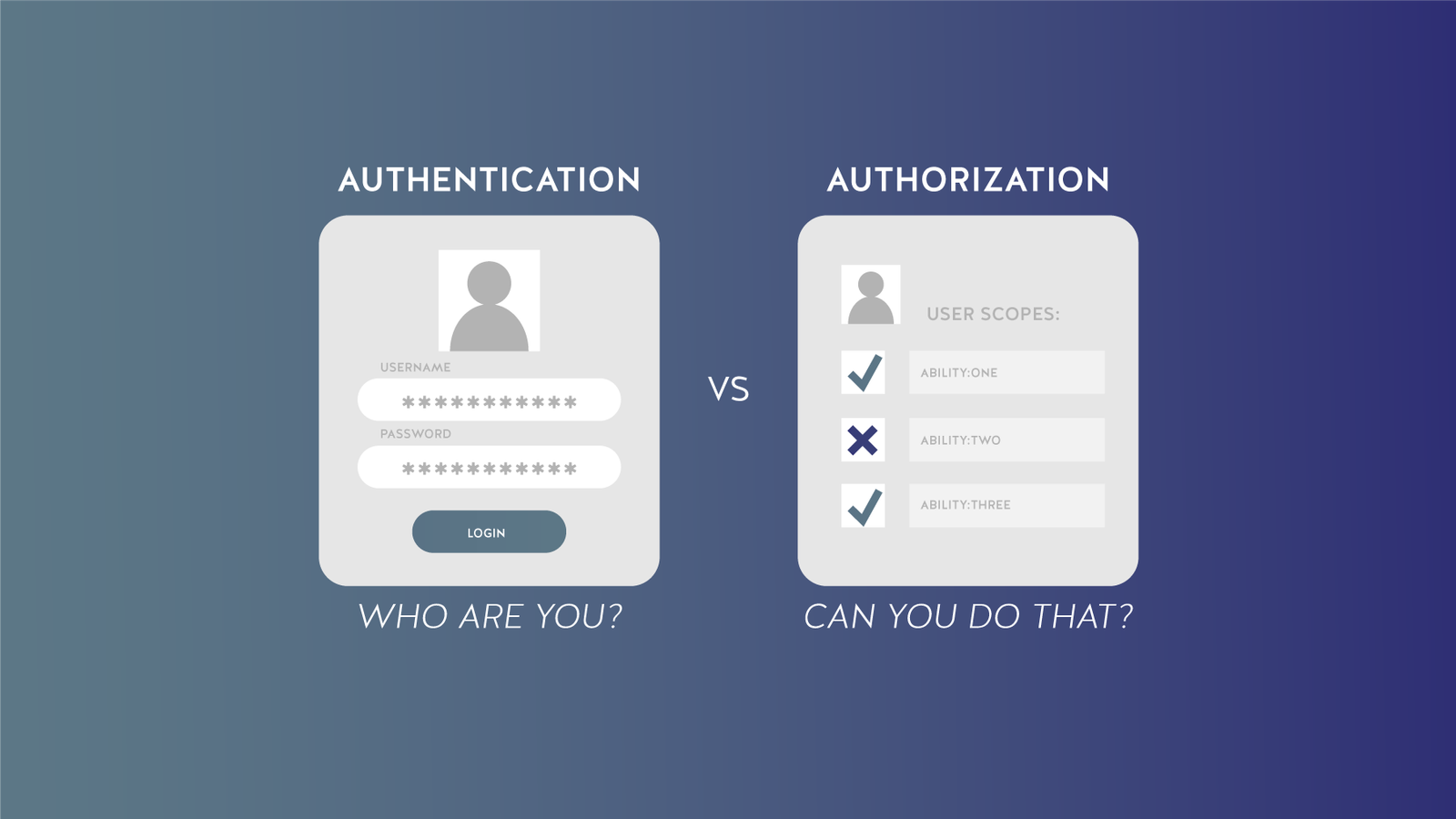
Security is a critical aspect of modern computing systems, ensuring that data and resources are protected from unauthorized access and misuse. Two fundamental components of security are user authentication and authorization. These mechanisms work together to safeguard systems, manage access control, and protect sensitive information. This article provides an in-depth look at user authentication and authorization, their importance, and their implementation in secure systems.

1. User Authentication

Overview:

User authentication is the process of verifying the identity of a user attempting to access a system. The goal is to ensure that the user is who they claim to be before granting access to protected resources. Authentication is the first line of defense in security, establishing a user’s identity based on credentials.

Types of Authentication Methods:

  1. Password-Based Authentication:
    • Description: Users provide a username and password to gain access. The system verifies the credentials against stored data.
    • Strengths: Simple and widely used.
    • Weaknesses: Susceptible to attacks such as phishing, password guessing, and credential theft.
  2. Two-Factor Authentication (2FA):
    • Description: Adds an additional layer of security by requiring a second form of verification, such as a one-time code sent to a mobile device.
    • Strengths: Enhances security by combining something the user knows (password) with something they have (mobile device).
    • Weaknesses: Can be inconvenient for users and requires additional infrastructure.
  3. Biometric Authentication:
    • Description: Uses unique biological characteristics, such as fingerprints, facial recognition, or iris patterns, to verify identity.
    • Strengths: Provides high security and convenience as biometrics are difficult to replicate.
    • Weaknesses: Can be expensive to implement and may raise privacy concerns.
  4. Token-Based Authentication:
    • Description: Users receive a token (physical or digital) that must be presented along with their credentials. Examples include hardware tokens and software tokens.
    • Strengths: Offers an additional security layer and is resistant to phishing attacks.
    • Weaknesses: Requires management of tokens and potential cost of hardware.
  5. Single Sign-On (SSO):
    • Description: Allows users to authenticate once and gain access to multiple systems or applications without needing to log in again.
    • Strengths: Reduces password fatigue and improves user experience.
    • Weaknesses: If compromised, it can provide access to multiple services.

Best Practices for Authentication:

  • Use Strong Passwords: Encourage the use of complex passwords and implement policies to enforce password strength.
  • Regularly Update Credentials: Require users to change passwords periodically and avoid password reuse.
  • Implement 2FA: Enhance security by adding an additional verification step.
  • Secure Authentication Data: Protect authentication data through encryption and secure storage.

2. Authorization

Overview:

Authorization is the process of determining whether a user has the right to access specific resources or perform certain actions within a system. Once a user is authenticated, authorization mechanisms control what resources they can access and what operations they can perform.

Types of Authorization Models:

  1. Discretionary Access Control (DAC):
    • Description: Allows users to control access to their own resources. Users can grant or deny permissions to other users.
    • Strengths: Provides flexibility and ease of use.
    • Weaknesses: Can lead to security risks if users are not careful in managing permissions.
  2. Mandatory Access Control (MAC):
    • Description: Enforces strict access policies defined by the system or organization. Users cannot alter access controls.
    • Strengths: Provides strong security and prevents unauthorized access.
    • Weaknesses: Less flexible and can be complex to implement.
  3. Role-Based Access Control (RBAC):
    • Description: Assigns permissions based on user roles within an organization. Users inherit permissions associated with their roles.
    • Strengths: Simplifies permission management and aligns access controls with organizational roles.
    • Weaknesses: Requires careful role definition and management.
  4. Attribute-Based Access Control (ABAC):
    • Description: Grants access based on attributes of users, resources, and the environment (e.g., time of day, location).
    • Strengths: Offers fine-grained access control and flexibility.
    • Weaknesses: Can be complex to configure and manage.

Best Practices for Authorization:

  • Define Clear Roles and Permissions: Establish roles and associated permissions based on organizational needs and security requirements.
  • Review and Update Access Controls: Regularly review and update access controls to reflect changes in user roles or organizational structure.
  • Implement Principle of Least Privilege: Grant users the minimum level of access necessary to perform their job functions.
  • Monitor Access: Track and log access activities to detect and respond to unauthorized access attempts.

3. Integration of Authentication and Authorization

Overview:

Authentication and authorization work together to secure systems and manage user access. Authentication verifies user identity, while authorization determines access rights. Both processes are essential for protecting data and resources.

Integrated Approach:

  • Single Sign-On (SSO): Integrates authentication with authorization by allowing users to access multiple systems with a single authentication process.
  • Access Control Lists (ACLs): Combine authentication and authorization by defining access permissions for users and groups on specific resources.
  • Federated Identity Management: Links authentication and authorization across different domains or organizations, enabling users to access external resources with their existing credentials.
User Authentication and Authorization

Conclusion

User authentication and authorization are crucial components of security in modern systems. Authentication verifies user identities, while authorization ensures that users have appropriate access to resources. By implementing robust authentication methods and effective authorization models, organizations can safeguard their data, protect against unauthorized access, and maintain system integrity.

Using an old computer can be challenging, especially if the operating system is slow and unresponsive. Fortunately, there are lightweight operating systems designed to breathe new life into older hardware. In this article, we’ll discuss the best lightweight operating systems that can make your old computer run like new.

Why Choose Lightweight Operating Systems?

Lightweight operating systems are designed to use fewer resources than traditional ones. This makes them perfect for older computers with limited processing power and memory. These operating systems can provide a faster and more efficient computing experience without needing a hardware upgrade.

Lightweight Operating Systems for Old Computers

Lubuntu

Lubuntu is a popular lightweight operating system that is based on Ubuntu. It uses the LXQt desktop environment, which is known for its low resource usage. Lubuntu provides a clean and simple interface, making it easy to use even for those who are not tech-savvy. It also comes with a variety of pre-installed applications, including a web browser, office suite, and media player.

Puppy Linux

Puppy Linux is one of the most lightweight operating systems available. It is incredibly fast and can run entirely from RAM, which means it doesn’t need to access the hard drive frequently. Puppy Linux is perfect for very old computers or those with minimal hardware specifications. It includes essential applications and can be customized with additional software as needed.

Linux Lite

Linux Lite is another excellent choice for older computers. It is based on Ubuntu and uses the Xfce desktop environment, which is both lightweight and user-friendly. Linux Lite aims to provide a smooth transition for Windows users, offering a familiar interface and easy-to-use tools. It comes with a comprehensive set of pre-installed applications, including a web browser, email client, and media player.

Xubuntu

Xubuntu is a variant of Ubuntu that uses the Xfce desktop environment. It is designed to be fast and efficient, making it ideal for older computers. Xubuntu provides a balance between performance and usability, offering a full-featured operating system without sacrificing speed. It includes a wide range of applications, making it suitable for everyday use.

Tiny Core Linux

Tiny Core Linux is one of the smallest and most lightweight operating systems available. The core system is only about 16MB in size, and users can add additional applications as needed. Tiny Core Linux is highly customizable and can run on very old hardware. However, it requires some technical knowledge to set up and configure.

Peppermint OS

Peppermint OS is a lightweight operating system that combines the best features of cloud-based and traditional desktop environments. It uses the LXDE desktop environment and is based on Ubuntu. Peppermint OS is designed to be fast and efficient, with a focus on web-based applications. It includes a variety of pre-installed applications and tools, making it easy to use.

Zorin OS Lite

Zorin OS Lite is a lightweight version of Zorin OS, designed specifically for older computers. It uses the Xfce desktop environment and offers a familiar interface for Windows users. Zorin OS Lite is fast and responsive, with a focus on providing a smooth user experience. It comes with a range of pre-installed applications, including a web browser, office suite, and media player.

SparkyLinux

SparkyLinux is a lightweight operating system based on Debian. It offers several different desktop environments, including LXQt, Xfce, and Openbox, allowing users to choose the one that best suits their needs. SparkyLinux is fast and efficient, with a focus on providing a stable and user-friendly experience. It includes a wide range of pre-installed applications and tools.

Conclusion

Choosing a lightweight operating system can greatly improve the performance of your old computer. Whether you prefer a user-friendly interface or a highly customizable system, there is a lightweight operating system that will meet your needs. By selecting one of these options, you can extend the life of your computer and enjoy a faster, more efficient computing experience.

Inter-Process Communication (IPC) is a critical component of modern operating systems, allowing processes to communicate and coordinate with each other. IPC enables processes to share data, synchronize activities, and perform cooperative tasks, essential for complex applications and multi-process systems. This article explores the various methods of IPC, their benefits, and their applications in system design.

Inter-Process Communication (IPC)

1. Overview of IPC

Definition:

Inter-Process Communication refers to the mechanisms and techniques used by processes to exchange data and signals. These processes can be running on the same computer or across different systems connected over a network. IPC ensures that processes can work together effectively, share resources, and maintain data consistency.

Importance:

IPC is vital for several reasons:

  • Data Sharing: Allows processes to share data and resources, reducing redundancy and improving efficiency.
  • Synchronization: Coordinates the activities of concurrent processes to avoid conflicts and ensure consistency.
  • Communication: Facilitates interaction between processes, enabling them to perform collaborative tasks and complete complex operations.

2. IPC Methods

Several IPC methods and mechanisms are used to enable communication between processes. Each method has its unique characteristics, advantages, and use cases:

1. Pipes

  • Description: Pipes provide a unidirectional channel for communication between processes. Data written to one end of the pipe can be read from the other end.
  • Types:
    • Anonymous Pipes: Typically used for communication between related processes, such as a parent and child process. They are simple but limited to the same machine.
    • Named Pipes: Provide a more flexible way to communicate between processes, including those on different machines. They use a name to identify the pipe and support bi-directional communication.

2. Message Queues

  • Description: Message queues allow processes to send and receive messages in a managed queue. Messages are stored in the queue until they are retrieved by the receiving process.
  • Advantages: Message queues support asynchronous communication, meaning processes can continue their execution without waiting for messages to be processed.
  • Use Cases: Suitable for systems where processes need to communicate asynchronously and manage messages efficiently.

3. Shared Memory

  • Description: Shared memory allows multiple processes to access the same region of memory. This method enables processes to exchange large amounts of data quickly.
  • Synchronization: Shared memory requires synchronization mechanisms, such as semaphores or mutexes, to prevent conflicts and ensure data consistency.
  • Advantages: Provides fast communication by avoiding the overhead of message copying and context switching.
  • Use Cases: Useful for scenarios where high-speed data exchange is required, such as real-time systems or large-scale applications.

4. Semaphores

  • Description: Semaphores are synchronization tools used to manage access to shared resources and coordinate process activities.
  • Types:
    • Binary Semaphores: Used to implement mutual exclusion, allowing only one process to access a resource at a time.
    • Counting Semaphores: Manage access to a pool of resources, allowing a specified number of processes to access the resource concurrently.
  • Use Cases: Essential for preventing race conditions and ensuring that processes coordinate effectively when accessing shared resources.

5. Sockets

  • Description: Sockets enable communication between processes over a network, supporting both connection-oriented and connectionless communication.
  • Types:
    • Stream Sockets (TCP): Provide reliable, connection-oriented communication with error checking and flow control.
    • Datagram Sockets (UDP): Provide connectionless communication with lower overhead and faster transmission, but without guaranteed delivery.
  • Use Cases: Ideal for networked applications where processes need to communicate across different systems or over the internet.

6. Signals

  • Description: Signals are a form of inter-process communication used to notify processes of events or conditions. They are typically used for simple notifications and process control.
  • Types:
    • Software Signals: Generated by the operating system or other processes to notify events, such as SIGINT for interruption.
    • Hardware Signals: Triggered by hardware events, such as interrupts.
  • Use Cases: Useful for sending notifications or controlling process execution, such as stopping or resuming a process.

3. Benefits of IPC

Efficiency:

IPC methods enable processes to share data and resources efficiently, reducing the need for redundant operations and optimizing system performance.

Modularity:

IPC facilitates the design of modular and distributed systems by allowing independent processes to communicate and cooperate. This modularity simplifies development, maintenance, and scalability.

Synchronization:

Effective IPC mechanisms ensure that processes are synchronized and avoid conflicts when accessing shared resources. This synchronization is crucial for maintaining data integrity and system stability.

Scalability:

IPC methods support scalable systems by enabling communication between multiple processes, which can be distributed across different machines or networks. This scalability is essential for handling large-scale applications and complex operations.

4. Applications of IPC

Client-Server Architectures:

IPC is fundamental in client-server architectures, where a client process communicates with a server process to request and receive services. Sockets and message queues are commonly used in these scenarios.

Real-Time Systems:

Real-time systems rely on IPC to manage the communication and synchronization of processes with strict timing requirements. Shared memory and semaphores are often used to achieve real-time performance.

Distributed Systems:

In distributed systems, IPC enables communication between processes running on different machines. Sockets and message queues are frequently used to facilitate inter-process communication over a network.

Multithreading:

In multithreaded applications, IPC methods are used to synchronize threads and manage communication between them. Semaphores and shared memory are common tools in multithreading environments.

Conclusion

Inter-Process Communication (IPC) is essential for effective process management in modern operating systems. By providing various methods for processes to communicate, synchronize, and share resources, IPC enables efficient and coordinated execution of tasks. Understanding and implementing IPC techniques is crucial for designing robust and scalable systems, enhancing system performance, and ensuring seamless interaction between processes.

Operating systems (OS) play a crucial role in managing network connections and ensuring smooth communication between devices. Network management involves various tasks such as configuring network settings, monitoring network performance, ensuring security, and handling data traffic. Effective OS  network management ensures reliable and efficient connectivity, which is vital for both personal and enterprise environments.

How Operating Systems Handle Network Management

Network Configuration

Operating systems provide tools and interfaces for configuring network settings. In Windows, users can access the Network and Sharing Center to set up and manage connections. macOS offers similar functionality through the Network pane in System Preferences. Linux users can use network management tools like NetworkManager to configure network interfaces. These tools allow users to set IP addresses, DNS servers, gateways, and other network parameters, enabling seamless connectivity.

Monitoring Network Performance

Monitoring network performance is essential for identifying issues and ensuring optimal operation. Operating systems include built-in tools for this purpose. Windows offers Task Manager and Resource Monitor to track network usage and performance. macOS includes Activity Monitor, which provides detailed network statistics. Linux users can use command-line tools like iftop, netstat, and nload to monitor network traffic. These tools help users detect bottlenecks, manage bandwidth, and maintain network health.

Ensuring Network Security

Security is a critical aspect of network management, and operating systems implement various measures to protect network connections. Windows Defender Firewall, macOS Firewall, and Linux iptables are examples of built-in firewalls that monitor and control incoming and outgoing traffic. Operating systems also support encryption protocols like WPA3 for secure Wi-Fi connections. Additionally, OS-level security updates and patches help protect against vulnerabilities and threats.

Handling Data Traffic

Operating systems efficiently handle data traffic to ensure smooth communication and prevent congestion. They implement network protocols such as TCP/IP to manage data packet transmission. Quality of Service (QoS) settings in Windows allow users to prioritize specific types of traffic, ensuring that critical applications receive the necessary bandwidth. Linux offers advanced traffic control tools like tc (Traffic Control) to manage and shape network traffic, providing granular control over data flow.

Support for Various Network Types

Modern operating systems support a wide range of network types, including wired, wireless, and cellular networks. They provide drivers and interfaces for Ethernet adapters, Wi-Fi cards, and mobile broadband devices. Windows, macOS, and Linux automatically detect and configure these devices, making it easy for users to connect to different networks. This versatility ensures that users can stay connected regardless of the network type.

Managing Network Resources in Enterprise Environments

In enterprise environments, operating systems manage network resources through features like Active Directory in Windows Server, which centralizes network management and provides authentication and authorization services. Linux offers similar functionality through LDAP (Lightweight Directory Access Protocol) and other network management tools. These features allow administrators to manage user accounts, permissions, and network policies efficiently, ensuring secure and organized network operations.

Virtual Network Management

Operating systems also handle virtual networks, which are essential in cloud computing and virtualization. Windows Hyper-V, macOS Parallels, and Linux KVM (Kernel-based Virtual Machine) provide virtual networking capabilities that allow multiple virtual machines to communicate over a shared physical network. These virtual networks can be configured, monitored, and secured just like physical networks, offering flexibility and scalability for virtualized environments.

Advancements in Network Management

Advancements in network management continue to improve the capabilities of operating systems. Features like Software-Defined Networking (SDN) and Network Function Virtualization (NFV) are being integrated into operating systems to enhance network management and automation. These technologies enable centralized control and dynamic adjustment of network resources, leading to more efficient and adaptive network management.

Conclusion

OS network management by providing tools for configuration, monitoring, security, and data traffic handling. They support various network types, manage network resources in enterprise environments, and offer virtual network management capabilities. As network demands continue to grow, advancements in network management technologies will further enhance the ability of operating systems to provide reliable, efficient, and secure connectivity.

Having problems with your computer can be frustrating. When your operating system acts up, it can feel like a disaster. Don’t worry! Troubleshooting common operating system issues is simpler than you think. In this article, we’ll walk you through some of the most frequent problems and how to fix them.

Understanding the Blue Screen of Death

The Blue Screen of Death (BSOD) is a dreaded sight for many Windows users. This error screen means your system has encountered a critical error. But don’t panic. To troubleshoot this issue, note the error code displayed on the screen. You can search this code online to find specific solutions. Often, BSODs are caused by hardware issues or driver problems. Updating your drivers or removing recently added hardware can help resolve the issue.

Troubleshooting Common Operating System Issues

Dealing with Slow Performance

Is your computer running slower than usual? Slow performance is a common issue for many users. There are several potential causes and solutions for this problem. First, check if your system is overloaded with too many programs running at once. Close any unnecessary applications to free up resources. You can also check for malware or viruses that might be affecting your computer. Running a virus scan and removing any threats can significantly improve performance.

Fixing Software Crashes

Software crashes are another frequent issue. If a specific program keeps crashing, try reinstalling it. Sometimes, a fresh installation can fix corrupted files causing the crashes. Ensure your operating system and the software are updated to their latest versions. Updates often include bug fixes that resolve stability issues.

Resolving Network Connectivity Problems

Network connectivity problems can be a hassle, especially when you need to be online. If you’re having trouble connecting to the internet, start by checking your network cables and router. Restarting your router can often fix connectivity issues. If the problem persists, check your network settings. Ensure that your Wi-Fi is enabled and connected to the correct network. Additionally, updating your network drivers can help resolve persistent issues.

Addressing Disk Space Issues

Running out of disk space can slow down your computer and prevent you from saving new files. To free up space, start by deleting unnecessary files and programs. You can also use disk cleanup tools to remove temporary files and other junk. If you need more space, consider moving some files to an external drive or cloud storage.

Troubleshooting Boot Issues

If your computer won’t boot, it can be a serious issue. Start by checking your hardware connections. Ensure all cables are securely connected and your power supply is working. If the problem isn’t hardware-related, you might need to access your system’s recovery options. Many operating systems offer built-in tools to repair boot issues. These tools can help you get your computer up and running again.

Handling Audio Problems

Audio problems can be frustrating, especially if you use your computer for entertainment or communication. If your sound isn’t working, start by checking your audio settings. Updating your audio drivers can also resolve many sound issues.

Solving Printer Issues

If your printer isn’t working, check the connection between your computer and the printer.

Managing Software Updates

Software updates are essential for keeping your system running smoothly. However, sometimes updates can cause problems. If you experience issues after an update, you might need to roll back to a previous version. Most operating systems allow you to uninstall recent updates if they cause problems.

Dealing with Overheating

Overheating can cause your computer to shut down unexpectedly. Cleaning out dust and debris from your computer can also help improve cooling. If overheating persists, you might need to replace your computer’s cooling system.

Fixing External Device Problems

External devices like USB drives, external hard drives, and webcams can sometimes cause issues. If a device isn’t working, try connecting it to a different port. Updating your device drivers can also resolve many issues. If the problem continues, the device itself might be faulty.

Conclusion

By following these tips on troubleshooting common operating system issues, you can resolve many problems and keep your computer running smoothly. Remember, keeping your system updated and performing regular maintenance can prevent many issues before they start. Happy computing!


Process management is a critical function of modern operating systems, ensuring that multiple processes can run concurrently and efficiently. Two key aspects of process management are multitasking and process scheduling. These concepts are fundamental to managing system resources, optimizing performance, and providing a smooth user experience. This article delves into the principles of multitasking and process scheduling, their importance, and how they are implemented in operating systems.

Process Management
Process Management

1. Multitasking

Overview:

Multitasking refers to the capability of an operating system to manage and execute multiple processes or tasks simultaneously. This allows users to run several applications at once, such as browsing the web, editing documents, and playing music, without having to close one application to use another.

Types of Multitasking:

  • Preemptive Multitasking: In preemptive multitasking, the operating system allocates time slices to each process, allowing it to interrupt and switch between tasks as needed. This approach ensures that all processes receive a fair share of CPU time and prevents any single process from monopolizing system resources. Most modern operating systems, including Windows, Linux, and macOS, use preemptive multitasking.
  • Cooperative Multitasking: In cooperative multitasking, processes voluntarily yield control to the operating system, allowing other processes to run. The operating system relies on processes to behave cooperatively and release CPU control periodically. This method was common in earlier operating systems but is less efficient compared to preemptive multitasking.

Benefits of Multitasking:

  • Increased Productivity: Multitasking enables users to perform multiple tasks concurrently, enhancing productivity and allowing for more efficient use of system resources.
  • Improved System Utilization: By running multiple processes simultaneously, the operating system can better utilize available CPU and memory resources, reducing idle time and improving overall system performance.
  • Enhanced User Experience: Multitasking provides a seamless user experience by allowing applications to run in the background while users interact with other applications, resulting in a more responsive and fluid computing environment.

2. Process Scheduling

Overview:

Process scheduling is the mechanism used by the operating system to manage the execution of processes. It determines the order in which processes are executed, how CPU time is allocated, and how system resources are shared among processes.

Types of Scheduling:

  • Long-Term Scheduling: Long-term scheduling, also known as admission scheduling, determines which processes are admitted into the system for execution. It controls the process admission rate to ensure that the system does not become overloaded. Long-term scheduling manages the transition of processes from the job queue to the ready queue.
  • Short-Term Scheduling: Short-term scheduling, or CPU scheduling, determines which process in the ready queue will be allocated CPU time next. It involves making rapid decisions on process execution based on priority, arrival time, and other factors. Short-term scheduling is crucial for maintaining system responsiveness and ensuring fair CPU allocation.
  • Medium-Term Scheduling: Medium-term scheduling manages the swapping of processes between main memory and disk storage. It helps in balancing the system load and optimizing memory usage. Medium-term scheduling involves decisions on which processes should be swapped out of memory to disk and which processes should be brought into memory.

Scheduling Algorithms:

Several scheduling algorithms are used to determine process execution order and CPU allocation. Each algorithm has its advantages and trade-offs:

  • First-Come, First-Served (FCFS): Processes are executed in the order they arrive in the ready queue. While simple and fair, FCFS can lead to the “convoy effect,” where short processes wait behind long ones, reducing overall system performance.
  • Shortest Job Next (SJN): Also known as Shortest Job First (SJF), this algorithm selects the process with the shortest execution time for execution next. It minimizes average waiting time but requires knowledge of process execution times, which is not always feasible.
  • Round Robin (RR): Processes are assigned fixed time slices (quantum) in a circular order. After each time slice, the process is moved to the end of the queue if it is not completed. Round Robin ensures fair CPU allocation but may lead to increased context switching overhead.
  • Priority Scheduling: Processes are assigned priorities, and the scheduler selects the process with the highest priority for execution. Priority scheduling can be preemptive or non-preemptive. It may lead to “starvation” of lower-priority processes if high-priority processes continually arrive.
  • Multilevel Queue Scheduling: Processes are divided into multiple queues based on priority or characteristics, with each queue using a different scheduling algorithm. The system selects processes from each queue based on their priorities and scheduling policies.

Impact of Scheduling on System Performance:

  • Throughput: The number of processes completed in a given time period. Efficient scheduling improves throughput by reducing the time required to complete processes.
  • Turnaround Time: The total time taken to execute a process from arrival to completion. Effective scheduling minimizes turnaround time and improves overall system responsiveness.
  • Waiting Time: The amount of time a process spends waiting in the ready queue before being executed. Good scheduling reduces waiting time and improves process efficiency.
  • Response Time: The time taken for a process to start responding after being initiated. Lower response time enhances user experience and system interactivity.

Conclusion

Multitasking and process scheduling are essential aspects of operating system design, enabling efficient management and execution of multiple processes. Multitasking allows users to run concurrent tasks seamlessly, while process scheduling ensures fair and efficient allocation of system resources. By understanding and implementing effective multitasking and scheduling techniques, operating systems can optimize performance, enhance user experience, and maintain system stability.

File system hierarchies are fundamental to how data is organized and managed within a computer system. A file system hierarchy defines the structure in which files and directories are organized, providing a way to store, retrieve, and manage data effectively. Understanding file system hierarchies is crucial for both users and administrators to navigate, maintain, and optimize storage systems. This article explores the concepts of file system hierarchies, including directory structures, paths, and their impact on system organization.

1. Directory Structure

Overview:

The directory structure is the organization of directories (or folders) and files within a file system. It provides a hierarchical arrangement that helps users and applications locate and manage files. The hierarchy typically starts with a root directory and branches out into subdirectories.

Root Directory:

The root directory is the top-level directory in a file system hierarchy. It serves as the starting point for all other directories and files. In Unix-like systems, the root directory is denoted by a forward slash (/), while in Windows, it is represented by a drive letter followed by a backslash (e.g., C:\).

Subdirectories:

Subdirectories are directories within other directories, creating a tree-like structure. They help organize files into logical groups, making it easier to manage and locate data. Subdirectories can contain additional subdirectories, forming a nested hierarchy.

Files:

Files are the individual units of data stored within directories. Each file is associated with a specific directory, and its location is determined by its path within the directory structure. Files can be of various types, including text documents, images, executables, and more.

2. File Paths

Absolute Paths:

An absolute path specifies the full path to a file or directory, starting from the root directory. It provides a complete address, ensuring that the file or directory can be located regardless of the current working directory. For example:

  • Unix-like systems: /home/user/documents/file.txt
  • Windows: C:\Users\User\Documents\file.txt

Relative Paths:

A relative path specifies the location of a file or directory relative to the current working directory. It does not include the full path from the root, making it shorter and more flexible. For example:

  • Unix-like systems: documents/file.txt (relative to /home/user)
  • Windows: Documents\file.txt (relative to C:\Users\User)

Special Directories:

Certain special directories and symbols are used in file paths:

  • . (Dot): Represents the current directory.
  • .. (Double Dot): Represents the parent directory.
  • ~ (Tilde): Represents the home directory of the current user in Unix-like systems.

3. File System Hierarchy Examples

Unix-Like Systems:

Unix-like systems, including Linux and macOS, use a hierarchical directory structure that starts with the root directory (/). Common directories include:

  • /home or /Users: Contains user home directories.
  • /etc: Contains system configuration files.
  • /var: Contains variable data such as logs and caches.
  • /usr: Contains user-installed software and system binaries.

Windows Systems:

Windows systems use a hierarchical structure based on drive letters. Common directories include:

  • C:\Windows: Contains the Windows operating system files.
  • C:\Program Files: Contains installed applications.
  • C:\Users: Contains user profile directories.
  • C:\ProgramData: Contains application data shared among users.

4. Impact of File System Hierarchies

Organization and Efficiency:

File system hierarchies enhance organization by grouping related files and directories together. A well-structured hierarchy improves efficiency by making it easier to locate and manage files, reducing clutter, and optimizing file access.

Permissions and Security:

Hierarchical structures impact permissions and security. Access controls can be set at different levels within the hierarchy, allowing administrators to manage file and directory permissions effectively. For example, permissions can be applied to entire directories, affecting all files and subdirectories within them.

Backup and Recovery:

File system hierarchies affect backup and recovery processes. Backups often focus on specific directories or entire file systems, and a well-defined hierarchy ensures that data can be restored accurately and efficiently. Hierarchical structures also facilitate incremental backups, where only changes since the last backup are saved.

System Performance:

A well-designed file system hierarchy can impact system performance. Efficient directory structures and file organization reduce the time needed to search for and access files. Additionally, hierarchical file systems can optimize storage allocation and reduce fragmentation.

File System Hierarchies

5. Best Practices for File System Hierarchies

Logical Organization:

Organize directories and files logically based on their purpose and usage. Group related files together and create subdirectories to reflect the structure of your data.

Consistent Naming Conventions:

Use consistent naming conventions for files and directories. Avoid using special characters or spaces, and use meaningful names that describe the content or purpose of the files.

Regular Maintenance:

Perform regular maintenance tasks, such as cleaning up unnecessary files, reorganizing directories, and ensuring proper permissions. Regular maintenance helps keep the file system efficient and manageable.

Documentation:

Document the file system hierarchy and its structure. This documentation can be helpful for users and administrators, providing a reference for understanding the organization and managing files effectively.

Conclusion

File system hierarchies play a vital role in organizing and managing data within computer systems. By defining a structured arrangement of directories and files, file system hierarchies enhance efficiency, security, and performance. Understanding the principles of file system hierarchies and implementing best practices ensures effective data management and optimal system operation.