Microsoft Windows is renowned for its user-friendly interface and comprehensive set of features that cater to both personal and professional needs. Over the years, Windows has continually evolved, incorporating new functionalities and enhancements that make it one of the most versatile and widely used operating systems. This article explores the key features of Windows that contribute to its popularity and utility.

Key Features of Windows

1. User Interface (UI)

The user interface is one of the most recognizable aspects of Windows, providing a visually intuitive way for users to interact with the system.

Key Elements:

  • Start Menu: Introduced with Windows 95, the Start menu is a central hub for accessing applications, system settings, and files. It has evolved to include live tiles and search functionality, making it easier to find and launch applications.
  • Taskbar: The taskbar provides quick access to running applications, pinned shortcuts, and system notifications. It also includes features like task view for managing virtual desktops and a system tray for system and application icons.
  • Desktop and Windows: The desktop environment offers a space for icons, shortcuts, and widgets. Windows’ window management allows users to easily resize, move, and organize open applications.

2. Multitasking and Productivity

Windows offers robust multitasking capabilities that enhance productivity by allowing users to efficiently manage multiple applications and workflows.

Key Features:

  • Task View and Virtual Desktops: Task view provides an overview of all open windows and desktops, making it easy to switch between tasks. Virtual desktops enable users to organize workspaces by separating different types of tasks or projects.
  • Snap Assist and Snap Layouts: These features allow users to quickly arrange open windows on the screen. Snap Assist offers predefined layouts, while Snap Layouts in Windows 11 provide more flexible window arrangement options.
  • Action Center and Notifications: The Action Center aggregates system and app notifications, providing quick access to settings like Wi-Fi, brightness, and notifications.

3. Security and Privacy

Security is a core focus for Windows, with various built-in features designed to protect users and their data.

Key Features:

  • Windows Defender: A comprehensive security suite that includes antivirus, firewall, and real-time protection against malware and other threats.
  • Windows Hello: A biometric authentication system that uses facial recognition or fingerprint scanning to enhance security while providing quick and easy login.
  • BitLocker: A data encryption feature that protects information on devices and drives, ensuring that unauthorized users cannot access sensitive data.
  • Windows Sandbox: A secure environment for running untrusted applications, allowing users to test software without risking their main system.

4. Connectivity and Integration

Windows offers seamless integration with various devices and services, enhancing connectivity and collaboration.

Key Features:

  • Microsoft Account Integration: Allows users to sync settings, preferences, and files across multiple devices using their Microsoft account. This integration also provides access to services like OneDrive for cloud storage and Office 365 for productivity tools.
  • Cortana: A virtual assistant that helps users with tasks such as scheduling, reminders, and searching the web. Cortana integrates with other Microsoft services and third-party applications.
  • Microsoft Teams Integration: With the rise of remote work and online collaboration, Windows has integrated Microsoft Teams into the taskbar, providing easy access to chat, video calls, and meetings.

5. Gaming and Multimedia

Windows has long been a popular platform for gaming and multimedia, offering features that enhance the entertainment experience.

Key Features:

  • DirectX: A suite of multimedia APIs that enhance gaming graphics, sound, and performance. DirectX 12, the latest version, provides improved visuals and lower power consumption for gaming and multimedia applications.
  • Game Mode and Xbox Integration: Game Mode optimizes system performance for gaming, while Xbox integration allows users to stream games from their Xbox console, access the Xbox app, and use Xbox Game Pass for PC.
  • Windows Media Player and Media Apps: Windows includes built-in media players and apps for music, video, and photo management, catering to users’ multimedia needs.

6. Accessibility Features

Windows includes a range of accessibility features designed to make computing easier for people with disabilities.

Key Features:

  • Narrator: A screen reader that reads aloud text on the screen and provides verbal descriptions of elements, aiding users with visual impairments.
  • Magnifier: A tool that enlarges parts of the screen, helping users with low vision.
  • Speech Recognition: Allows users to control their computer and dictate text using voice commands.
  • High Contrast and Customizable Display Settings: These features help users with visual impairments by enhancing the visibility of text and UI elements.

Conclusion

The key features of Windows make it a versatile and powerful operating system suitable for a wide range of users, from casual home users to professionals and enterprises. Its combination of a user-friendly interface, robust security measures, productivity tools, and seamless connectivity ensures that Windows remains a leading choice in the operating system market. As technology advances, Windows continues to evolve, integrating new features and improvements to meet the changing needs of users.

Microsoft Windows, one of the most iconic and widely used operating systems globally, has a rich history that spans over three decades. From its inception as a graphical extension for MS-DOS to its current form as a sophisticated operating system powering millions of devices, Windows has undergone significant transformations. This article explores the key milestones and developments in the history and evolution of Windows.

History and Evolution of Windows

Early Beginnings: Windows 1.0 to Windows 3.x

Windows 1.0 (1985):
Windows was first introduced in 1985 as a graphical user interface (GUI) for MS-DOS, named Windows 1.0. Unlike modern Windows versions, it was not a full operating system but rather a front-end for DOS. Windows 1.0 featured a rudimentary GUI with limited multitasking capabilities, and applications were displayed in tiled windows without the ability to overlap.

Windows 2.0 (1987):
The release of Windows 2.0 brought significant improvements, including the ability to overlap windows and use keyboard shortcuts. This version also introduced support for 16-bit applications and the Control Panel, a feature still present in modern versions of Windows.

Windows 3.0 (1990) and 3.1 (1992):
Windows 3.0 marked a turning point for the platform, offering improved performance, a more intuitive interface, and better graphics capabilities. It introduced the Program Manager and File Manager for managing applications and files. Windows 3.1, an incremental upgrade, brought additional features like TrueType fonts, which enhanced text display, and broader hardware support.

The Major Leap: Windows 95 and Windows 98

Windows 95 (1995):
Windows 95 was a landmark release that significantly reshaped the Windows operating system. It introduced the Start menu, taskbar, and Windows Explorer, which have become defining features of the Windows user experience. Windows 95 integrated MS-DOS with the Windows GUI, providing a more cohesive and user-friendly environment. It also supported 32-bit applications and introduced Plug and Play, simplifying hardware installation.

Windows 98 (1998):
Building on the success of Windows 95, Windows 98 offered better hardware support, improved Internet integration with Internet Explorer 4.0, and new features like the Windows Update system. It also included the introduction of the USB (Universal Serial Bus) support, which became a standard for peripheral connectivity.

Entering the New Millennium: Windows 2000, ME, and XP

Windows 2000 (2000):
Windows 2000 was aimed primarily at business users and built on the Windows NT architecture, known for its stability and security. It offered features like Active Directory, which helped manage network resources, and enhanced support for mobile and wireless networking.

Windows ME (2000):
Released in the same year as Windows 2000, Windows ME (Millennium Edition) targeted home users. It introduced multimedia features like Windows Movie Maker and System Restore, a tool for recovering the system from software issues. However, it was criticized for its instability and was quickly overshadowed by its successors.

Windows XP (2001):
Windows XP was a major milestone, merging the consumer-oriented Windows 9x series with the more stable and secure NT architecture. XP featured a redesigned interface, more reliable performance, and improved support for wireless networking. It was widely praised for its usability and became one of the most popular and enduring versions of Windows.

Challenges and Innovation: Windows Vista and Windows 7

Windows Vista (2006):
Windows Vista introduced a host of new features, including a revamped user interface (Aero), enhanced security features (User Account Control), and improved search functionality. However, it faced criticism for high system requirements and performance issues. Despite its innovations, Vista had a mixed reception from users.

Windows 7 (2009):
Windows 7 was developed to address many of the criticisms of Vista. It offered improved performance, a refined user interface, and enhanced features like the taskbar, which allowed for better application management. Windows 7 received widespread acclaim and became one of the most popular versions of Windows, known for its reliability and ease of use.

Modern Era: Windows 8, 10, and Beyond

Windows 8 (2012):
Windows 8 represented a bold departure from previous versions, introducing a touch-friendly interface with the Start screen and Live Tiles. It was designed to work across traditional PCs and touch-enabled devices like tablets. However, the removal of the traditional Start menu and the steep learning curve for users led to mixed reactions.

Windows 10 (2015):
Responding to user feedback, Windows 10 reintroduced the Start menu and integrated the best aspects of Windows 7 and 8. Windows 10 features include Cortana (a digital assistant), a new Edge browser, virtual desktops, and continuous updates through the Windows as a Service model. It aims to provide a consistent experience across devices, including PCs, tablets, and smartphones.

Windows 11 (2021):
The latest iteration, Windows 11, offers a refreshed user interface with a centered Start menu, enhanced productivity features like Snap layouts, and improved support for virtual desktops. It also includes integration with Microsoft Teams and advanced gaming features. Windows 11 is designed to support the latest hardware advancements and deliver a modern computing experience.

Conclusion

The history and evolution of Windows reflect the broader trends and technological advancements in computing. From its early days as a simple GUI overlay to its current status as a comprehensive, versatile operating system, Windows has continually adapted to meet the changing needs of users. As technology evolves, Windows is poised to continue innovating and shaping the future of personal and enterprise computing.

The Importance of Regular Operating System Updates

Regular updates for your operating system (OS) are crucial for maintaining the performance, security, and overall health of your computer. Operating system updates are not just about new features; they encompass security patches, bug fixes, performance enhancements, and compatibility improvements. Understanding the importance of these updates can help users appreciate why timely installation is vital.

Enhancing Security

Security is the primary reason for regular OS updates. Cyber threats constantly evolve, and outdated systems are vulnerable to attacks. Updates often include security patches that fix vulnerabilities exploited by malware and hackers. By keeping your OS updated, you protect your data, personal information, and prevent unauthorized access to your system.

Bug Fixes and Stability Improvements

Every operating system has bugs that can cause crashes, freezes, or unexpected behavior. Regular updates address these issues by fixing known bugs and improving system stability. Installing updates ensures that your OS runs smoothly, reducing the likelihood of encountering frustrating problems that disrupt your work or play.

Performance Enhancements

Operating system updates often include performance improvements. These enhancements optimize system resources, leading to faster boot times, quicker application launches, and overall better responsiveness. Regular updates ensure your computer operates efficiently, maximizing its potential and extending its lifespan.

Compatibility with New Software

As software developers release new applications and updates, they often optimize their products for the latest operating system versions. By keeping your OS updated, you ensure compatibility with new software, avoiding issues with installation or functionality. This is particularly important for professional environments where productivity tools must work seamlessly.

Access to New Features

Operating system updates frequently introduce new features and functionalities that enhance user experience. These features can include improved user interfaces, new productivity tools, and better integration with other devices and services. Regularly updating your OS allows you to take advantage of the latest advancements and stay up-to-date with technological trends.

Protecting Against Zero-Day Exploits

Zero-day exploits are vulnerabilities that are unknown to the OS developer and are exploited by attackers before they can be patched. Regular updates help mitigate the risk of zero-day exploits by quickly addressing newly discovered vulnerabilities. Prompt installation of updates is critical in defending against these sophisticated threats.

Ensuring Compliance

In many industries, regulatory compliance requires that systems be kept up-to-date to ensure security and data protection. Failing to update your OS can result in non-compliance with industry standards and regulations, leading to potential legal and financial consequences. Regular updates help maintain compliance and protect your organization from penalties.

Avoiding End-of-Support Issues

Operating system developers eventually discontinue support for older versions. When an OS reaches its end of support, it no longer receives updates, leaving it vulnerable to security threats and compatibility issues. Regular updates ensure you are always running a supported version of your OS, maintaining access to essential updates and support.

Conclusion

Regular operating system updates are essential for maintaining a secure, stable, and efficient computing environment. By keeping your OS updated, you enhance security, fix bugs, improve performance, ensure compatibility with new software, access new features, protect against zero-day exploits, ensure compliance, and avoid end-of-support issues. Understanding the importance of these updates can help users prioritize their installation, safeguarding their systems and data in an ever-evolving digital landscape.

In an age where data breaches, hardware failures, and cyber attacks are increasingly common, having a robust backup strategy is crucial for safeguarding your system and ensuring data integrity. Effective backup strategies help ensure that you can quickly recover your data and maintain system security in the event of a disaster. Here’s a comprehensive guide to backup strategies that enhance system security.

1. Understanding Backup Fundamentals

**1.1. Types of Backups

  • Full Backup: A complete copy of all data. This type of backup provides the most comprehensive data protection but can be time-consuming and storage-intensive.
  • Incremental Backup: Only backs up data that has changed since the last backup. This method is more efficient but requires a full backup for restoration.
  • Differential Backup: Backs up data that has changed since the last full backup. It’s faster than a full backup but requires more storage than incremental backups.

**1.2. Backup Locations

  • On-Site Backups: Stored on physical devices like external hard drives or network-attached storage (NAS) located within the same premises.
  • Off-Site Backups: Stored in a different physical location to protect against site-specific disasters.
  • Cloud Backups: Stored in online cloud storage services, offering remote access and scalability.
Backup Strategies for System Security

2. Developing a Backup Strategy

**2.1. Assess Your Needs

  • Data Criticality: Identify which data is essential and needs frequent backups. Consider both system files and user data.
  • Recovery Objectives: Define Recovery Time Objective (RTO) and Recovery Point Objective (RPO) to determine how quickly and to what point in time you need to recover data.

**2.2. Create a Backup Schedule

  • Frequency: Determine how often backups should occur based on data importance and change frequency. Common schedules include daily, weekly, or continuous backups.
  • Automation: Use automated backup solutions to ensure consistent and timely backups without manual intervention.

**2.3. Select Backup Tools and Solutions

  • Backup Software: Choose reliable backup software that supports your backup needs and integrates with your system.
  • Storage Solutions: Select storage solutions that offer sufficient capacity, reliability, and performance for your backup needs.

3. Implementing Backup Procedures

**3.1. Perform Regular Backups

  • Automated Backups: Set up automated backup processes to reduce the risk of human error and ensure regular backups.
  • Manual Backups: Periodically perform manual backups to ensure that important changes are captured.

**3.2. Verify Backup Integrity

  • Test Restorations: Regularly test backup restorations to ensure that backups are complete and can be restored successfully.
  • Check Logs: Review backup logs and reports to identify and address any issues with backup processes.

**3.3. Secure Backup Data

  • Encryption: Encrypt backup data to protect it from unauthorized access and ensure that data remains confidential.
  • Access Controls: Implement strong access controls to restrict who can access backup data and backup systems.

4. Managing Backup Storage

**4.1. Optimize Storage Use

  • Data Deduplication: Use data deduplication techniques to reduce redundant data and optimize storage space.
  • Compression: Compress backup files to save storage space and improve backup efficiency.

**4.2. Implement Retention Policies

  • Retention Rules: Define retention policies to manage how long backups are kept before being deleted or archived.
  • Archive Important Data: Archive long-term important data that doesn’t need frequent backups but should be preserved for future access.

**4.3. Monitor Storage Health

  • Regular Checks: Monitor the health and performance of backup storage devices to detect and address potential issues.
  • Capacity Management: Ensure that backup storage has adequate capacity to handle new backups and avoid running out of space.

5. Disaster Recovery Planning

**5.1. Create a Disaster Recovery Plan

  • Plan Development: Develop a comprehensive disaster recovery plan that outlines how to recover data and systems in case of a disaster.
  • Contact List: Maintain an updated list of contacts for support and emergency response.

**5.2. Document Procedures

  • Backup Procedures: Document backup procedures and recovery steps to ensure that all team members know how to perform backups and restorations.
  • Testing: Regularly test disaster recovery plans and update them as needed to address any changes in the system or data.

**5.3. Train Your Team

  • Staff Training: Train staff on backup and recovery procedures to ensure that they are prepared to respond to data loss or system failures.
  • Regular Drills: Conduct regular drills to test the effectiveness of the disaster recovery plan and improve response readiness.

6. Reviewing and Updating Your Backup Strategy

**6.1. Regular Reviews

  • Assess Effectiveness: Periodically review your backup strategy to ensure it meets your current needs and adapts to changes in your data and system.
  • Update Policies: Update backup policies and procedures based on feedback, technological advancements, and evolving security threats.

**6.2. Stay Informed

  • Industry Best Practices: Stay informed about industry best practices and emerging technologies to continuously improve your backup strategy.
  • Vendor Updates: Keep backup software and hardware up to date with the latest patches and updates.

Conclusion

Implementing a robust backup strategy is essential for ensuring system security and data protection. By understanding backup fundamentals, developing a comprehensive strategy, and following best practices for backup and recovery, you can safeguard your data and minimize the impact of potential disasters. Regular reviews and updates to your backup procedures will help maintain effective protection and ensure that you’re prepared for any unexpected events.

When it comes to enjoying your favourite movies, TV shows, or music, having the right operating system can make all the difference. The best operating systems for media streaming offer smooth performance, user-friendly interfaces, and compatibility with a wide range of streaming services. In this article, we’ll explore the top operating systems for media streaming, detailing their features and benefits.

Windows 10: Versatile and User-Friendly

One of the most popular operating systems for media streaming is Windows 10. Here’s why:

  1. Wide Compatibility: Windows 10 supports a vast array of media players and streaming services, making it a versatile choice for users.
  2. User-Friendly Interface: Its intuitive interface ensures that even beginners can navigate and stream media with ease.
  3. Regular Updates: Microsoft frequently updates Windows 10, ensuring improved security and performance.
 Operating Systems for Media Streaming
Operating Systems for Media Streaming

macOS: Seamless Integration with Apple Ecosystem

For Apple enthusiasts, macOS stands out as an excellent operating system for media streaming. Here’s what it offers:

  1. High-Quality Performance: macOS provides smooth and high-quality media streaming, thanks to its robust performance capabilities.
  2. Apple Ecosystem Integration: Seamlessly integrates with other Apple devices, allowing for a unified media experience across all your gadgets.
  3. Built-In Apps: With built-in apps like Apple TV and iTunes, accessing and streaming media is convenient and straightforward.

Linux: Open Source and Customizable

Linux is a favorite among tech-savvy users looking for customizable operating systems for media streaming. Key features include:

  1. Open Source Flexibility: Being open-source, Linux allows users to customize their media streaming setup to their liking.
  2. Variety of Distributions: With numerous distributions like Ubuntu and Fedora, users can choose the one that best fits their needs.
  3. Stability and Security: Known for its stability and security, Linux ensures a reliable streaming experience.

Android TV: Designed for the Big Screen

When it comes to streaming on your television, Android TV is a top operating system for media streaming. Benefits include:

  1. Big Screen Optimization: Specifically designed for TV screens, providing an excellent viewing experience.
  2. Google Integration: Offers seamless integration with Google services, enhancing your streaming capabilities.
  3. Wide App Availability: Access to a vast library of streaming apps via the Google Play Store.

Roku OS: Simplified Streaming Experience

Roku OS is another popular choice for streaming media, known for its simplicity and efficiency. Highlights include:

  1. Ease of Use: Roku OS is incredibly easy to set up and navigate, perfect for users who prefer a straightforward experience.
  2. Content Aggregation: Aggregates content from various streaming services, allowing you to find your favorite shows and movies in one place.
  3. Affordable Devices: Roku offers a range of affordable streaming devices, making high-quality streaming accessible to everyone.

Fire OS: Amazon’s Streaming Powerhouse

Amazon’s Fire OS, used in Fire TV devices, is a robust operating system for media streaming. Key points are:

  1. Alexa Integration: Includes voice control with Alexa, making it easy to search and control your media.
  2. Prime Video Emphasis: Provides excellent support for Amazon Prime Video, along with other major streaming services.
  3. User-Friendly Interface: The interface is designed for easy navigation, enhancing the overall streaming experience.

Chromecast with Google TV: Streamlined and Intuitive

Chromecast with Google TV offers a streamlined media streaming experience. Its strengths include:

  1. Google Assistant Integration: Voice control via Google Assistant makes searching for content quick and easy.
  2. Personalized Recommendations: Provides personalized content recommendations based on your viewing habits.
  3. Cross-Platform Support: Supports a wide range of streaming services, ensuring you have access to all your favorites.

Conclusion

Choosing the right operating system for media streaming can significantly enhance your entertainment experience. Whether you prefer the versatility of Windows 10, the seamless integration of macOS, the customization of Linux, or the simplicity of Roku OS, there is an option to suit every need. Each operating system offers unique features and benefits, ensuring you enjoy smooth, high-quality media streaming.

Popular Operating System: Windows:   Microsoft Windows, commonly referred to simply as Windows, is one of the most widely used operating systems in the world. Initially released in 1985, Windows has become a cornerstone in personal computing, dominating both the consumer and enterprise markets. Its evolution over the decades reflects significant advancements in technology, user interface design, and functionality.

Popular Operating System: Windows

History and Evolution of Windows

The journey of Windows began with its first version, Windows 1.0, which was introduced as a graphical extension to Microsoft’s MS-DOS operating system. This early version featured a rudimentary graphical user interface (GUI), allowing users to interact with the computer through windows and menus, rather than command-line input alone.

Key Milestones:

  • Windows 3.x: Released in the early 1990s, Windows 3.0 and its successors brought significant improvements in performance and usability, establishing Windows as a dominant platform in personal computing.
  • Windows 95: This release marked a major turning point with the introduction of the Start menu, taskbar, and Windows Explorer, which became iconic elements of the Windows experience. It also integrated MS-DOS and Windows into a single operating system.
  • Windows XP: Launched in 2001, Windows XP is remembered for its stability and user-friendly interface. It combined the consumer-oriented Windows 9x series with the enterprise-oriented Windows NT series, creating a unified platform for all users.
  • Windows Vista and 7: Windows Vista, released in 2006, introduced a redesigned user interface and new security features, though it faced criticism for performance issues. Windows 7, launched in 2009, addressed many of Vista’s shortcomings and became one of the most popular versions of Windows.
  • Windows 8 and 10: Windows 8 introduced a touch-optimized interface and the controversial removal of the Start menu. Windows 10, released in 2015, restored the Start menu and integrated new features like Cortana, virtual desktops, and enhanced security measures. It has been widely adopted and is regularly updated with new features and security enhancements.

Key Features of Windows

Windows is known for its comprehensive set of features that cater to both individual and business users.

1. Graphical User Interface (GUI): Windows’ GUI is user-friendly and visually oriented, allowing users to interact with the system through icons, windows, and menus. The desktop environment provides a familiar workspace, and features like the Start menu, taskbar, and file explorer enhance usability.

2. Application Support: Windows has extensive compatibility with a wide range of software applications, including productivity tools, creative software, games, and more. This extensive software ecosystem is a key factor in its widespread adoption.

3. Networking and Connectivity: Windows offers robust networking capabilities, supporting home and corporate networks, internet connectivity, and advanced networking features like domain joining, file sharing, and remote desktop access. These features make it a popular choice for business environments.

4. Security Features: Over the years, Microsoft has enhanced Windows’ security features, including built-in antivirus (Windows Defender), firewall, encryption tools (BitLocker), and regular security updates. These measures help protect against malware, data breaches, and other security threats.

5. Customization and Accessibility: Windows provides numerous customization options, allowing users to personalize their desktop, themes, and system settings. It also includes a range of accessibility features, such as screen readers, magnifiers, and voice recognition, to support users with different needs.

6. Integration with Microsoft Services: Windows seamlessly integrates with other Microsoft products and services, such as Office 365, OneDrive, and Microsoft Teams, providing a cohesive experience for productivity, collaboration, and cloud storage.

Windows in the Enterprise

In the business world, Windows is the operating system of choice for many organizations due to its compatibility with a wide range of business applications and enterprise-grade features. Windows Server, a variant designed for server use, provides powerful tools for managing networks, databases, and web services.

Conclusion

Microsoft Windows remains a cornerstone of personal and enterprise computing, offering a versatile and user-friendly platform that continues to evolve with the needs of users. Its rich history, extensive feature set, and strong support ecosystem make it a reliable choice for individuals and businesses alike. As technology advances, Windows continues to innovate, adapting to new computing paradigms and user expectations.

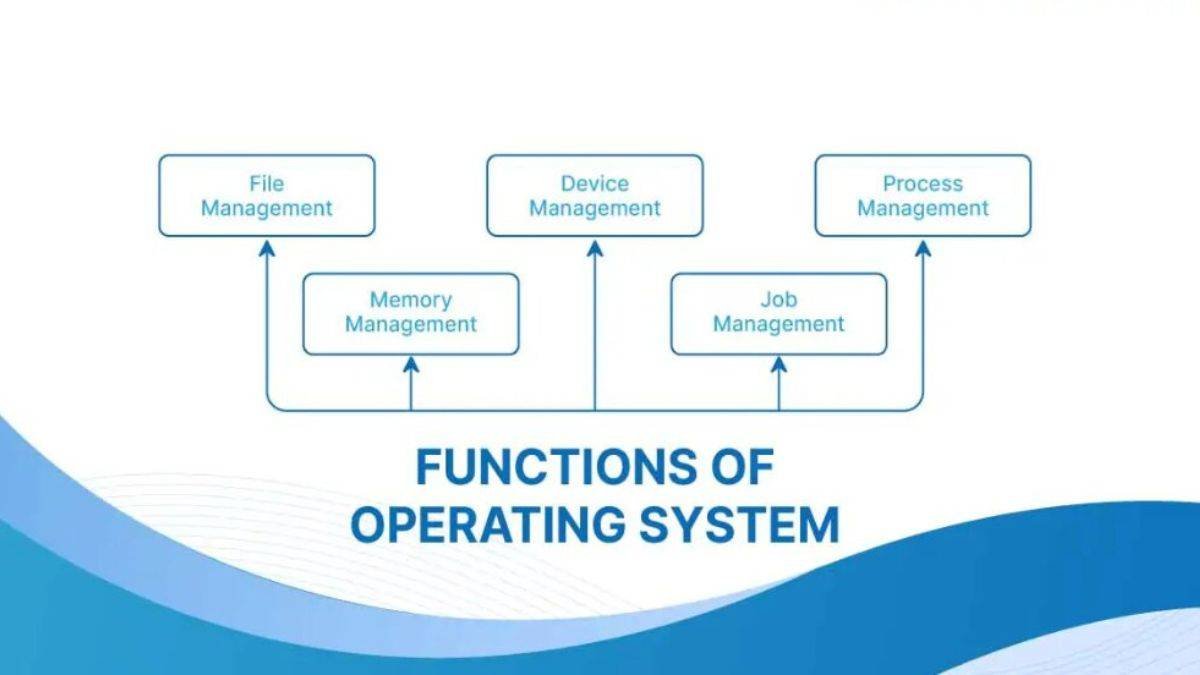
An operating system (OS) serves as the fundamental software layer that manages the hardware and software resources of a computer. It acts as an intermediary between the user and the hardware, ensuring the system operates smoothly and efficiently. The basic functions of an operating system are crucial for the functioning of computers, enabling users to perform tasks, run applications, and manage data.

Basic Functions of an Operating System

1. Process Management

One of the primary functions of an operating system is process management, which involves handling the creation, scheduling, and termination of processes.

Key Aspects:

  • Process Creation and Termination: The OS is responsible for creating processes when a program is launched and terminating them when they complete or are no longer needed.
  • CPU Scheduling: The operating system determines the order in which processes access the CPU, optimizing the use of processor time. This includes implementing scheduling algorithms to prioritize processes based on criteria such as urgency and resource requirements.
  • Multitasking: Modern operating systems support multitasking, allowing multiple processes to run simultaneously. This is achieved through process switching, where the OS rapidly switches between processes, giving the illusion of concurrent execution.

2. Memory Management

Memory management is another critical function of an operating system, ensuring efficient use of a computer’s memory resources.

Key Aspects:

  • Memory Allocation: The OS allocates memory to processes as they run, ensuring each process has the necessary resources. This includes both RAM (Random Access Memory) and virtual memory, which extends physical memory onto disk storage.
  • Memory Protection: To prevent processes from interfering with each other, the OS implements memory protection mechanisms. This ensures that one process cannot access the memory space allocated to another, protecting the system from crashes and data corruption.
  • Memory Optimization: The OS also optimizes memory usage by reclaiming memory from processes that are no longer active or need less memory. This involves techniques like paging and segmentation, which manage how memory is used and accessed.

3. File System Management

File system management is essential for organizing and storing data on storage devices, such as hard drives, SSDs, and USB drives.

Key Aspects:

  • File Organization: The OS organizes data into files and directories, providing a structured way to store and retrieve information. This includes managing file names, file types, and directory structures.
  • File Access and Permissions: The operating system controls access to files, ensuring that users and applications have the appropriate permissions. This helps protect data from unauthorized access and modification.
  • Storage Management: The OS manages the physical storage on devices, including allocating space for new files, maintaining file integrity, and performing tasks like defragmentation to optimize storage efficiency.

4. Device Management

Device management involves controlling and coordinating hardware components, such as input/output devices, storage devices, and peripherals.

Key Aspects:

  • Device Drivers: The OS uses device drivers, which are specialized programs that allow the system to communicate with hardware components. Drivers translate high-level OS commands into low-level instructions that the hardware can execute.
  • Device Coordination: The OS manages the interaction between different devices, ensuring that they work together seamlessly. This includes managing data transfers between the CPU, memory, and peripheral devices.
  • Resource Allocation: The operating system allocates resources to devices as needed, ensuring efficient use of hardware capabilities. This is particularly important in systems with multiple devices or limited resources.

5. Security and Access Control

Security and access control are vital functions of an operating system, protecting the system and data from unauthorized access and potential threats.

Key Aspects:

  • User Authentication: The OS verifies the identity of users through login credentials, such as usernames and passwords, ensuring that only authorized users can access the system.
  • Access Control: The OS enforces access control policies, determining what actions users can perform on files, directories, and other resources. This helps prevent unauthorized access and modification of sensitive data.
  • Security Features: Modern operating systems include a range of security features, such as encryption, firewalls, and antivirus integration, to protect against malware and other security threats.

Conclusion

The basic functions of an operating system are foundational to the operation of any computer system. By managing processes, memory, files, devices, and security, the OS ensures that users can interact with the system efficiently and securely. As technology continues to advance, operating systems evolve to incorporate new features and improvements, maintaining their critical role in computing.

Customizing your operating system (OS) can significantly enhance your productivity, improve usability, and make your computing environment more enjoyable. Whether you’re using Windows, macOS, or Linux, there are various ways to tailor your OS to meet your personal preferences and requirements. Here’s a comprehensive guide to customizing your operating system effectively.

1. Personalizing the User Interface

**1.1. Change the Desktop Background

  • Windows: Right-click on the desktop and select “Personalize.” Choose a new wallpaper from the provided options or upload your own.
  • macOS: Open “System Preferences” and select “Desktop & Screen Saver” to choose or upload a new background.
  • Linux: Right-click on the desktop and choose “Change Background” or use the settings in your desktop environment.

**1.2. Adjust Themes and Colors

  • Windows: Go to “Settings” > “Personalization” > “Themes” to select or create a new theme, and customize colors.
  • macOS: Customize the appearance under “System Preferences” > “General,” where you can choose between Light and Dark modes.
  • Linux: Use the “Appearance” settings in your desktop environment to apply themes and adjust colors.

**1.3. Organize Desktop Icons

  • Windows: Right-click on the desktop and select “View” to arrange icons by name, size, or date. You can also drag and drop icons to organize them manually.
  • macOS: Use “Stacks” to automatically organize files on the desktop, or manually arrange icons by dragging.
  • Linux: Most desktop environments allow you to arrange icons through context menus or settings.

2. Customizing System Settings

**2.1. Adjust System Performance

  • Windows: Go to “Control Panel” > “System and Security” > “System” > “Advanced system settings” and adjust performance settings under the “Performance” tab.
  • macOS: Use “System Preferences” > “Energy Saver” to configure settings related to power usage and performance.
  • Linux: Adjust performance settings based on your desktop environment, or use tools like htop for monitoring.

**2.2. Configure Startup Programs

Customizing Your Operating System
  • Windows: Open “Task Manager” (Ctrl+Shift+Esc), go to the “Startup” tab, and enable or disable startup programs.
  • macOS: Go to “System Preferences” > “Users & Groups” > “Login Items” to manage startup applications.
  • Linux: Use “Startup Applications” in your desktop environment settings to manage startup programs.

**2.3. Customize Notifications

  • Windows: Go to “Settings” > “System” > “Notifications & actions” to customize notification settings.
  • macOS: Open “System Preferences” > “Notifications” to adjust notification preferences for different apps.
  • Linux: Configure notifications through system settings or notification management tools available in your desktop environment.

3. Enhancing Functionality

**3.1. Install and Configure Widgets

  • Windows: Use the “Widgets” feature to add widgets for weather, news, calendar, and more. Access it via the taskbar or “Settings.”
  • macOS: Add widgets to the Notification Center by clicking the “Edit Widgets” button in the Notification Center.
  • Linux: Many desktop environments support widgets or applets that can be added to panels or desktops.

**3.2. Customize File Explorer or Finder

  • Windows: Customize File Explorer by adjusting the ribbon interface, quick access items, and folder views via “View” in the File Explorer.
  • macOS: Customize Finder windows by changing sidebar items, folder views, and more via Finder Preferences.
  • Linux: Customize file managers like Nautilus or Dolphin through their settings to suit your preferences.

**3.3. Configure Keyboard Shortcuts

  • Windows: Go to “Settings” > “Ease of Access” > “Keyboard” to customize keyboard shortcuts and accessibility features.
  • macOS: Open “System Preferences” > “Keyboard” > “Shortcuts” to adjust or create new keyboard shortcuts.
  • Linux: Most desktop environments allow you to set or change keyboard shortcuts through their settings.

4. Advanced Customizations

**4.1. Customize System Sounds

  • Windows: Go to “Control Panel” > “Hardware and Sound” > “Sound” > “Sounds” tab to change system sounds.
  • macOS: Open “System Preferences” > “Sound” > “Sound Effects” to adjust system sounds.
  • Linux: Modify system sounds through the sound settings in your desktop environment or using tools like alsamixer.

**4.2. Modify System Icons

  • Windows: Right-click on the desktop and select “Personalize” > “Themes” > “Desktop icon settings” to change icons.
  • macOS: Change icons by dragging new icons onto existing ones or using third-party tools.
  • Linux: Customize system icons through the “Appearance” settings or by installing icon packs.

**4.3. Set Up Virtual Desktops

  • Windows: Use the “Task View” button or press Win+Tab to create and manage virtual desktops.
  • macOS: Swipe up with three or four fingers on the trackpad to access Mission Control and manage Spaces.
  • Linux: Most desktop environments support virtual desktops or workspaces, configurable through system settings.

5. Security and Privacy Customizations

**5.1. Adjust Privacy Settings

  • Windows: Go to “Settings” > “Privacy” to review and adjust privacy settings related to location, camera, microphone, and more.
  • macOS: Open “System Preferences” > “Security & Privacy” to manage privacy settings and permissions for applications.
  • Linux: Privacy settings can be managed through system settings or privacy tools specific to your desktop environment.

**5.2. Set Up User Account Controls

  • Windows: Use “Control Panel” > “User Accounts” > “Change User Account Control settings” to adjust security prompts.
  • macOS: Open “System Preferences” > “Users & Groups” to manage account settings and permissions.
  • Linux: User account controls can be adjusted through the user management tools provided by your desktop environment.

Conclusion

Customizing your operating system allows you to tailor your computing environment to fit your personal preferences and enhance your productivity. By adjusting the user interface, system settings, functionality, and security, you can create a personalized experience that meets your needs. Whether you’re a casual user or a power user, these customization tips will help you get the most out of your OS and make your computing experience more enjoyable and efficient.

Operating systems (OS) are the backbone of modern computing, enabling hardware and software to interact seamlessly. They are categorized based on their intended use, hardware requirements, and specific features. The main types of operating systems include desktop, mobile, server, and embedded systems, each designed to meet different needs.

Types of Operating Systems

1. Desktop Operating Systems

Desktop operating systems are designed for personal computers, including desktops and laptops. These systems provide a user-friendly interface and support a wide range of applications.

Key Features:

  • Graphical User Interface (GUI): Desktop OS typically offer a GUI, which includes icons, windows, and menus, making them accessible and easy to use.
  • Multitasking: They support multitasking, allowing users to run multiple applications simultaneously.
  • File Management: Desktop OS include robust file management systems, enabling users to organize, store, and retrieve files efficiently.

Popular Examples:

  • Windows: Microsoft’s Windows OS is one of the most widely used desktop systems globally. It offers a comprehensive suite of applications, broad hardware compatibility, and extensive user support.
  • macOS: Developed by Apple, macOS is known for its seamless integration with other Apple products and a strong focus on design and user experience.
  • Linux Distributions: Linux-based systems, such as Ubuntu, Fedora, and Debian, are popular for their flexibility, security, and open-source nature. They are widely used by developers and tech enthusiasts.

2. Mobile Operating Systems

Mobile operating systems are optimized for handheld devices like smartphones and tablets. These systems prioritize touch-based interfaces and connectivity features.

Key Features:

  • Touch Interface: Mobile OS are designed for touchscreens, with gestures and multi-touch capabilities.
  • App Ecosystem: They support a wide range of applications through app stores, offering everything from games to productivity tools.
  • Connectivity: Mobile OS emphasize connectivity features, including cellular networks, Wi-Fi, and Bluetooth.

Popular Examples:

  • iOS: Apple’s iOS is known for its seamless integration with the Apple ecosystem, high-quality applications, and security features.
  • Android: Developed by Google, Android is an open-source OS widely adopted by various device manufacturers. It offers extensive customization and a vast app marketplace.

3. Server Operating Systems

Server operating systems are designed to manage and support multiple users and services over a network. They are optimized for stability, security, and efficient resource management.

Key Features:

  • Resource Management: Server OS efficiently manage resources like CPU, memory, and storage to ensure stable operation under heavy loads.
  • Security: They include robust security features to protect data and prevent unauthorized access, crucial for handling sensitive information.
  • Scalability: Server OS can scale to support large numbers of users and high volumes of transactions.

Popular Examples:

  • Windows Server: A version of Windows designed for server environments, it offers enterprise-level management tools and integration with Microsoft services.
  • Linux Distributions: Many Linux distributions, such as CentOS, Ubuntu Server, and Red Hat Enterprise Linux, are popular choices for server environments due to their reliability, security, and open-source nature.
  • Unix: Unix-based systems, including Solaris and AIX, are known for their robustness and are often used in large-scale, enterprise environments.

4. Embedded Operating Systems

Embedded operating systems are designed for specialized devices that perform specific tasks, such as routers, automotive systems, and industrial machines. These systems are often real-time operating systems (RTOS), meaning they can process data as it comes in, without delay.

Key Features:

  • Resource Efficiency: Embedded OS are optimized for the limited resources of embedded devices, such as minimal CPU power and memory.
  • Real-Time Processing: Many embedded systems require real-time processing capabilities to handle time-sensitive tasks.
  • Stability and Reliability: They are designed to run continuously for long periods without failure, which is critical for applications like medical devices or automotive controls.

Popular Examples:

  • RTOS (Real-Time Operating Systems): VxWorks, QNX, and FreeRTOS are examples of RTOS used in critical applications requiring precise timing.
  • Embedded Linux: Variants of Linux, such as Yocto and OpenWrt, are used in embedded systems, offering flexibility and the benefits of an open-source community.

Conclusion

The diversity of operating systems reflects the varied needs of users and devices. Whether it’s the general-purpose capabilities of desktop and mobile OS, the robustness of server systems, or the specialized functions of embedded systems, each type of operating system plays a crucial role in the digital landscape. As technology advances, these systems continue to evolve, integrating new features and meeting the growing demands of users worldwide.

Effective management of user accounts is crucial for maintaining security, ensuring proper access control, and enhancing the overall efficiency of an operating system (OS). Whether you’re managing a single system or a network of devices, understanding how to handle user accounts properly can make a significant difference. Here’s a comprehensive guide to managing user accounts in operating systems.

1. Understanding User Accounts

**1.1. Types of User Accounts

  • Administrator Accounts: Full access to all system resources and settings. Used for system configuration and maintenance.
  • Standard/User Accounts: Limited access to system resources. Suitable for everyday tasks and general use.
  • Guest Accounts: Temporary accounts with restricted access, often used for short-term or limited-use scenarios.
  • Service Accounts: Accounts used by system services or applications to interact with the OS. Typically, these accounts have specific permissions related to the services they manage.

**1.2. User Roles and Permissions

  • Permissions: Define what actions users can perform (e.g., read, write, execute).
  • Roles: Group permissions into roles to simplify management (e.g., admin, user, viewer).

2. Creating and Managing User Accounts

**2.1. Creating User Accounts

  • Windows:
    • Control Panel: Access via Control Panel > User Accounts > Manage Another Account.
    • Command Line: Use net user command to create accounts.
  • macOS:
    • System Preferences: Navigate to System Preferences > Users & Groups to add a new user.
    • Terminal: Use sudo dscl . -create /Users/username to create an account.
  • Linux:
    • Graphical Tools: Use system settings or user management tools provided by the desktop environment.
    • Command Line: Use useradd command to create new users.

**2.2. Managing User Permissions

  • Windows:
    • Group Policies: Use Group Policy Editor for managing user permissions and access.
    • Local Security Policy: Configure local security settings for user accounts.
  • macOS:
    • System Preferences: Adjust user permissions via the Users & Groups section.
    • Terminal: Use chmod and chown commands to modify file permissions.
  • Linux:
    • File Permissions: Use chmod, chown, and usermod commands to manage file and user permissions.
    • Groups: Assign users to groups to control access to resources.

**2.3. Password Management

  • Strong Passwords: Ensure passwords are complex and meet security standards.
  • Regular Updates: Implement policies for regular password changes and avoid password reuse.
  • Password Policies: Use tools to enforce password complexity and expiration policies.

3. User Account Security

**3.1. Account Lockout and Monitoring

  • Account Lockout: Configure lockout policies to prevent brute force attacks.
  • Audit Logs: Monitor user activities and account access through audit logs to detect suspicious behavior.

**3.2. Multi-Factor Authentication (MFA)

  • Enhanced Security: Implement MFA to add an extra layer of security beyond passwords.
  • Setup: Configure MFA options like SMS, email, or authentication apps.

**3.3. Privilege Management

  • Least Privilege Principle: Assign only the necessary permissions to users to minimize security risks.
  • Regular Reviews: Periodically review user permissions and adjust as needed to ensure proper access control.

4. User Account Maintenance

**4.1. Regular Audits

  • Account Reviews: Perform regular audits of user accounts to ensure they are active and correctly configured.
  • Inactive Accounts: Disable or delete inactive accounts to reduce potential security risks.

**4.2. Account Deletion and Deactivation

  • Proper Removal: Ensure that user accounts are properly deactivated or deleted when no longer needed.
  • Data Retention: Manage data retention policies to handle user data according to organizational and legal requirements.

**4.3. User Training and Support

  • Training: Provide users with training on account management best practices and security awareness.
  • Support: Offer support channels for users to address account-related issues and questions.
Managing User Accounts in Operating Systems

5. Best Practices for Enterprise Environments

**5.1. Centralized Management

  • Directory Services: Use directory services like Active Directory or LDAP for centralized user management across multiple systems.
  • Single Sign-On (SSO): Implement SSO solutions to streamline user access and authentication.

**5.2. Automated Provisioning and De-provisioning

  • Automated Tools: Utilize automated tools and scripts to manage user account creation, modification, and deletion.
  • Integration: Integrate with HR systems and other applications to synchronize user data and streamline account management.

**5.3. Compliance and Policies

  • Regulatory Compliance: Ensure user account management practices comply with industry regulations and standards (e.g., GDPR, HIPAA).
  • Policy Enforcement: Develop and enforce policies for user account management, including access control and data protection.

Conclusion

Managing user accounts effectively is essential for maintaining system security, ensuring proper access control, and enhancing overall productivity. By following best practices for creating, managing, and securing user accounts, you can ensure a well-organized and secure environment for both individuals and enterprises. Regular audits, proper training, and the use of advanced management tools will help keep your user account system efficient and compliant with security standards.