As artificial intelligence (AI) and machine learning (ML) technologies continue to advance, their integration into operating systems (OS) is transforming how we interact with and utilize computing resources. This integration enhances performance, improves security, and provides smarter, more adaptive user experiences. This article explores the impact of AI and ML integration on operating systems, highlighting the benefits, challenges, and examples of how these technologies are shaping modern OS environments.

AI and ML Integration in Operating Systems


1. Enhancing Performance with AI and ML

Predictive Resource Management: AI and ML algorithms can predict and manage system resources more effectively. By analyzing historical data and usage patterns, these algorithms can anticipate peak loads and optimize resource allocation. This predictive capability helps in balancing workloads, reducing latency, and improving overall system efficiency.

Dynamic Optimization: Machine learning models can dynamically adjust system settings based on real-time performance data. For instance, AI can optimize power consumption by adjusting CPU and GPU performance based on current tasks, which extends battery life in laptops and improves energy efficiency in data centers.

Application Performance: AI can enhance the performance of applications by optimizing their execution. For example, ML algorithms can analyze application usage patterns and adjust parameters to improve responsiveness and reduce lag, providing a smoother user experience.

2. Improving Security through AI and ML

Threat Detection and Response: AI and ML are increasingly used to identify and respond to security threats. Machine learning models can analyze vast amounts of data to detect unusual patterns that may indicate malware or other cyber threats. These models can provide real-time alerts and automatic responses to mitigate potential risks.

Behavioral Analysis: AI-driven security systems use behavioral analysis to monitor user and system activities. By establishing a baseline of normal behavior, these systems can detect anomalies that may signify a security breach or insider threat. This proactive approach helps in preventing unauthorized access and protecting sensitive data.

Automated Patch Management: AI can automate the patch management process by identifying vulnerabilities and deploying updates. Machine learning algorithms can predict which vulnerabilities are most likely to be exploited and prioritize patching efforts accordingly, enhancing overall system security.

3. Enhancing Usability with AI and ML

Smart Assistants and Automation: AI-powered virtual assistants, such as Microsoft’s Cortana and Apple’s Siri, integrate with operating systems to offer personalized assistance and automate routine tasks. These assistants use natural language processing (NLP) to understand and respond to user commands, making interactions more intuitive and efficient.

Adaptive User Interfaces: Machine learning enables adaptive user interfaces that adjust based on user preferences and behavior. For example, an OS can modify its layout, suggest relevant applications, or automate frequently performed tasks based on individual usage patterns, enhancing the overall user experience.

Accessibility Features: AI and ML are improving accessibility by offering features such as speech-to-text, text-to-speech, and visual recognition. These technologies make computing more inclusive for users with disabilities, allowing them to interact with their devices in new and more effective ways.

4. Challenges and Considerations

Data Privacy: Integrating AI and ML into operating systems raises concerns about data privacy. AI systems require access to large amounts of user data to function effectively, which can lead to potential privacy issues. Ensuring that data is handled securely and in compliance with privacy regulations is essential.

Algorithmic Bias: AI and ML models can inadvertently introduce biases based on the data they are trained on. This bias can affect decision-making processes and user experiences. It is crucial to develop and train algorithms using diverse datasets and to regularly review and adjust models to minimize bias.

Resource Consumption: AI and ML processes can be resource-intensive, requiring significant computational power and memory. Balancing the benefits of these technologies with their impact on system performance and resource consumption is an ongoing challenge.

5. Examples of AI and ML Integration in Operating Systems

Windows: Windows integrates AI through features like Cortana, which provides voice-activated assistance, and Windows Defender, which uses machine learning for advanced threat detection. The OS also incorporates predictive text and automatic photo tagging through AI technologies.

macOS: macOS leverages AI with features like Siri for voice commands and the Photos app’s machine learning-based photo recognition. The OS also uses AI to optimize battery life and performance based on user behavior.

Linux: Many Linux distributions incorporate AI tools and frameworks, such as TensorFlow and PyTorch, for developing and deploying machine learning models. AI integration in Linux is often used for server management, performance optimization, and security enhancements.

Android: Android utilizes AI for features like Google Assistant, which offers voice-based interactions, and adaptive battery and app management, which optimizes power consumption and performance based on usage patterns.

Chrome OS: Chrome OS integrates AI for smart features like predictive search, automatic updates, and enhanced security through Google’s AI-driven threat detection systems.

Conclusion

AI and machine learning integration into operating systems is revolutionizing how we manage and interact with computing environments. By enhancing performance, improving security, and increasing usability, these technologies offer significant benefits to users and organizations. However, addressing challenges related to data privacy, algorithmic bias, and resource consumption is crucial to fully realizing the potential of AI and ML in operating systems. As these technologies continue to evolve, they will play an increasingly important role in shaping the future of computing.
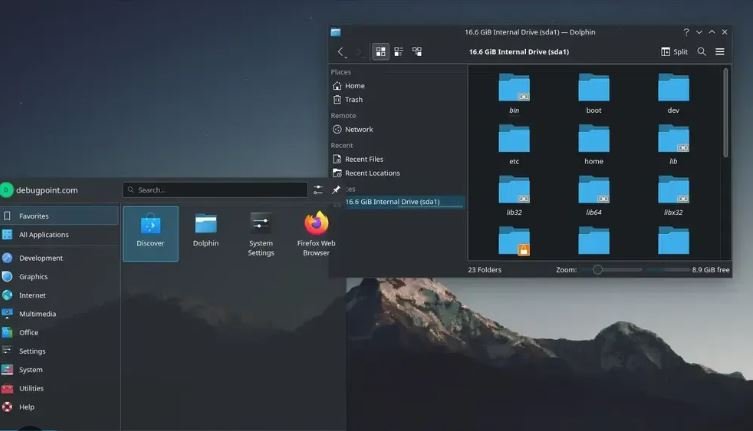
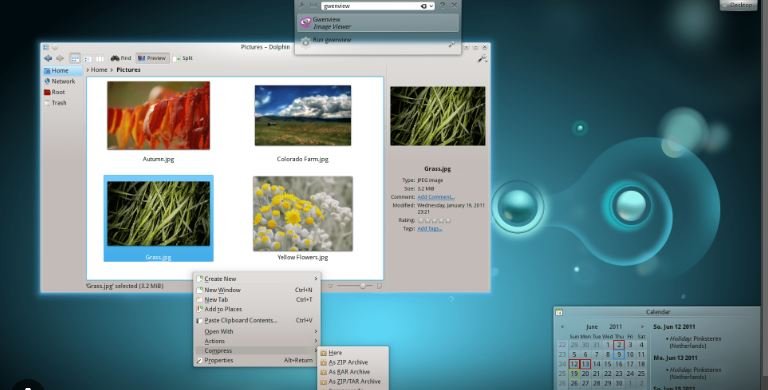
A desktop environment (DE) is crucial in defining how users interact with their operating systems. It provides the graphical interface, tools, and overall user experience. Popular desktop environments like GNOME vs KDE vs Desktop Environments, and others offer unique features, designs, and customization options. This comparison explores the strengths and characteristics of GNOME, KDE, and other notable desktop environments.

The User Interface Comparing GNOME, KDE, and Other Desktops

GNOME: Streamlined and Minimalist

GNOME focuses on simplicity and efficiency, offering a clean and intuitive user interface. Its design prioritizes ease of use and minimalism, which appeals to users who prefer a straightforward computing experience. GNOME features a top bar for system notifications and quick access to applications, while the activities overview provides a window management and application launcher. The environment uses GTK (GIMP Toolkit) for its graphical elements, ensuring a consistent look and feel across applications.

Advantages of GNOME

GNOME’s clean design and reduced clutter enhance productivity by minimizing distractions. Its streamlined interface supports efficient multitasking through the activities overview, which integrates window management and search functionality. GNOME’s approach also emphasizes accessibility, making it suitable for users with diverse needs. Additionally, GNOME’s development focuses on creating a cohesive user experience, ensuring that all components work seamlessly together.

KDE Plasma: Customizable and Feature-Rich

KDE Plasma stands out for its high level of customization and feature-rich environment. It provides a versatile and visually appealing interface, allowing users to tailor their desktops to their preferences. KDE Plasma supports a wide range of widgets, themes, and configurations, giving users extensive control over their desktop appearance and functionality. The environment uses Qt for its graphical components, offering a polished and modern aesthetic.

Advantages of KDE Plasma

KDE Plasma’s extensive customization options enable users to create a personalized desktop experience. Its flexibility extends to window management, panel configuration, and desktop widgets, accommodating various workflows and preferences. KDE Plasma also boasts powerful tools and features, including integrated applications and advanced settings, enhancing overall productivity. The environment’s modern design and extensive functionality appeal to users who enjoy tweaking and optimizing their desktop setups.

Other Notable Desktop Environments

Beyond GNOME and KDE Plasma, several other desktop environments cater to different user preferences and system requirements. Xfce, for example, offers a lightweight and efficient interface suitable for older hardware or resource-constrained systems. Its focus on speed and simplicity makes it an attractive choice for users seeking a minimalistic experience. LXQt, another lightweight option, combines the LXDE (Lightweight X11 Desktop Environment) and Qt libraries, providing a fast and resource-efficient desktop environment.

Comparing Usability and Performance

When comparing GNOME, KDE Plasma, and other desktop environments, usability and performance are key factors. GNOME’s minimalist design may appeal to users seeking simplicity, while KDE Plasma’s customization options attract those who prefer a feature-rich experience. Lightweight environments like Xfce and LXQt cater to users with limited system resources, offering efficient performance without sacrificing functionality. Each environment has its strengths, making it essential for users to choose based on their specific needs and preferences.

Choosing the Right Desktop Environment

Selecting the right desktop environment depends on various factors, including user preferences, system resources, and intended use. GNOME is ideal for those who appreciate a clean and modern interface, while KDE Plasma suits users who enjoy extensive customization and advanced features. Lightweight environments like Xfce and LXQt provide efficient performance for older or less powerful hardware. Users should consider their priorities and requirements when choosing a desktop environment to ensure the best fit for their computing needs.

Future Trends and Developments

As technology evolves, desktop environments continue to adapt and innovate. Future trends may include enhanced integration with emerging technologies, improved accessibility features, and further customization options. Developers are likely to focus on creating more intuitive and responsive interfaces, addressing the needs of diverse user bases. Staying informed about these trends can help users make informed decisions and select desktop environments that align with their preferences and technological advancements.

Conclusion

Comparing GNOME vs KDE vs Desktop Environments, highlights the diverse options available for users seeking different computing experiences. GNOME offers simplicity and efficiency, KDE Plasma excels in customization and features, while lightweight environments like Xfce and LXQt provide performance benefits for resource-constrained systems. Understanding these differences enables users to choose the desktop environment that best suits their needs, preferences, and hardware capabilities.

When choosing an operating system (OS), evaluating its performance, security, and usability is essential. These factors play a crucial role in determining how well an OS meets user needs, handles tasks, and ensures a smooth computing experience. This article examines the major operating systems—Windows, macOS, Linux, Unix, Android, and Chrome OS—focusing on these three key aspects.

Operating Systems: Performance, Security, Usability

Performance

Windows:

  • Strengths: Windows is renowned for its versatility and robust performance across a range of applications and hardware configurations. It supports high-end gaming, professional software, and multimedia applications efficiently. The OS benefits from frequent updates that improve performance and add new features.
  • Weaknesses: Performance can be affected by frequent system updates and background processes that consume system resources. Older hardware may experience slowdowns due to system bloat and fragmentation over time.

macOS:

  • Strengths: macOS is optimized for Apple hardware, resulting in excellent performance and a smooth user experience. The integration between macOS and Apple’s hardware ensures that applications run efficiently, particularly for tasks related to creative and professional work. The OS is designed to fully utilize the hardware’s capabilities.
  • Weaknesses: Performance may be less optimal on non-Apple hardware. macOS can also be less adaptable to various hardware configurations compared to Windows.

Linux:

  • Strengths: Linux offers exceptional performance and stability, especially in server environments and on older hardware. Its flexibility allows users to tailor the OS to specific needs, optimizing resource management and achieving high reliability. Various distributions provide options for lightweight setups, ensuring smooth operation even on limited hardware.
  • Weaknesses: Performance can vary significantly depending on the distribution and user configuration. Some distributions may require manual adjustments for optimal performance.

Unix:

  • Strengths: Unix systems are designed for high performance and stability, making them ideal for multi-user and multitasking environments. They excel in handling complex applications and large workloads efficiently, often used in enterprise and research settings.
  • Weaknesses: Configuring and managing Unix systems can be complex, potentially affecting performance if not properly managed.

Android:

  • Strengths: Android is optimized for mobile devices, providing smooth performance for most applications. It efficiently handles various hardware configurations and extends battery life.
  • Weaknesses: Performance can vary across different devices and manufacturers. Older devices may struggle with newer Android versions, leading to slower performance.

Chrome OS:

  • Strengths: Chrome OS is lightweight and designed for web-based tasks, resulting in fast boot times and efficient performance on Chromebooks. It is optimized for cloud applications and minimal local processing.
  • Weaknesses: Performance may be limited for users needing extensive offline capabilities or resource-intensive applications.

Security

Windows:

  • Strengths: Windows incorporates robust security features, including Windows Defender, BitLocker encryption, and regular security updates. It supports a range of enterprise-level security solutions and policies.
  • Weaknesses: Windows’ large user base makes it a frequent target for malware and cyber-attacks. Maintaining security requires regular updates and vigilant user practices.

macOS:

  • Strengths: macOS benefits from a Unix-based architecture, offering strong security with features like Gatekeeper, FileVault, and secure boot. It generally experiences fewer malware incidents compared to other operating systems.
  • Weaknesses: Although secure, macOS is not immune to threats. Users must proactively manage updates and follow good security practices.

Linux:

  • Strengths: Linux is renowned for its security and flexibility. The open-source nature allows for comprehensive scrutiny and quick patching of vulnerabilities. Linux distributions support various security measures, including firewalls and encryption.
  • Weaknesses: Security effectiveness depends on the user’s configuration and practices. Some distributions may require additional setup for optimal security.

Unix:

  • Strengths: Unix systems offer advanced security features and access controls suitable for high-security environments. They support robust authentication methods and secure multi-user operations.
  • Weaknesses: Managing security on Unix systems can be complex, requiring specialized knowledge to ensure effectiveness.

Android:

  • Strengths: Android includes several built-in security features, such as app sandboxing, Google Play Protect, and regular updates. Users can control app permissions and enhance security with additional measures.
  • Weaknesses: The open nature of Android and its diverse ecosystem can introduce vulnerabilities, particularly with third-party apps and outdated devices.

Chrome OS:

  • Strengths: Chrome OS emphasizes security with features like automatic updates, application sandboxing, and verified boot. Its reliance on web applications reduces the attack surface.
  • Weaknesses: Security may be limited if users require extensive offline functionality or run non-web-based applications.

Usability

Windows:

  • Strengths: Windows is known for its user-friendly interface and extensive support for various applications and hardware. It is familiar to many users, offering a versatile and accessible computing environment.
  • Weaknesses: The complexity of Windows settings and frequent updates can sometimes disrupt the user experience. System configuration may be overwhelming for some users.

macOS:

  • Strengths: macOS features an intuitive and aesthetically pleasing interface, seamlessly integrating with Apple’s ecosystem. It provides a consistent and polished user experience, particularly for those using multiple Apple devices.
  • Weaknesses: New users may encounter a learning curve. macOS offers less flexibility compared to Windows in terms of software and hardware customization.

Linux:

  • Strengths: Linux distributions cater to various levels of user expertise, from beginner-friendly options like Ubuntu to advanced ones like Arch Linux. It allows significant customization of the user interface and functionality.
  • Weaknesses: Usability can vary widely between distributions. Linux may require technical knowledge to configure and troubleshoot effectively.

Unix:

  • Strengths: Unix systems are stable and reliable, featuring powerful command-line tools and scripting capabilities. They are well-suited for professional and research applications.
  • Weaknesses: Unix can be challenging for general users due to its complexity and command-line interface. It may not be as user-friendly for everyday tasks.

Android:

  • Strengths: Android offers a highly customizable interface optimized for touch interactions. It supports a wide range of applications and widgets, providing flexibility and convenience for mobile users.
  • Weaknesses: Usability can be inconsistent across different devices and manufacturers. The interface may be cluttered with options and settings.

Chrome OS:

  • Strengths: Chrome OS is designed for simplicity, focusing on web-based applications and cloud storage. It offers fast boot times and an easy-to-navigate interface.
  • Weaknesses: Limited offline functionality and reliance on web apps may not meet all user needs, especially for those requiring extensive local applications.

Conclusion

Evaluating operating systems based on performance, security, and usability helps users and organizations select the most suitable OS for their needs. Windows provides strong performance and extensive software support but requires regular updates and vigilance. macOS excels in integration and security but is limited to Apple hardware. Linux offers customization and security but can be complex for some users. Unix systems provide stability and advanced capabilities but are challenging to manage. Android is versatile for mobile use, while Chrome OS focuses on simplicity and efficiency. Understanding these factors is essential for choosing the best OS to meet specific requirements and optimize computing experiences.

Cloud integration is a transformative trend in operating systems (OS), reshaping how we manage data, applications, and computing resources. As organizations and individuals increasingly rely on cloud services, operating systems are evolving to seamlessly incorporate cloud-based solutions. This article explores the significance of cloud integration in operating systems, its benefits, and the key features that facilitate this integration.

Cloud Integration
Cloud Integration

1. Importance of Cloud Integration

Cloud integration refers to the ability of an operating system to connect and interact with cloud services and resources. This integration allows users to leverage the scalability, flexibility, and cost-efficiency of cloud computing. As cloud adoption continues to grow, operating systems must support various cloud functionalities to meet user expectations and business requirements.

Benefits of Cloud Integration:

  • Scalability: Cloud integration enables operating systems to scale resources up or down based on demand. This flexibility allows users to handle varying workloads without being constrained by local hardware limitations.
  • Accessibility: Users can access their data and applications from any device with an internet connection. Cloud integration ensures that critical information and tools are available regardless of location, facilitating remote work and collaboration.
  • Cost-Efficiency: By integrating with cloud services, operating systems can reduce the need for local storage and computing resources. This shift can lead to cost savings on hardware and maintenance while providing access to a wide range of cloud-based applications.

2. Key Features of Cloud Integration

1. Cloud-Based File Systems:

Modern operating systems are increasingly incorporating cloud-based file systems to manage data storage and synchronization. Key features include:

  • Seamless Synchronization: Files and documents stored in the cloud are automatically synchronized across devices, ensuring that users always have access to the most up-to-date information.
  • Automatic Backup: Cloud-based file systems offer automatic backup solutions, reducing the risk of data loss and providing users with reliable recovery options.

2. Virtual Desktops and Applications:

Cloud integration enables the use of virtual desktops and applications, which offer several advantages:

  • Virtual Desktops: Cloud-based virtual desktops allow users to access their desktop environment from any device. This capability provides flexibility and convenience, particularly for remote work and BYOD (bring-your-own-device) scenarios.
  • Application Hosting: Operating systems can integrate with cloud platforms to host and run applications, reducing the need for local installations and updates. This approach simplifies application management and enhances accessibility.

3. Cloud-Based Resource Management:

Operating systems with cloud integration can manage computing resources more efficiently:

  • Elastic Scaling: Cloud platforms offer elastic scaling, allowing operating systems to automatically adjust resource allocation based on current demand. This feature helps optimize performance and resource utilization.
  • Resource Monitoring: Integrated cloud services provide tools for monitoring and managing resource usage. Users can track performance metrics and make informed decisions about resource allocation and optimization.

4. Security and Compliance:

Cloud integration also involves addressing security and compliance considerations:

  • Data Encryption: Operating systems must ensure that data transferred to and from the cloud is encrypted, protecting sensitive information from unauthorized access.
  • Compliance: Cloud integration requires adherence to various regulatory and compliance standards. Operating systems and cloud providers must work together to ensure that data handling practices meet legal and industry requirements.

3. Examples of Cloud Integration

Several operating systems have made significant strides in cloud integration, offering various features and capabilities:

  • Windows 11: Windows 11 integrates with Microsoft’s cloud services, such as OneDrive, providing users with seamless file synchronization and backup options. It also supports virtual desktops through Microsoft Azure Virtual Desktop.
  • macOS: macOS offers tight integration with iCloud, Apple’s cloud service, enabling users to sync files, photos, and settings across Apple devices. macOS also supports cloud-based application hosting through platforms like MacStadium.
  • Linux: Many Linux distributions, such as Ubuntu and Fedora, support cloud integration through services like Google Drive and Dropbox. Linux also powers various cloud-based solutions and virtual environments.

4. Future Directions

The future of cloud integration in operating systems will likely focus on enhancing connectivity, improving user experiences, and addressing emerging challenges:

  • Edge Computing Integration: As edge computing becomes more prevalent, operating systems will need to support hybrid cloud and edge environments, allowing for efficient data processing and analysis closer to the source.
  • Enhanced AI Integration: Cloud-based AI services will become increasingly integrated with operating systems, offering advanced analytics, automation, and personalized experiences.
  • Increased Interoperability: Future developments will aim to improve interoperability between different cloud platforms and operating systems, providing users with a more seamless and cohesive experience.

Conclusion

Cloud integration is revolutionizing operating systems by enhancing scalability, accessibility, and cost-efficiency. As operating systems continue to evolve, they will increasingly embrace cloud-based features to meet the growing demands of users and businesses. By leveraging cloud integration, operating systems can offer more flexible, efficient, and connected computing experiences.

Operating systems (OS) are evolving rapidly to meet the demands of advancing technology and changing user needs. As computing environments become more complex and interconnected, several trends are shaping the future of operating systems. This article explores these trends, including advancements in cloud computing, artificial intelligence, IoT integration, and more.

Future Trends in Operating Systems

1. Cloud Computing Integration

Cloud computing is increasingly influencing the design and functionality of operating systems. Future OS developments will likely focus on seamless integration with cloud services, enabling users to access their data and applications from any device. This integration will enhance collaboration, storage solutions, and resource management. Operating systems will incorporate advanced cloud-native features, such as:

  • Cloud-Based File Systems: OSs will offer more robust support for cloud-based file storage and synchronization, reducing reliance on local storage and improving data accessibility.
  • Virtual Desktops: Cloud-based virtual desktops will become more prevalent, allowing users to run their OS and applications in the cloud, providing flexibility and reducing the need for powerful local hardware.

2. Enhanced Security Measures

As cybersecurity threats become more sophisticated, future operating systems will prioritize advanced security measures. Key developments in this area will include:

  • Zero Trust Architecture: OSs will adopt zero trust principles, requiring continuous verification of user and device credentials, regardless of their location. This approach will enhance protection against unauthorized access and data breaches.
  • Advanced Encryption: Operating systems will implement more sophisticated encryption methods to safeguard data both at rest and in transit, addressing vulnerabilities and ensuring data privacy.

3. Artificial Intelligence and Machine Learning

Artificial intelligence (AI) and machine learning (ML) are set to transform operating systems by enhancing automation, predictive analytics, and user experiences. Future OSs will leverage AI and ML for:

  • Predictive Performance Optimization: AI algorithms will monitor system performance and predict potential issues, automatically adjusting resources and configurations to optimize performance.
  • Enhanced User Interfaces: AI-powered interfaces will provide more intuitive interactions, including voice commands, gesture recognition, and context-aware assistance.

4. Internet of Things (IoT) Integration

The proliferation of IoT devices will drive the development of operating systems designed for seamless integration with diverse connected devices. Future OSs will focus on:

  • IoT Device Management: Operating systems will offer improved tools for managing and securing a wide range of IoT devices, including smart home gadgets, industrial sensors, and wearable technology.
  • Edge Computing Support: OSs will support edge computing capabilities, enabling data processing and analysis closer to the source of data generation, reducing latency and improving efficiency.

5. Improved User Experience

User experience (UX) will continue to be a major focus for OS development, with advancements aimed at making computing more intuitive and accessible. Key trends include:

  • Customizable Interfaces: Future OSs will offer highly customizable interfaces, allowing users to tailor their desktop environments, app layouts, and workflow to their preferences.
  • Unified Experiences: Operating systems will strive to provide a consistent user experience across different devices, including desktops, tablets, and smartphones, enabling seamless transitions and integration.

6. Energy Efficiency and Sustainability

As environmental concerns grow, operating systems will prioritize energy efficiency and sustainability. This includes:

  • Green Computing Practices: OSs will incorporate features to reduce energy consumption, such as power-saving modes and efficient resource management.
  • Sustainable Development: Future OS development will focus on minimizing the environmental impact of software updates and hardware requirements.

7. Quantum Computing Readiness

With the advent of quantum computing, operating systems will need to adapt to support new computational paradigms. Future OSs will prepare for:

  • Quantum-Resistant Algorithms: OSs will integrate quantum-resistant encryption methods to protect data against potential quantum attacks.
  • Quantum Resource Management: Operating systems will develop mechanisms for managing quantum computing resources and integrating them with classical computing systems.

8. Blockchain and Decentralization

Blockchain technology and decentralized computing are gaining traction, and future operating systems may incorporate these elements to enhance security and transparency. Key areas of focus include:

  • Decentralized Identity Management: OSs will explore decentralized identity solutions, allowing users to control their digital identities and reduce reliance on centralized databases.
  • Blockchain Integration: Future OSs may use blockchain technology for secure transaction processing, data integrity, and transparent record-keeping.

Conclusion

The future of operating systems is marked by significant advancements in cloud computing, security, AI, IoT integration, and user experience. As technology continues to evolve, operating systems will adapt to meet new challenges and opportunities, offering enhanced performance, security, and usability. Embracing these trends will be crucial for staying ahead in an increasingly interconnected and dynamic computing landscape.

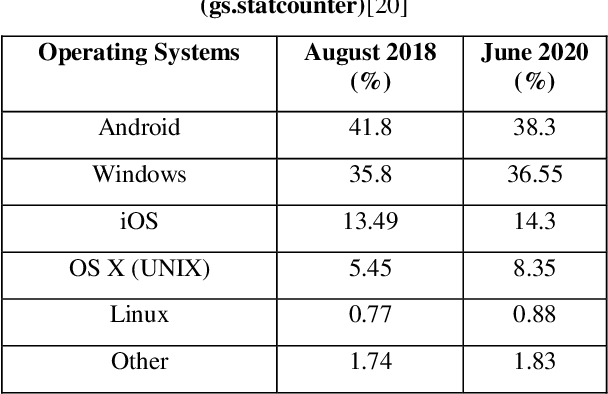
Comparative Analysis of Operating Systems: Operating systems (OS) are the backbone of computing devices, managing hardware resources and providing essential services for software applications. With a variety of operating systems available, each designed with specific features and purposes, understanding their differences is crucial for selecting the best OS for particular needs. This comparative analysis examines major operating systems—Windows, macOS, Linux, and others—highlighting their strengths, weaknesses, and suitability for various use cases.

Comparative Analysis of Operating Systems

1. Windows

Overview:

  • Developer: Microsoft
  • Release Year: 1985
  • Market Share: Predominantly used in personal computers and business environments

Strengths:

  • User-Friendly Interface: Windows is known for its intuitive graphical user interface (GUI), making it accessible to a wide range of users.
  • Software Compatibility: It supports a vast array of software applications, including popular productivity tools, games, and enterprise software.
  • Enterprise Features: Windows offers robust support for enterprise environments, including Active Directory, Group Policy, and extensive network management tools.

Weaknesses:

  • Security Concerns: Windows has historically been a target for malware and viruses, requiring regular security updates and antivirus software.
  • Resource Intensive: It often requires significant system resources, which can affect performance on older hardware.

Best For:

  • General users, gamers, and businesses needing broad software compatibility and enterprise features.

2. macOS

Overview:

  • Developer: Apple Inc.
  • Release Year: 1984
  • Market Share: Popular among creative professionals and Apple hardware users

Strengths:

  • Seamless Integration: macOS integrates seamlessly with Apple’s ecosystem, including iPhones, iPads, and other Apple products.
  • User Experience: Known for its sleek design and user-friendly interface, macOS provides a consistent and polished user experience.
  • Security: macOS benefits from a Unix-based architecture, offering strong security features and a lower incidence of malware compared to other operating systems.

Weaknesses:

  • Hardware Limitation: macOS is restricted to Apple hardware, limiting hardware choices and potentially increasing costs.
  • Software Compatibility: Although improving, macOS has fewer software options compared to Windows, particularly in niche applications and gaming.

Best For:

  • Creative professionals, Apple ecosystem users, and individuals seeking a secure and polished computing experience.

3. Linux

Overview:

  • Developer: Open-source community
  • Release Year: 1991
  • Market Share: Widely used in servers, embedded systems, and increasingly in personal desktops

Strengths:

  • Customization: Linux offers unparalleled customization options, allowing users to modify and optimize the OS to fit specific needs.
  • Open Source: Being open-source, Linux provides transparency, and a wide range of distributions, each tailored for different use cases.
  • Security and Stability: Linux is known for its stability and security, making it a popular choice for servers and critical systems.

Weaknesses:

  • Learning Curve: Linux can have a steep learning curve for users unfamiliar with command-line interfaces and system administration.
  • Software Compatibility: While support for popular applications is growing, some proprietary software and games are not natively available on Linux.

Best For:

  • Developers, system administrators, and users needing a customizable and secure operating system.

4. Unix

Overview:

  • Developer: AT&T Bell Labs
  • Release Year: 1969
  • Market Share: Used primarily in academic, research, and enterprise environments

Strengths:

  • Multitasking and Multiuser Capabilities: Unix supports multitasking and multiuser operations, making it suitable for complex and high-demand environments.
  • Portability: Unix systems are highly portable, allowing them to run on a wide range of hardware platforms.

Weaknesses:

  • Complexity: Unix can be complex to manage and configure, requiring specialized knowledge.
  • Cost: Some Unix variants, such as AIX or Solaris, can be expensive due to licensing fees.

Best For:

  • Academic institutions, research environments, and enterprise systems requiring high stability and multitasking capabilities.

5. Android

Overview:

  • Developer: Google
  • Release Year: 2008
  • Market Share: Dominant in the mobile and tablet market

Strengths:

  • Customization: Android is highly customizable, with a wide range of device manufacturers offering various features and interfaces.
  • App Ecosystem: It has a vast ecosystem of apps available through the Google Play Store and other sources.

Weaknesses:

  • Fragmentation: The wide range of devices and versions can lead to fragmentation, making it challenging for developers to ensure compatibility.
  • Security: Due to its open nature and varying device manufacturers, Android can be susceptible to security vulnerabilities.

Best For:

  • Mobile users, app developers, and those seeking a customizable mobile operating system.

6. Chrome OS

Overview:

  • Developer: Google
  • Release Year: 2011
  • Market Share: Used primarily in Chromebooks and lightweight laptops

Strengths:

  • Simplicity: Chrome OS is designed for simplicity and speed, focusing on web-based applications and cloud services.
  • Security: It features robust security measures, including automatic updates and sandboxing, to protect against malware.

Weaknesses:

  • Limited Offline Functionality: Chrome OS relies heavily on internet connectivity, limiting its functionality in offline scenarios.
  • Software Compatibility: It is primarily designed for web applications and may not support all traditional desktop software.

Best For:

  • Users seeking a lightweight, web-centric operating system for basic computing tasks and educational purposes.

Conclusion

Each operating system has its strengths and weaknesses, making it suitable for different use cases and user preferences. Windows excels in software compatibility and enterprise features, macOS offers a seamless experience within the Apple ecosystem, Linux provides customization and security, Unix is known for its stability and multitasking, Android dominates the mobile market, and Chrome OS focuses on simplicity and security. Understanding these differences helps users and organizations select the best OS for their specific needs and optimize their computing environments effectively.

Performance tuning and optimization are critical tasks in maintaining and enhancing the efficiency of computer systems. System monitoring tools play a vital role in these processes by providing insights into system behavior, identifying bottlenecks, and facilitating adjustments to improve performance. This article delves into the key system monitoring tools used for performance tuning and optimization, their features, and their benefits.

System Monitoring Tools

1. Overview of System Monitoring Tools

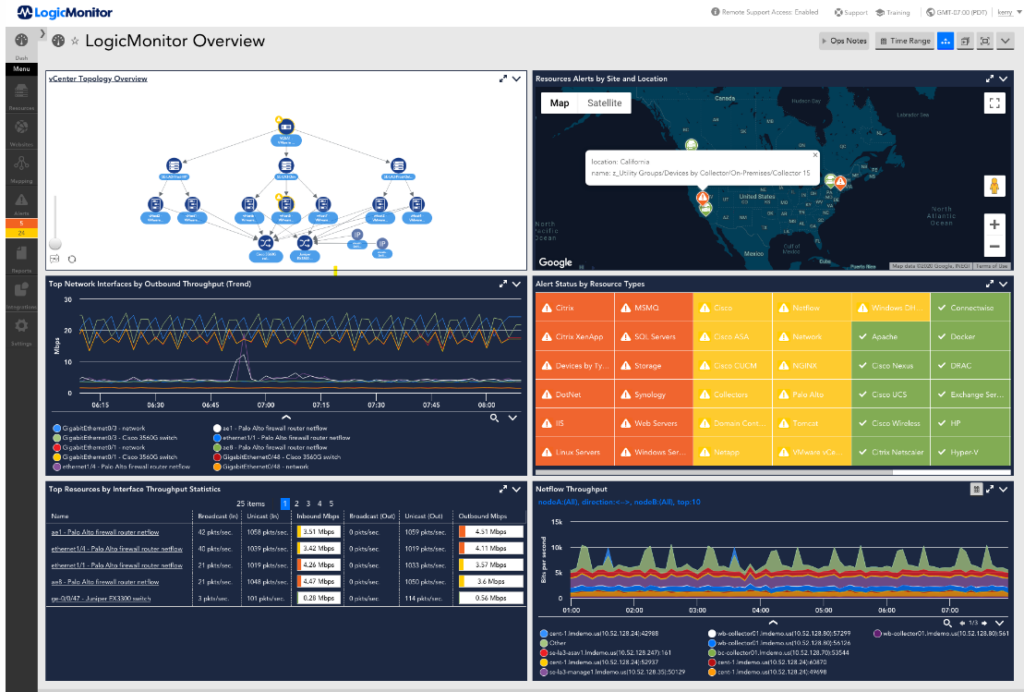
System monitoring tools are software applications designed to observe and report on the performance and health of computer systems. They collect and analyze data related to system resources, such as CPU usage, memory consumption, disk activity, and network traffic. By providing real-time and historical data, these tools help system administrators and developers make informed decisions to optimize performance and troubleshoot issues.

2. Key System Monitoring Tools

  • **1. Task Manager (Windows)
    • Features: Task Manager provides a real-time view of CPU, memory, disk, and network usage. It allows users to view running processes, applications, and services, as well as their resource consumption.
    • Benefits: Task Manager is useful for quickly identifying processes consuming excessive resources and monitoring overall system performance. It is a built-in tool, making it easily accessible for immediate diagnostics.
  • **2. Resource Monitor (Windows)
    • Features: Resource Monitor offers a more detailed analysis of system performance compared to Task Manager. It provides insights into CPU, memory, disk, and network activity, and includes data visualization tools.
    • Benefits: Resource Monitor helps in pinpointing specific processes and services that may be causing performance issues. It allows for granular analysis and troubleshooting.
  • **3. Performance Monitor (Windows)
    • Features: Performance Monitor allows users to create custom performance counters and track various system metrics over time. It includes tools for generating reports and setting up alerts based on performance thresholds.
    • Benefits: Performance Monitor is ideal for in-depth performance analysis and trend monitoring. It helps in identifying long-term performance patterns and potential bottlenecks.
  • **4. top (Linux)
    • Features: top is a command-line utility that provides a real-time overview of system processes, including CPU, memory, and swap usage. It updates regularly and displays processes sorted by resource consumption.
    • Benefits: top is widely used for quick performance diagnostics and process management. It provides a straightforward interface for monitoring system health.
  • **5. htop (Linux)
    • Features: htop is an enhanced version of top with a more user-friendly interface. It provides a graphical display of system metrics and allows users to interactively manage processes.
    • Benefits: htop offers a more intuitive way to monitor system performance and manage processes compared to top. It is useful for users who prefer graphical representations of data.
  • **6. iostat (Linux)
    • Features: iostat provides information on CPU utilization and I/O statistics for devices and partitions. It helps in monitoring disk performance and identifying I/O bottlenecks.
    • Benefits: iostat is valuable for diagnosing disk-related performance issues and optimizing disk I/O operations.
  • **7. vmstat (Linux)
    • Features: vmstat reports virtual memory statistics, including memory usage, paging, and process statistics. It provides a snapshot of system performance and memory behavior.
    • Benefits: vmstat helps in understanding memory-related performance issues and optimizing memory allocation.
  • **8. Netdata (Cross-Platform)
    • Features: Netdata offers real-time performance monitoring with a web-based interface. It provides detailed insights into system metrics, including CPU, memory, disk, and network usage.
    • Benefits: Netdata is known for its extensive visualization capabilities and ease of setup. It is suitable for continuous monitoring and performance analysis.
  • **9. Nagios (Cross-Platform)
    • Features: Nagios is a powerful monitoring system that provides alerts and reports on network and system performance. It supports a wide range of plugins for monitoring various services and applications.
    • Benefits: Nagios is highly customizable and scalable, making it ideal for enterprise environments. It offers comprehensive monitoring and alerting capabilities.
  • **10. Prometheus and Grafana (Cross-Platform)
    • Features: Prometheus is an open-source monitoring and alerting toolkit that collects time-series data. Grafana is a visualization tool that integrates with Prometheus to provide graphical representations of performance metrics.
    • Benefits: Prometheus and Grafana together offer a robust solution for monitoring and visualizing system performance. They are suitable for large-scale environments and provide powerful querying and visualization features.

3. Benefits of System Monitoring Tools

  • Performance Analysis: System monitoring tools help in analyzing system performance by providing insights into resource usage, identifying bottlenecks, and tracking performance trends.
  • Troubleshooting: These tools assist in diagnosing performance issues by highlighting problem areas, such as high CPU usage, memory leaks, or disk I/O constraints.
  • Optimization: Monitoring data helps in making informed decisions about system tuning and optimization, such as adjusting configurations, upgrading hardware, or optimizing applications.
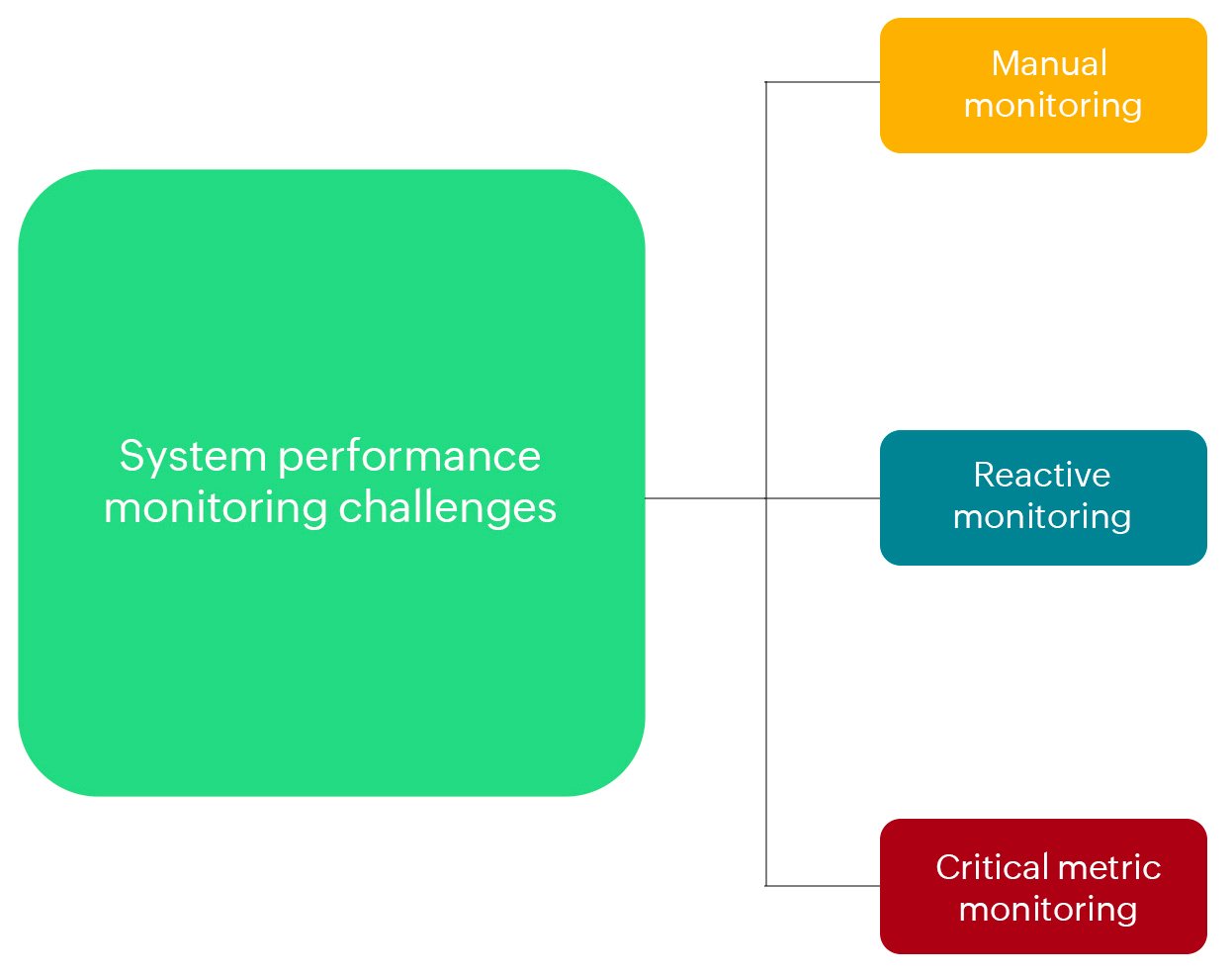
  • Proactive Management: Continuous monitoring allows for proactive management of system performance, enabling administrators to address potential issues before they impact users.

4. Conclusion

System monitoring tools are essential for performance tuning and optimization in operating systems. By providing detailed insights into system metrics, these tools enable administrators and developers to analyze performance, troubleshoot issues, and make informed decisions to enhance system efficiency. Whether using built-in utilities or advanced third-party solutions, effective system monitoring is key to maintaining a high-performing and reliable computing environment.

Optimization is crucial in operating systems (OS) to enhance performance, efficiency, and resource utilization. Effective optimization techniques help improve system responsiveness, reduce resource consumption, and ensure reliable operation. This article explores various optimization techniques in operating systems, focusing on performance tuning, resource management, and system efficiency.

1. Process Management Optimization

  • Process Scheduling:
    • Algorithms: Utilize advanced scheduling algorithms like Multilevel Feedback Queue (MLFQ), Earliest Deadline First (EDF), or Completely Fair Scheduler (CFS) to optimize process execution and responsiveness.
    • Prioritization: Implement priority-based scheduling to ensure that high-priority processes receive adequate CPU time, improving overall system performance.
  • Load Balancing:
    • Dynamic Load Balancing: Distribute processes and tasks evenly across available CPUs or cores to prevent overloading and optimize CPU utilization.
    • Affinity and Migration: Use processor affinity to bind processes to specific CPUs and reduce context switching, while allowing process migration to balance the load effectively.

2. Memory Management Optimization

  • Paging and Segmentation:
    • Efficient Paging: Optimize paging strategies by using techniques such as page replacement algorithms (e.g., Least Recently Used (LRU), Optimal) to manage virtual memory effectively.
    • Segmentation: Implement segmentation to divide memory into variable-sized segments based on the logical divisions of processes, reducing fragmentation and improving memory allocation.
  • Cache Management:
    • Cache Optimization: Utilize cache memory efficiently by optimizing cache replacement policies, such as Least Recently Used (LRU) or Most Recently Used (MRU), to enhance data retrieval speed.
    • Cache Coherency: Maintain cache coherency in multiprocessor systems to ensure consistent data across multiple caches and prevent data corruption.
  • Memory Pooling:
    • Memory Pools: Implement memory pools or allocators to manage memory allocation and deallocation more efficiently, reducing fragmentation and overhead.

3. File System Optimization

  • File System Design:
    • Efficient File Allocation: Use efficient file allocation strategies such as extent-based allocation or B-trees to improve file access and management.
    • Indexing: Implement indexing techniques to speed up file searches and access times.
  • Disk Scheduling:
    • Algorithms: Employ disk scheduling algorithms like Shortest Seek Time First (SSTF) or SCAN to optimize disk access and reduce seek times.
    • Defragmentation: Regularly defragment disk storage to consolidate fragmented files and improve read/write performance.

4. I/O System Optimization

  • Buffering and Caching:
    • I/O Buffering: Use buffering to temporarily store data during I/O operations, reducing the frequency of disk access and improving throughput.
    • Caching: Implement caching mechanisms to store frequently accessed data in memory, minimizing I/O operations and enhancing system performance.
  • Asynchronous I/O:
    • Non-blocking I/O: Use asynchronous or non-blocking I/O operations to allow processes to continue execution while waiting for I/O operations to complete, improving system responsiveness.

5. Network Optimization

  • Bandwidth Management:
    • Traffic Shaping: Implement traffic shaping techniques to control network traffic flow and ensure optimal bandwidth usage.
    • Load Balancing: Use load balancing to distribute network traffic across multiple servers or paths, enhancing performance and reliability.
  • Protocol Optimization:
    • Efficient Protocols: Use efficient network protocols and configurations to reduce overhead and improve data transfer rates. Examples include optimizing TCP/IP settings and using advanced network protocols.

6. System Call Optimization

  • Minimize Overhead:
    • Efficient System Calls: Optimize system calls to reduce overhead and latency by minimizing the number of transitions between user space and kernel space.
    • Batching: Batch multiple system calls into a single operation where possible to reduce context switching and improve performance.

7. Resource Allocation

  • Dynamic Resource Allocation:
    • Adaptive Allocation: Implement adaptive resource allocation techniques to adjust resource allocation based on current system load and application requirements.
    • Resource Pools: Use resource pools to manage and allocate resources efficiently, avoiding contention and ensuring fair access.
  • Quality of Service (QoS):
    • QoS Policies: Implement QoS policies to prioritize and manage resources based on application requirements, ensuring that critical tasks receive the necessary resources.

8. System Tuning

  • Configuration Tuning:
    • System Parameters: Adjust system parameters and configurations, such as buffer sizes, timeout settings, and scheduler policies, to optimize system performance based on workload characteristics.
  • Performance Monitoring:
    • Tools: Use performance monitoring tools and profiling utilities to identify bottlenecks and optimize system components. Examples include top, htop, iostat, and vmstat.

Conclusion

Optimization techniques in operating systems play a crucial role in enhancing system performance, efficiency, and resource management. By focusing on process management, memory management, file systems, I/O systems, network optimization, system calls, resource allocation, and system tuning, developers and administrators can improve overall system responsiveness and efficiency. Implementing these techniques requires a thorough understanding of system components and careful tuning based on specific workload requirements and performance goals.

Optimizing battery life on laptops is essential for ensuring that your device can last throughout the day without needing frequent recharges. There are several strategies you can implement to get the most out of your laptop’s battery. In this article, we’ll discuss some practical tips to help you optimize battery life on laptops using your operating system.

Adjust Power Settings

One of the easiest ways to start optimizing battery life on laptops is by adjusting the power settings. Most operating systems offer power-saving modes that reduce the power consumption of your laptop. By enabling these settings, you can significantly extend your battery life.

Optimizing Battery Life on Laptops with Your Operating System

Reduce Screen Brightness

Another effective method for optimizing battery life on laptops is to lower the screen brightness. The display is one of the biggest power consumers on a laptop. By reducing the brightness, you can save a considerable amount of energy and prolong the battery life.

Disable Unnecessary Background Applications

Background applications can drain your laptop’s battery quickly. To optimize battery life on laptops, ensure you disable or close any applications that are not in use. This reduces the load on your CPU and conserves energy.

Use Battery Saver Mode

Most operating systems come with a built-in battery saver mode. This mode helps in optimizing battery life on laptops by limiting background activities and reducing the performance of certain hardware components. Activating battery saver mode can help you get more usage time out of your laptop.

Manage Startup Programs

Programs that start automatically when you turn on your laptop can use up significant battery power. By managing and minimizing startup programs, you can improve the overall efficiency of your system and optimize battery life on laptops.

Update Your Operating System and Drivers

Keeping your operating system and drivers updated is crucial for optimizing battery life on laptops. Updates often include improvements in power management and can help your laptop run more efficiently.

Disable Bluetooth and Wi-Fi When Not in Use

Bluetooth and Wi-Fi can consume a lot of power even when you are not actively using them. To optimize battery life on laptops, make sure to turn off these features when they are not needed.

Adjust Sleep Settings

Setting your laptop to go to sleep after a short period of inactivity can help save battery life. By adjusting sleep settings, you ensure that your laptop isn’t wasting energy when you are not using it, which is essential for optimizing battery life on laptops.

Unplug Peripherals

Connected peripherals like external hard drives, mice, and keyboards can draw power from your laptop. To optimize battery life on laptops, unplug any unnecessary peripherals when you are running on battery power.

Use a Dark Theme

Using a dark theme can reduce the power consumption of your display, especially if your laptop has an OLED screen. This simple change can contribute to optimizing the battery life.

Monitor Battery Usage

Most operating systems provide tools to monitor battery usage by different applications and processes. By keeping an eye on this data, you can identify and address any apps or processes that are consuming excessive power, which is key to optimizing battery life.

Optimize Your Web Browser

Web browsers can be significant battery drainers, especially if you have many tabs open. Using extensions that block ads and background scripts, and keeping your browser updated, can help in optimizing battery life on laptops.

Limit Multimedia Usage

Streaming videos and playing high-definition games can quickly drain your laptop’s battery. Limiting the use of such activities when you need to conserve battery is essential for optimizing battery life.

Use Hibernate Instead of Sleep

Hibernate mode uses less power than sleep mode because it saves your open documents and programs to your hard drive instead of RAM. Using hibernate can be more effective for optimizing battery life on laptops during longer periods of inactivity.

Conclusion

Optimizing battery life on laptops involves a combination of adjusting settings, managing applications, and being mindful of how you use your device. By following the strategies outlined in this article, you can significantly extend your laptop’s battery life and ensure it remains functional throughout the day. Remember to keep your operating system updated, manage power settings, and monitor battery usage regularly to get the most out of your laptop’s battery.

Customizing and Building Kernels: Kernel customization and building are advanced topics in operating system development that allow developers to tailor the operating system’s core functionality to meet specific needs. This process involves modifying the kernel’s source code, configuring kernel options, and compiling the kernel to create a customized version suited to particular hardware or use cases. This article provides a detailed overview of kernel customization and building, including essential steps and considerations.

Customizing and Building Kernels

Understanding the Kernel

The kernel is the central component of an operating system that manages hardware resources, provides system services, and handles communication between software and hardware. Customizing the kernel allows developers to optimize performance, add new features, or support specific hardware that is not natively supported by the standard kernel.

Why Customize and Build Kernels?

  • Performance Optimization: Tailoring the kernel to the specific needs of your hardware or applications can improve system performance and efficiency.
  • Hardware Support: Adding or updating drivers and support for specific hardware components that are not included in the default kernel.
  • Feature Enhancement: Implementing new features or experimental functionalities that are not available in the standard kernel release.
  • Security Improvements: Customizing the kernel to include additional security patches or configurations that address specific security concerns.

Steps to Customize and Build Kernels

  1. Obtain the Kernel Source Code:
    • Download Source Code: Obtain the kernel source code from official repositories or distribution sources. For Linux, the source code can be downloaded from the Kernel.org website or through your Linux distribution’s repositories.
    • Verify Integrity: Ensure the integrity of the downloaded source code by verifying checksums or signatures provided by the source.
  2. Set Up the Development Environment:
    • Install Development Tools: Ensure that you have the necessary development tools and libraries installed. This typically includes compilers (e.g., GCC), build tools (e.g., Make), and other dependencies required for kernel compilation.
    • Prepare the Build System: Configure your build environment, including setting up appropriate directories and environment variables.
  3. Configure the Kernel:
    • Kernel Configuration Tool: Use a kernel configuration tool to set kernel options and features. Common tools include make menuconfig, make xconfig, or make nconfig. These tools provide a graphical or text-based interface for selecting and configuring kernel options.
    • Select Options: Choose the features, drivers, and modules you want to include or exclude in your custom kernel. Configuration options can range from hardware support to file systems and network protocols.
    • Save Configuration: Save your configuration to a file (typically .config) to ensure that your choices are preserved for the build process.
  4. Modify the Kernel Source Code (if needed):
    • Edit Source Code: If you need to make custom modifications, such as adding new features or fixing bugs, edit the kernel source code as required. Ensure that your changes are well-documented and tested.
    • Apply Patches: Apply any patches or updates that are relevant to your customization. This might include security patches, bug fixes, or new feature implementations.
  5. Build the Kernel:
    • Compile the Kernel: Use the make command to compile the kernel. This process involves compiling the kernel source code into a binary format that can be loaded and executed by the operating system.
    • Build Modules: If you have selected additional kernel modules, compile them separately using the make modules command.
    • Verify Build: Check the build process for errors or warnings. Review the build logs to ensure that the kernel and modules have been successfully compiled.
  6. Install the Kernel:
    • Install Kernel Binary: Copy the compiled kernel binary (usually vmlinuz) to the appropriate directory (e.g., /boot). This directory typically contains the kernel and associated files required for booting.
    • Install Modules: Install any kernel modules to the appropriate directory (e.g., /lib/modules/$(uname -r)).
    • Update Bootloader: Update your bootloader configuration (e.g., GRUB) to include the new kernel. Ensure that the bootloader can recognize and boot into the custom kernel.
  7. Test the Custom Kernel:
    • Reboot the System: Reboot your system to load the new custom kernel. Monitor the boot process for any issues or errors.
    • Verify Functionality: Test system functionality, including hardware support, performance, and stability. Ensure that all desired features and configurations are working as expected.
    • Troubleshoot: Address any issues or problems encountered during testing. Use kernel logs and debugging tools to identify and resolve issues.
  8. Maintain and Update:
    • Monitor Updates: Keep track of updates and patches for the kernel and apply them as needed. Regular maintenance ensures that your custom kernel remains secure and up-to-date.
    • Document Changes: Document any customizations and modifications made to the kernel. This documentation helps in maintaining the kernel and troubleshooting issues.

Challenges in Kernel Customization

  • Complexity: Kernel development requires a deep understanding of system architecture and low-level programming. Customizing and building kernels can be complex and error-prone.
  • Compatibility: Ensuring compatibility with hardware and software components requires thorough testing and validation.
  • Security: Modifying the kernel introduces potential security risks. It is essential to apply best practices for security and conduct rigorous testing.

Conclusion

Customizing and building kernels offer powerful capabilities for optimizing and tailoring operating systems to specific needs. By understanding the kernel’s role, following structured steps for customization, and addressing potential challenges, developers can create robust and efficient kernels that enhance system performance, support unique hardware, and incorporate new features. Mastering these techniques opens opportunities for advanced system programming and innovation in operating system development.

Welcome to PCBSD.com

PCBSD.com is your trusted source for everything related to powerful, flexible, and secure computing. Whether you're customizing your system, writing code, exploring open-source development, or managing entire networks, this site is built to support your journey. We cover the full range of tech topics from everyday system tweaks to deep programming insights, all in clear, simple language.

What makes PCBSD.com different is our focus on both power and ease. You’ll find expert guidance on customizing and optimizing your system, improving speed, increasing security, and solving real problems. We also explore the backbone of your computer, the operating system, and how to shape it to fit your unique needs.

This site is for learners, tinkerers, developers, system admins, and anyone who wants to take control of their digital environment. Whether you’re just getting started or already deep in development, PCBSD.com helps you go further.

Let’s begin by exploring one of the most popular topics among users: Customization and Optimization.

Customization and Optimization

Every computer user wants a system that works just right. At PCBSD.com, we help you get there. Customization means making your computer look, feel, and behave exactly how you want. Optimization means making it run better, faster, smoother, and more efficiently. We believe both go hand in hand.

Some users want a clean and simple desktop. Others want detailed control panels and advanced launchers. With the right tools and tips, you can change everything — from window layouts to keyboard shortcuts. We show you how to personalize your user interface without slowing things down.

But it's not just about looks. We teach you how to optimize performance too. This includes managing memory, fine-tuning your CPU, adjusting power settings, and choosing the right software for your tasks. By understanding your system’s hardware and software, you can get more done with fewer delays.

We also explore lightweight applications that help speed up older systems. If your machine feels slow, there’s no need to replace it — sometimes, it just needs the right setup. Our guides walk you through cleaning up background processes, removing unused services, and choosing faster alternatives.

Customization can also improve focus and workflow. For example, a programmer might want a dark theme and a tiling window manager. A designer may prefer bright visuals and floating windows. We help each user find a layout and style that boosts productivity and reduces distractions.

Lastly, we talk about automation. With a few scripts or settings, your system can do routine tasks on its own. Want your desktop to load your favorite apps at startup? Need your files to back up daily? We will teach you how to. Customization and optimization aren’t just about comfort — they’re about control. If you're a technology enthusiast using PC-BSD, why not explore some online entertainment as well? After optimizing your system, you might want to try your luck with roulette en ligne en argent réel.

Development and Programming

At the heart of every powerful system is the ability to create. That’s why development and programming are a big part of PCBSD.com. Whether you're a beginner learning your first language or an expert writing complex applications, this section is designed to help you write better code and build smarter software.

We cover a wide range of languages — like Python, C++, JavaScript, and Bash — along with tools and environments that make development easier. You’ll learn how to set up your machine for coding, install the right packages, and create a workspace that supports your goals. Every step is explained clearly so you can follow along and build with confidence.

One major focus here is open-source development. PCBSD.com supports open-source software because it gives you freedom — freedom to read the code, change it, and share it. We explore how to contribute to open projects, use version control tools like Git, and collaborate with others across the world.

Our guides also dive into software building tools. We explain how compilers work, how to use build systems like CMake or Make, and how to debug code efficiently. If your program crashes or behaves oddly, we’ll help you fix it. Debugging is part of learning, and we make it easier to understand.

For those interested in scripting and automation, we provide hands-on examples. You’ll discover how to write shell scripts to handle tasks, how to use cron jobs to schedule work, and how to create simple command-line tools. Programming isn't just for apps — it's also for improving daily tasks on your computer. FreeBSD offers a versatile platform for a variety of experiences, and for those interested in casino-style gaming, resources like https://www.casinosophus.com/video-poker/ provide information on video poker strategy and gameplay.

We also focus on safe coding practices. We show how to protect your programs from bugs, security issues, and unexpected behavior. You'll learn the value of writing clean, well-documented code that others can read and improve.

With step-by-step tutorials, clear examples, and useful tips, PCBSD.com makes programming less scary and more fun. Whether you’re creating your first program or building a large system, this space is here to guide your growth.

Operating System

The operating system (OS) is the heart of your computer. It connects the hardware with the software and lets you run programs, save files, and control your machine. At PCBSD.com, we help you understand how your OS works and how you can make the most of it.

Many users never go beyond the basics of their operating system. But with the right guidance, you can unlock much more. With us you will get to learn more about OS features and how the system functions. This way, you are guaranteed that you can customize to your needs.

PCBSD.com pays special attention to BSD-based systems and Unix-like environments, which are known for being stable, secure, and flexible. If you’ve never used something outside of Windows or macOS, we help you take the first step. Our articles explain key OS concepts like the file system, system boot, kernel, processes, and user permissions in plain language.

You’ll also learn how to install and update your OS, manage user accounts, and explore the terminal. Command-line tools may seem hard at first, but they give you powerful control over your computer. We make it easy to learn commands that help you move through folders, install software, check system status, and more.

We also explain the different types of package managers. These tools let you download, install, and update programs easily. We compare options like pkg, apt, and others so you can choose what works best for your setup. No more guessing which version of a program to use — we guide you step-by-step.

System logs and monitoring tools are another important part of this section. We help you read logs, understand what they mean, and use them to fix problems. If your system crashes or slows down, logs often hold the answers. We teach you how to find and read them with confidence. After a day of exploring open-source software, why not unwind with some entertainment? You can discover the thrill of video poker with https://www.jokaroom.net/en/video-poker/ and experience the excitement of online gaming.

Understanding your operating system helps you do more — and do it better. Whether you’re setting up a desktop, managing a server, or just curious about how things work under the hood, our OS section gives you the tools to succeed.

Security and Privacy

In today’s digital world, protecting your computer and personal information is more important than ever. At PCBSD.com, we take security and privacy seriously, helping you keep your system safe from threats and your data private from prying eyes.

Security begins with understanding common risks. We explain how viruses, malware, phishing attacks, and hackers can affect your system. But more importantly, we teach you practical steps to protect yourself. This includes setting strong passwords, using firewalls, and keeping your software up to date.

Privacy is just as crucial. We show you how to control what information your computer shares with others, including apps and websites. You’ll learn about encryption tools that keep your data safe and about privacy-focused browsers that block tracking and ads.

Our guides cover how to configure your operating system for maximum security. From managing user permissions to enabling system-wide encryption, we provide easy-to-follow instructions that anyone can use. The smallest change can actually change a lot of things.

We also discuss advanced topics like secure shell (SSH) access, VPN use, and how to protect your network from outside threats. These tools add extra layers of protection, especially if you work remotely or use public Wi-Fi. For those who enjoy high-stakes activities, high roller casinos offer an extraordinary gambling experience. To explore top destinations, acepokies high roller casinos has all the information you need.

Regular backups are a key part of security. We explain how to create automatic backups so that your data is safe, even if your system fails or is attacked. Knowing you have a reliable backup brings peace of mind.

Finally, we keep you updated on the latest security news and vulnerabilities. The tech world changes fast, and PCBSD.com helps you stay informed so you can act before problems happen.

Security and privacy are not just features — they’re habits. We empower you with knowledge and tools to build those habits and keep your digital life safe every day.

System Management and Administration

Every computer needs a system management and administration. Whether you manage a personal machine or run a server, knowing how to maintain and control your system is key. At PCBSD.com, we make these skills simple to learn and easy to apply.

We begin with the basics — how to monitor your system’s health, check performance, and manage processes. You’ll learn how to use system tools to see which programs use the most memory or CPU, and how to stop processes that are slowing things down. Keeping your system running smoothly starts with understanding what’s happening behind the scenes.

Next, we explore user and group management. Creating user accounts, setting permissions, and controlling access are important for both home and professional setups. You have us to show you all the commands and settings of your computer. Storage is another big part of system management. We explain how to mount drives, create file systems, check disk usage, and clean up space. You'll also learn how to prevent data loss by checking disk health and organizing files properly.

Service and daemon management is also covered. Services are background programs that do important work like managing the network or running scheduled tasks. We show you how to start, stop, enable, or disable these services using tools like service and rc.conf on BSD systems.

We also include automation tips. Automating system updates, backups, and reports can save you time and prevent human error. You’ll learn how to write scripts and use tools like cron to schedule regular system tasks, making your setup more efficient.

Finally, we talk about system logs and troubleshooting. Logs are like a diary for your computer — they show what happened and when. We teach you how to read logs to fix problems, track changes, or even discover hidden issues before they become serious.

At PCBSD.com, our goal is to turn system management into a skill anyone can learn. With our help, you’ll feel more confident in controlling, maintaining, and improving your machine, whether it’s a personal PC or a powerful server.

Understanding Resource Allocation

Every operating system has a way of handling system resources like CPU time, memory, and disk space. Knowing how these are shared among users and processes helps you avoid slowdowns and crashes. PCBSD.com explains how your system decides which tasks get attention and how to adjust settings so high-priority jobs run smoothly without harming overall performance.

Process Management Tools

On Unix-like systems, process control is a big part of admin work. Tools like top, htop, ps, and kill help you monitor and manage tasks in real time. Here we go through everything and how it works.You’ll learn how to spot stuck processes and shut them down safely. This skill keeps your system fast and stable.

Package and Software Management

Software is always changing, and updates are often needed for features or security. PCBSD.com helps you use package managers like pkg, ports, or others to install, upgrade, and remove software. We also guide you on checking for dependencies and making sure updates don’t break your system. Keeping your software healthy means fewer bugs and more features.

Remote System Access

Sometimes you need to manage a system that’s not near you. Tools like SSH (Secure Shell) let you connect from anywhere and run commands like you’re sitting in front of the machine. We explain how to set up SSH, use secure keys, and avoid risks. With SSH, remote servers or headless machines become easy to control.

User Security Policies

Controlling who can access what is a big part of system safety. We explain how to set up user roles, enforce password rules, and limit admin powers. These small changes protect against accidents and intrusions. At PCBSD.com, we show you how to apply user policies that match your needs — from home setups to shared workspaces.

Backup Planning and Disaster Recovery

Losing data is every user’s nightmare. That’s why PCBSD.com stresses the need for regular backups. With our guidelines, you can choose between full incremental and differential backups. You’ll also learn how to automate them and test recovery steps. A strong backup plan means you can recover fast after crashes or hardware failures.

Scheduling Tasks with Cron

If you repeat certain tasks — like updates, cleanups, or backups — you can automate them using cron. You can make use of it to set schedules and run them. We explain how to write simple crontab entries and check if they run correctly. With the right setup, your system can take care of routine tasks while you focus on work.

Config File Best Practices

Every system has important configuration files that define how things work. Editing them lets you control services, behavior, and even startup processes. But mistakes here can cause big problems. We teach you how to edit safely, back up before changes, and understand key config files. You'll gain confidence working with .conf, .rc, and .ini files.

System Hardening Tips

Hardening means making your system tougher against attacks or failures. We show you how to turn off unused services, lock down ports, and use tools like pf (Packet Filter) for BSD firewalls. These small improvements add strong layers of defense without slowing you down. It’s all about smart changes with lasting impact. Beyond the digital world, many enjoy diverse forms of online entertainment. For those seeking strategic online games, consider exploring kiwi blackjack.

Monitoring Tools and Alerts

Finally, staying in control means watching your system over time. PCBSD.com explains tools like syslog, logwatch, and real-time monitors that send alerts when something goes wrong. You’ll learn how to set warning limits for disk space, CPU use, or login attempts. AS long as you have us guiding you. You are always alert. For other forms of excitement, you can immerse yourself in the elegance of baccarat and elevate your gaming experience by visiting CA CrazyVegas Online Baccarat for premium gameplay.

Final Thoughts

PCBSD.com is your trusted home for learning everything about system control, security, and performance. Whether you're just starting out or managing complex setups, this site gives you the tools and knowledge to grow with confidence.

From customizing your desktop to mastering programming and optimizing system performance, each section of the site brings value to both beginners and experienced users. We break down complex tasks into simple steps and explain the “why” behind every action. That way, you're not just following instructions — you're learning how your system truly works.

We also understand that today's tech users care deeply about safety and speed. That’s why our guides on privacy, security, and system administration are designed to help you build a strong, protected foundation. With the right setup, your system becomes easier to use, manage, and trust.

At PCBSD.com, we believe that every user can take control of their system. With the right guidance, even the most advanced features become easy to use. As the world of operating systems, development, and system tools keeps growing, we’ll be here, updating, explaining, and helping you stay ahead. When it comes to finding the best online casinos, it's essential to have reliable reviews. With new zealand casinos reviews, players can access detailed insights into the highest-rated casinos available.

Whether you visit to solve a problem, explore new skills, or improve your daily workflow, we’re glad you're here. Dive deeper into the site and let your system knowledge grow with each visit.

Welcome to a smarter, safer, and more powerful computing experience — only at PCBSD.com.