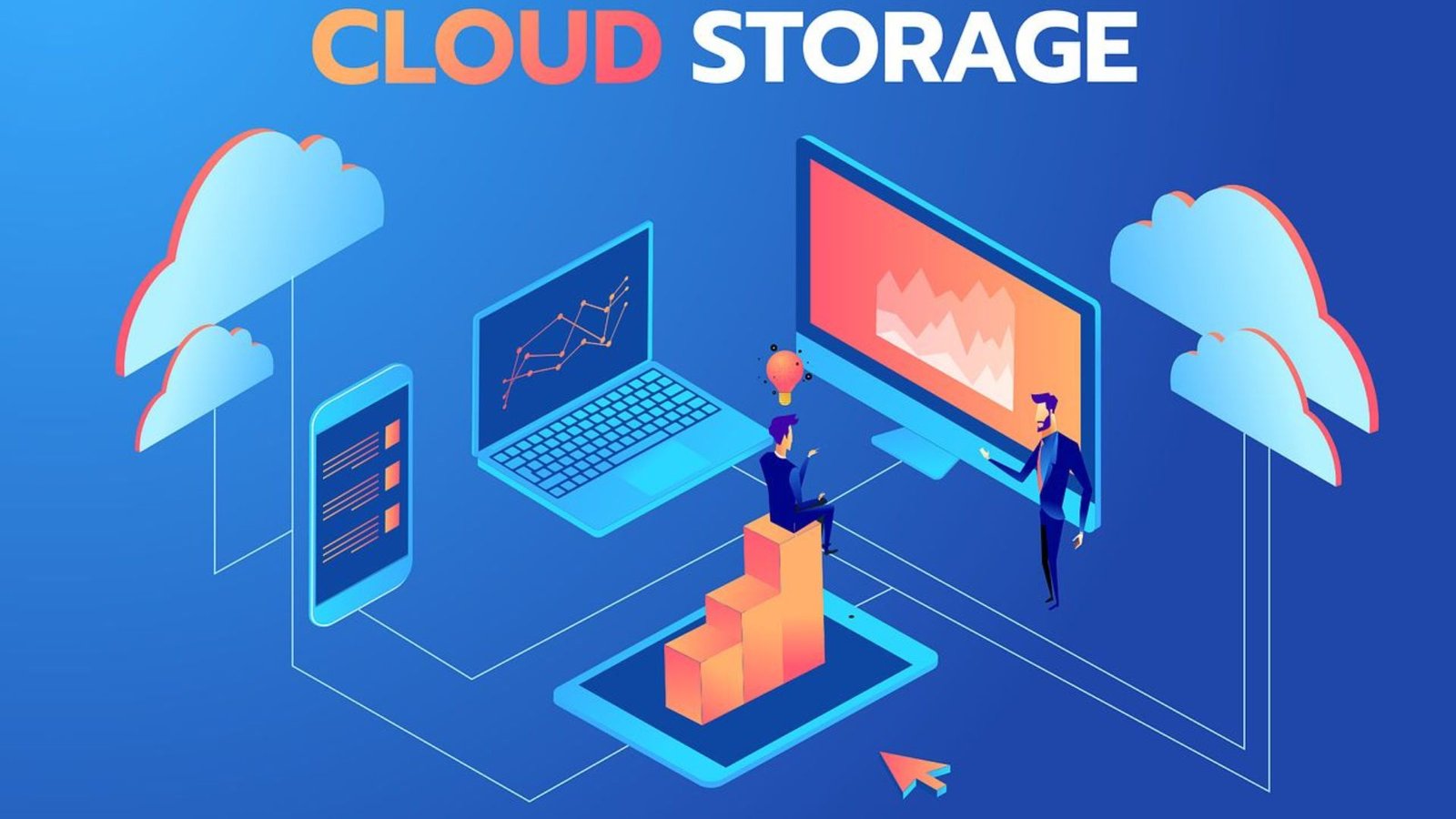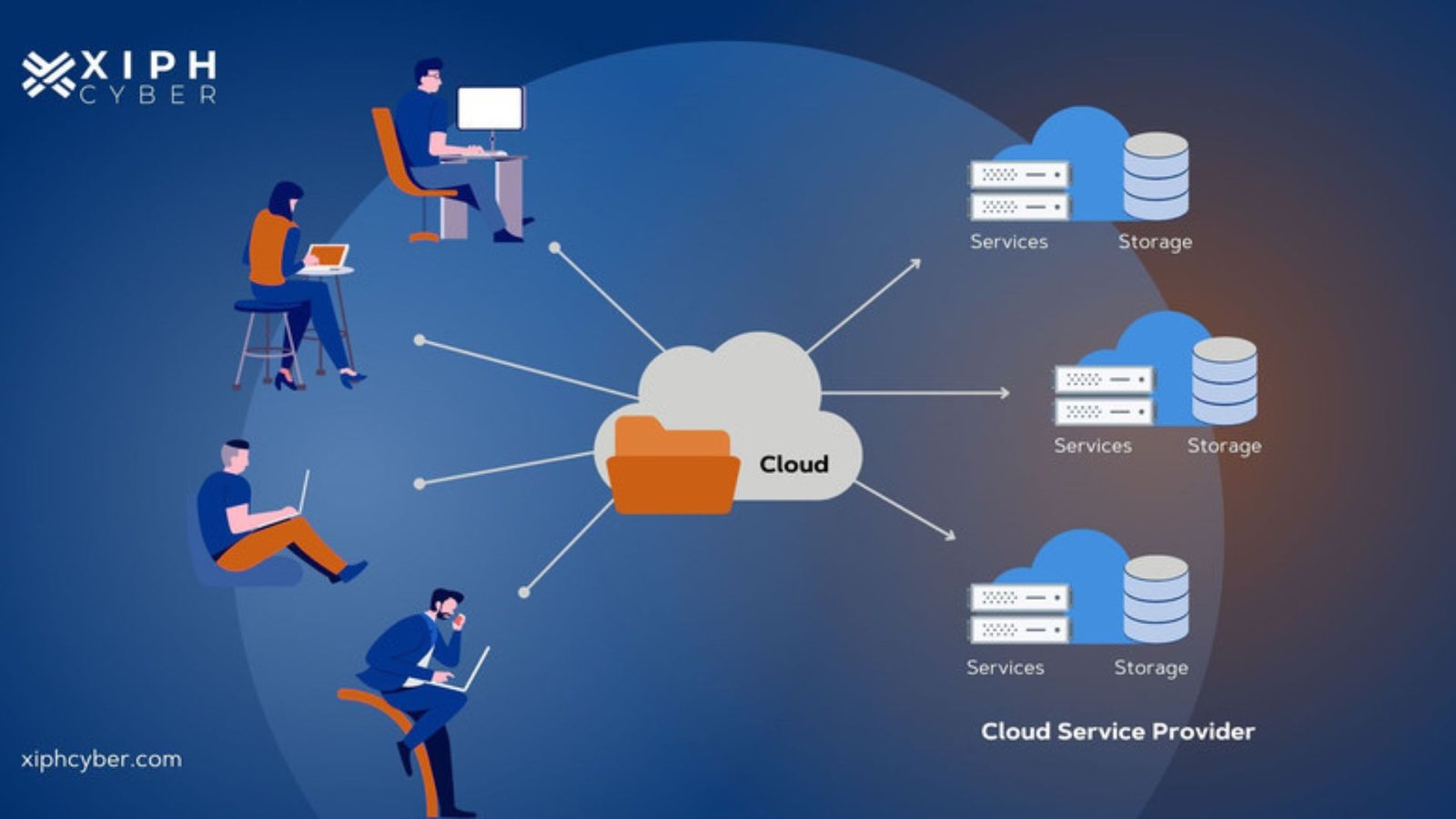
File systems are the backbone of any operating system, providing a structured way to store, retrieve, and manage data on storage devices. They determine how data is organized, named, and accessed. Understanding the different file systems used in various operating systems helps users and administrators optimize data storage and management, ensuring efficiency and reliability.

Understanding File Systems in Different Operating Systems

File Systems in Windows

Microsoft Windows predominantly uses the NTFS (New Technology File System) for its internal drives. NTFS offers advanced features like support for large files, robust security through file permissions, data compression, and disk quotas. It also provides journaling capabilities, which help prevent data corruption in case of system crashes. For external drives and backward compatibility, Windows also supports FAT32 and exFAT. FAT32 is suitable for smaller drives but has a file size limit of 4GB, while exFAT removes this limitation, making it ideal for large USB drives and SD cards.

File Systems in macOS

Apple’s macOS utilizes the APFS (Apple File System) as its default file system. Introduced with macOS High Sierra, APFS is designed to optimize flash and SSD storage, providing strong encryption, space sharing, fast directory sizing, and improved file system snapshots. HFS+ (Hierarchical File System Plus), the predecessor of APFS, is still supported for older drives. For external drives, macOS also supports FAT32 and exFAT, ensuring compatibility with Windows systems.

File Systems in Linux

Linux offers a variety of file systems, with ext4 (fourth extended filesystem) being the most commonly used. Ext4 is known for its stability, performance, and backward compatibility with ext3 and ext2. Other popular Linux file systems include Btrfs (B-tree file system) and XFS. Btrfs is designed for high fault tolerance, repair, and easy management, while XFS excels in handling large files and parallel I/O operations. Linux’s flexibility allows users to choose the file system that best suits their needs, whether for a desktop environment, server, or embedded system.

File Systems in Unix and Unix-like Systems

Unix and Unix-like operating systems, including FreeBSD, use a variety of file systems, with UFS (Unix File System) being a traditional choice. UFS is known for its robustness and support for large volumes. ZFS (Zettabyte File System), originally developed by Sun Microsystems, is another powerful file system used in these environments. ZFS provides high storage capacity, data integrity verification, and repair, along with features like snapshots and cloning. Its advanced capabilities make it a preferred choice for enterprise storage solutions.

Choosing the Right File System

Selecting the appropriate file system depends on several factors, including the operating system, the type of storage device, and the specific requirements of the user or application. For example, NTFS is ideal for Windows systems needing advanced features and security, while APFS is optimized for macOS and its modern storage needs. Ext4 is a versatile and reliable choice for most Linux users, but those requiring advanced features might opt for Btrfs or XFS. In Unix environments, ZFS is often chosen for its high reliability and extensive feature set.

Cross-Platform Compatibility

Ensuring cross-platform compatibility is crucial when sharing files between different operating systems. File systems like FAT32 and exFAT are supported by Windows, macOS, and Linux, making them suitable for external drives and removable media. However, these file systems come with limitations, such as the 4GB file size limit of FAT32. Understanding these constraints helps users choose the best file system for their specific use cases, ensuring seamless data exchange and storage efficiency.

Conclusion

File systems play a critical role in the functionality and performance of operating systems, each offering unique features and advantages. From NTFS in Windows to APFS in macOS, ext4 in Linux, and ZFS in Unix-like systems, understanding these  helps optimize data management and storage. Choosing the right file system involves considering the operating system, storage needs, and cross-platform compatibility, ultimately enhancing the overall efficiency and reliability of data handling.
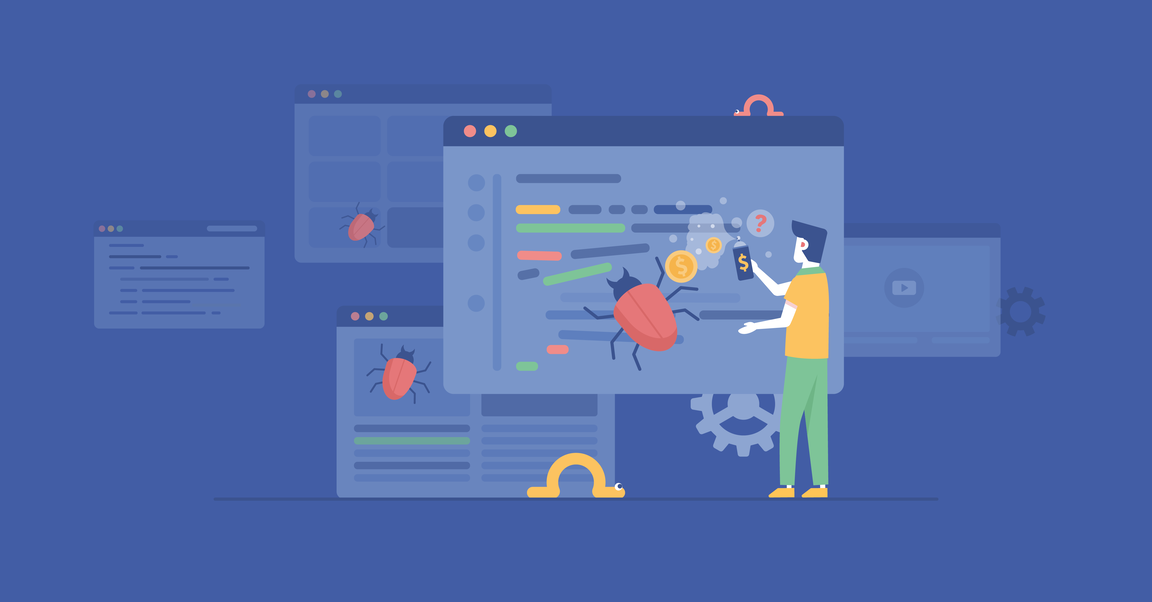

Dealing with common bugs in your operating system can be frustrating, but understanding how to resolve them can save you time and effort. Whether you’re encountering glitches, freezes, or other issues, this guide will help you troubleshoot effectively.

1. Understanding Software Updates and Compatibility

Regular updates are crucial for your operating system’s health. Common bugs in your operating system often stem from outdated software or compatibility issues with newer applications. Ensure you regularly update your OS and applications to minimize these issues.

Common Bugs in Your Operating System

2. Dealing with System Crashes and Blue Screens

One of the most alarming common bugs in your operating system is a sudden crash or a blue screen of death (BSOD). These can occur due to hardware failures, driver conflicts, or corrupt system files. Restart your computer and check for driver updates to resolve these issues.

3. Addressing Slow Performance and Lag

Is your computer sluggish? Slow performance is among the common bugs in your operating system and can result from excessive startup programs, insufficient RAM, or a fragmented hard drive. Use task manager tools to manage startup apps and consider upgrading hardware if needed.

4. Fixing Application Errors and Freezes

Applications freezing or displaying errors are common bugs in your operating system. Update your applications and check for system updates. If the issue persists, reinstall the problematic application or use troubleshooting tools provided by your OS.

5. Resolving Internet Connectivity Problems

Internet connectivity issues are common bugs in your operating system that can arise from network configuration problems or outdated network drivers. Resetting your router, updating network drivers, or using network troubleshooters can often resolve these issues.

6. Handling Peripheral Device Malfunctions

If your printer, scanner, or other devices aren’t working correctly, driver issues are common bugs in your operating system. Ensure your devices have the latest drivers installed or use device manager tools to troubleshoot and update drivers.

7. Eliminating Disk Errors and File Corruption

Disk errors and file corruption are common bugs in your operating system that can lead to data loss or system instability. Use built-in disk checking utilities to scan and repair disk errors periodically to maintain system integrity.

8. Dealing with Overheating and Fan Noise

Overheating and excessive fan noise can indicate common bugs in your operating system caused by dust buildup, improper ventilation, or outdated BIOS settings. Clean your computer regularly and adjust fan settings in BIOS to prevent overheating.

9. Managing Battery Drain Issues

If your laptop battery drains quickly, it could be due to common bugs in your operating system causing inefficient power management. Adjust power settings, disable unnecessary background processes, and update your OS to optimize battery life.

10. Addressing Audio and Sound Problems

Audio issues like distorted sound or no audio output are common bugs in your operating system. Check audio settings, update sound drivers, and ensure audio cables are properly connected to resolve these issues.

11. Handling Display and Graphics Glitches

Display glitches, screen flickering, or resolution problems are common bugs in your operating system that can stem from outdated graphics drivers or incorrect display settings. Update graphics drivers and adjust display settings for optimal performance.

12. Troubleshooting Startup and Boot Problems

If your computer fails to start or gets stuck during boot, it indicates common bugs in your operating system related to startup programs or corrupted system files. Use safe mode to troubleshoot or repair startup issues using system recovery options.

13. Resolving Touchpad or Keyboard Malfunctions

Unresponsive touchpads or malfunctioning keyboards are common bugs in your operating system that can result from driver issues or hardware faults. Update drivers and check for hardware problems to ensure input devices function properly.

14. Dealing with Privacy and Security Concerns

Security vulnerabilities and privacy settings are common bugs in your operating system that can expose your system to malware or unauthorized access. Keep your OS updated, use antivirus software, and configure privacy settings to enhance security.

Conclusion

In conclusion, understanding and addressing common bugs in your operating system is essential for maintaining your computer’s performance and reliability. By staying proactive with updates, troubleshooting effectively, and understanding your system’s behaviour, you can resolve issues swiftly and keep your operating system running smoothly.

Concurrency in operating systems refers to the ability to handle multiple tasks or processes simultaneously. This capability is crucial for modern computing, where efficient multitasking and resource utilization are essential. However, managing concurrency introduces complex challenges such as synchronization, deadlock, and resource contention. This guide explores essential strategies and techniques for effectively handling concurrency in operating systems.

1. Understanding Concurrency

**1.1. What is Concurrency?

  • Definition: Concurrency is the execution of multiple processes or threads in overlapping time periods. It allows systems to perform multiple operations at once, improving efficiency and responsiveness.
  • Multithreading vs. Multiprocessing: Concurrency can be achieved through multithreading (multiple threads within a single process) or multiprocessing (multiple processes with separate memory spaces).

**1.2. Importance of Concurrency

  • Performance Enhancement: Concurrency improves performance by utilizing system resources more effectively and reducing idle time.
  • Responsiveness: It allows systems to remain responsive by handling multiple tasks simultaneously, such as user interactions and background processes.

2. Synchronization Techniques

**2.1. Critical Sections

  • Definition: Critical sections are parts of code that access shared resources and must be executed atomically to prevent data corruption.
  • Mutexes: Mutual exclusion (mutex) objects ensure that only one thread can enter a critical section at a time. Mutexes prevent concurrent access to shared resources.

**2.2. Semaphores

  • Definition: Semaphores are synchronization primitives used to control access to resources by multiple threads. They maintain a count that represents the number of available resources.
  • Types: Binary semaphores (with values 0 or 1) and counting semaphores (with a range of values) are commonly used to manage concurrency.
Operating Systems
Operating Systems

**2.3. Monitors

  • Definition: Monitors are high-level synchronization constructs that provide a mechanism for managing access to shared resources. They combine mutexes and condition variables.
  • Condition Variables: Used within monitors to allow threads to wait for specific conditions to be met before proceeding.

**2.4. Read-Write Locks

  • Definition: Read-write locks differentiate between read and write operations. They allow multiple readers to access a resource simultaneously but ensure exclusive access for writers.
  • Usage: Useful in scenarios where read operations are frequent and write operations are infrequent.

3. Deadlock Prevention and Avoidance

**3.1. What is Deadlock?

  • Definition: Deadlock occurs when two or more processes are unable to proceed because each is waiting for resources held by the others, resulting in a standstill.
  • Conditions: Deadlock typically arises from mutual exclusion, hold and wait, no preemption, and circular wait conditions.

**3.2. Deadlock Prevention

  • Resource Allocation: Ensure that resources are allocated in a manner that prevents the formation of circular wait conditions. Use strategies such as resource ordering and avoiding hold and wait.
  • Preemption: Allow preemption of resources from processes to break potential deadlocks.

**3.3. Deadlock Avoidance

  • Banker’s Algorithm: The Banker’s Algorithm dynamically analyzes resource allocation and ensures that each request is safe before granting it. It helps avoid unsafe states that could lead to deadlock.
  • Safe States: Determine if the system is in a safe state where resources can be allocated without causing deadlock.

**3.4. Deadlock Detection and Recovery

  • Detection Algorithms: Use algorithms to detect deadlock occurrences in a system. Common approaches include resource allocation graphs and cycle detection.
  • Recovery Strategies: Once deadlock is detected, use strategies such as process termination, resource preemption, or rollback to recover from deadlock.

4. Concurrency Control in Databases

**4.1. Transaction Management

  • ACID Properties: Ensure database transactions adhere to the ACID (Atomicity, Consistency, Isolation, Durability) properties to maintain data integrity and manage concurrency.
  • Isolation Levels: Implement different isolation levels (e.g., Read Committed, Repeatable Read, Serializable) to control the visibility of changes made by concurrent transactions.

**4.2. Locking Mechanisms

  • Two-Phase Locking (2PL): A protocol that ensures transactions acquire all necessary locks before making changes, preventing conflicts and ensuring serializability.
  • Deadlock Detection in Databases: Use techniques like wait-for graphs to detect and resolve deadlocks in database systems.

5. Concurrency in Distributed Systems

**5.1. Synchronization in Distributed Systems

  • Clock Synchronization: Use algorithms like Network Time Protocol (NTP) or Logical Clocks (e.g., Lamport timestamps) to synchronize clocks across distributed systems.
  • Distributed Locks: Implement distributed locking mechanisms to coordinate access to shared resources in distributed environments.

**5.2. Consistency Models

  • Strong Consistency: Guarantees that all nodes in a distributed system see the same data at the same time.
  • Eventual Consistency: Allows for temporary inconsistencies between nodes, with the assurance that consistency will be achieved eventually.

**5.3. Conflict Resolution

  • Conflict Detection: Identify conflicts arising from concurrent operations in distributed systems.
  • Resolution Strategies: Implement strategies such as versioning, conflict-free replicated data types (CRDTs), or consensus algorithms to resolve conflicts.

Conclusion

Handling concurrency in operating systems is a complex but essential aspect of modern computing. By understanding and implementing effective synchronization techniques, preventing and avoiding deadlock, and managing concurrency in databases and distributed systems, you can enhance system performance, reliability, and efficiency. Mastering these techniques will enable you to build robust and responsive systems capable of handling multiple tasks concurrently.

macOS, Apple’s operating system for Mac computers, is known for its distinctive features that enhance user experience, productivity, and integration with Apple’s ecosystem. This article explores the unique aspects of macOS that set it apart from other operating systems and contribute to its popularity among users.

Unique Features of macOS

1. Sleek User Interface

Aqua Design:
macOS features the Aqua user interface, known for its sleek, visually appealing design. Aqua includes translucent elements, rounded corners, and a minimalist aesthetic that emphasizes clarity and ease of use. The design language is consistent across the operating system, providing a cohesive and attractive user experience.

Dock and Menu Bar:
The Dock is a prominent feature of macOS, offering quick access to frequently used applications and files. The menu bar at the top of the screen provides system-wide navigation and context-sensitive options, allowing users to access settings, notifications, and application-specific controls with ease.

2. Integration with Apple Ecosystem

Handoff and Continuity:
macOS integrates seamlessly with other Apple devices through features like Handoff and Continuity. Handoff allows users to start a task on one Apple device and continue it on another, while Continuity extends this functionality to activities such as phone calls, text messages, and file transfers.

Universal Control:
Introduced with macOS Monterey, Universal Control enables users to control multiple Apple devices, such as Macs and iPads, with a single mouse and keyboard. Users can also drag and drop files between devices effortlessly, enhancing productivity and multitasking capabilities.

AirDrop:
AirDrop allows users to wirelessly share files, photos, and other content between Apple devices. With a simple drag-and-drop interface, AirDrop facilitates quick and secure transfers without the need for cables or internet connections.

3. Advanced Security and Privacy

Gatekeeper:
Gatekeeper is a security feature designed to protect users from downloading and installing malicious software. It ensures that applications are from identified developers and are verified for safety before installation, reducing the risk of malware.

FileVault:
FileVault provides full-disk encryption to protect sensitive data on macOS devices. It encrypts the entire hard drive, ensuring that data remains secure even if the device is lost or stolen.

Privacy Controls:
macOS offers robust privacy controls, allowing users to manage app permissions, control location access, and review which applications have access to sensitive data. These features empower users to maintain control over their personal information.

4. Productivity Enhancements

Mission Control:
Mission Control provides an overview of all open windows, full-screen apps, and Spaces (virtual desktops). This feature allows users to easily switch between tasks and manage their workspace more effectively.

Spotlight Search:
Spotlight Search is a powerful tool for quickly finding files, applications, and information on macOS. It also integrates with web searches, calculations, and unit conversions, making it a versatile utility for productivity.

Stage Manager:
Introduced in macOS Ventura, Stage Manager helps users organize their windows and applications into focused groups. This feature simplifies multitasking by automatically arranging open windows and keeping the current task in view while minimizing distractions.

5. Built-in Applications and Services

Safari Browser:
Safari is the default web browser on macOS, known for its speed, efficiency, and energy-saving features. It includes privacy-focused tools like Intelligent Tracking Prevention and a built-in password manager to enhance security and user experience.

Photos and iMovie:
macOS includes built-in applications for managing and editing media. Photos provides a comprehensive solution for organizing, editing, and sharing photos, while iMovie offers tools for video editing and movie creation, catering to both casual users and aspiring filmmakers.

Pages, Numbers, and Keynote:
Apple’s iWork suite—comprising Pages (word processing), Numbers (spreadsheets), and Keynote (presentations)—is integrated into macOS, providing users with powerful productivity tools for creating documents, managing data, and delivering presentations.

6. Voice and Accessibility Features

Siri:
Siri, Apple’s voice-activated assistant, is integrated into macOS and provides users with the ability to perform tasks, set reminders, and access information using voice commands. Siri also integrates with other Apple services, enhancing overall functionality.

Accessibility Tools:
macOS includes a wide range of accessibility features designed to support users with disabilities. These include VoiceOver (a screen reader), Magnifier, Closed Captions, and Switch Control, ensuring that macOS is usable by everyone.

7. Software and Hardware Integration

Apple Silicon:
macOS is optimized for Apple Silicon, the company’s custom M1 and M2 chips. These chips offer improved performance and efficiency, and macOS is designed to take full advantage of the hardware, resulting in faster and more efficient computing.

Integration with iCloud:
iCloud, Apple’s cloud storage service, is deeply integrated into macOS, allowing users to store and sync files, photos, and settings across all their Apple devices. iCloud Drive provides seamless access to files from any device, enhancing productivity and convenience.

Conclusion

macOS stands out for its unique features, including its elegant user interface, seamless integration with Apple’s ecosystem, advanced security and privacy measures, and productivity-enhancing tools. These features contribute to a cohesive and efficient user experience, making macOS a powerful and versatile operating system for personal and professional use.

MacOS, developed by Apple Inc., is the operating system that powers the company’s Mac computers. Known for its sleek design, user-friendly interface, and robust security features, macOS has evolved significantly since its inception. This article provides an overview of MacOS and traces its history, highlighting key developments and versions that have shaped the operating system over the years.

MacOS: Overview and History

Overview of MacOS

MacOS is a Unix-based operating system that emphasizes simplicity, performance, and seamless integration with Apple’s ecosystem of devices and services. It offers a graphical user interface characterized by a desktop with a dock for quick access to applications, a menu bar for system navigation, and features like Spotlight for search and Siri for voice assistance.

Key aspects of MacOS include:

  • User Interface: MacOS is known for its clean and intuitive interface, which includes features like Mission Control for managing open applications, Finder for file management, and Launchpad for easy access to applications.
  • Security and Privacy: Apple places a strong emphasis on security and privacy, incorporating features like Gatekeeper to protect against malware, FileVault for disk encryption, and regular security updates.
  • Integration with Apple Ecosystem: MacOS seamlessly integrates with other Apple devices like iPhones, iPads, and Apple Watches. This integration allows for continuity features such as Handoff, which lets users start tasks on one device and continue on another, and Universal Clipboard for copying and pasting between devices.

History of MacOS

Mac OS Classic (1984-2001):
The history of macOS dates back to 1984 with the release of the original Macintosh operating system, often referred to as “Mac OS Classic.” This early version introduced the concept of a graphical user interface to the mass market, with features like the Finder and support for desktop publishing. It evolved through various versions, culminating in Mac OS 9, which was the last iteration before the transition to a Unix-based system.

Mac OS X (2001-2012):
The launch of Mac OS X in 2001 marked a significant turning point, introducing a new Unix-based architecture with a completely redesigned interface called Aqua. Mac OS X 10.0 “Cheetah” was the first version, featuring advancements such as preemptive multitasking, memory protection, and a more modern look and feel. Subsequent versions were named after big cats, including:

  • Mac OS X 10.1 “Puma” (2001): Brought performance improvements and additional features.
  • Mac OS X 10.2 “Jaguar” (2002): Introduced features like Quartz Extreme for improved graphics performance.
  • Mac OS X 10.3 “Panther” (2003): Added Exposé for window management and improved file search capabilities.
  • Mac OS X 10.4 “Tiger” (2005): Introduced Spotlight search, Dashboard widgets, and support for Intel processors.
  • Mac OS X 10.5 “Leopard” (2007): Brought major updates like Time Machine for backups and Spaces for virtual desktops.
  • Mac OS X 10.6 “Snow Leopard” (2009): Focused on performance enhancements and optimizing the system for 64-bit applications.
  • Mac OS X 10.7 “Lion” (2011): Introduced features inspired by iOS, such as Launchpad and full-screen applications.
  • Mac OS X 10.8 “Mountain Lion” (2012): Continued the trend of integrating iOS features, such as Notification Center and Messages.

Transition to MacOS (2013-present):
With the release of OS X 10.9 “Mavericks” in 2013, Apple began naming its operating systems after California landmarks and dropped the “Mac” from the name. This version focused on improving battery life and system performance. Subsequent versions include:

  • OS X 10.10 “Yosemite” (2014): Introduced a major visual overhaul to match the aesthetics of iOS, including a flatter design and translucency effects.
  • OS X 10.11 “El Capitan” (2015): Focused on performance and user experience improvements, including Metal for graphics rendering.
  • MacOS 10.12 “Sierra” (2016): Marked the official rebranding to “macOS” and introduced features like Siri on Mac and Apple Pay on the web.
  • MacOS 10.13 “High Sierra” (2017): Introduced the Apple File System (APFS) and improvements to graphics and video technologies.
  • MacOS 10.14 “Mojave” (2018): Added a system-wide Dark Mode, a redesigned Mac App Store, and new Finder features.
  • MacOS 10.15 “Catalina” (2019): Brought new apps like Music, TV, and Podcasts, replacing iTunes, and introduced Sidecar, allowing iPads to be used as secondary displays.
  • MacOS 11 “Big Sur” (2020): A significant update with a major visual redesign, new system sounds, and the transition to Apple’s custom M1 silicon chips, marking a major hardware shift.
  • MacOS 12 “Monterey” (2021): Continued to refine the user experience with features like Universal Control, which allows seamless use of a single mouse and keyboard across multiple Macs and iPads.
  • MacOS 13 “Ventura” (2022): Introduced new productivity tools like Stage Manager and enhanced collaboration features.

Conclusion

The evolution of MacOS reflects Apple’s ongoing commitment to innovation, user experience, and integration within its ecosystem. From its beginnings as Mac OS Classic to the modern, robust macOS, each version has built upon the last, introducing new features and capabilities that cater to both casual users and professionals. As technology continues to advance, MacOS remains a pivotal platform in the computing world, shaping the way people interact with their digital devices.

The system boot process is the sequence of events that occurs when a computer starts up, from the moment it’s powered on to when the operating system is fully loaded and ready for use. Understanding this process is crucial for troubleshooting startup issues, optimizing system performance, and gaining insight into how your computer functions. In this guide, we’ll break down each stage of the system boot process to give you a clear understanding of how your computer boots up.

1. Power-On Self Test (POST)

**1.1. What is POST?

  • Initial Checks: POST is the initial phase of the boot process, during which the computer performs a series of hardware checks to ensure that essential components are functioning properly. This includes the CPU, RAM, and storage devices.
  • Diagnostic Testing: During POST, the computer checks for hardware errors and performs diagnostic tests. If issues are detected, error messages or beep codes may be displayed or emitted.

**1.2. BIOS/UEFI Role

  • BIOS (Basic Input/Output System): In traditional systems, the BIOS is responsible for executing POST and initializing hardware components. It provides the lowest-level interface between the operating system and the hardware.
  • UEFI (Unified Extensible Firmware Interface): In modern systems, UEFI has largely replaced BIOS. It offers more advanced features, faster boot times, and support for larger storage devices. UEFI also handles POST and hardware initialization.
Understanding the operating System Boot Process

2. Bootloader Initialization

**2.1. What is a Bootloader?

  • Bootloader Function: The bootloader is a small program that loads the operating system into memory. It is responsible for initiating the operating system startup process.
  • Bootloader Stages: The bootloader typically has multiple stages. The first stage is responsible for loading the second stage, which then loads the operating system.

**2.2. Common Bootloaders

  • GRUB (Grand Unified Bootloader): Widely used in Linux systems, GRUB allows users to choose between multiple operating systems or kernel versions at startup.
  • Windows Boot Manager: In Windows systems, the Boot Manager handles the startup process and manages the loading of the operating system.

3. Kernel Loading and Initialization

**3.1. What is the Kernel?

  • Kernel Function: The kernel is the core component of the operating system responsible for managing system resources, hardware, and providing essential services to applications.
  • Loading Process: During this phase, the bootloader loads the kernel into memory. The kernel then initializes hardware components and sets up necessary system services.

**3.2. Driver Initialization

  • Device Drivers: The kernel loads device drivers to enable communication between the operating system and hardware components such as printers, graphics cards, and network adapters.
  • Hardware Abstraction: Device drivers provide an abstraction layer that allows the operating system to interact with various hardware components without needing to know their specific details.

4. System Services and Initialization

**4.1. Starting System Services

  • Service Initialization: The operating system starts essential system services and daemons required for proper functionality. These services include network management, logging, and user authentication.
  • Service Dependencies: Some services depend on others to be running before they can start. The system initializes these services in the correct order to ensure a smooth startup.

**4.2. System Configuration

  • Configuration Files: The operating system reads configuration files to set up system parameters and preferences. These files dictate how services and applications should behave.
  • User Settings: User-specific settings and preferences are also loaded during this phase, customizing the system environment according to individual user profiles.

5. User Login and Desktop Environment

**5.1. Login Process

  • User Authentication: The system prompts for user credentials to authenticate and grant access. This process ensures that only authorized users can access the system.
  • Account Management: Once authenticated, the system loads user-specific settings and preferences, including desktop layout, theme, and application shortcuts.

**5.2. Loading the Desktop Environment

  • Desktop Manager: The desktop environment, or graphical user interface (GUI), is loaded, allowing users to interact with the system using visual elements like icons, windows, and menus.
  • Application Startup: Any startup applications or services configured by the user or system administrator are launched, completing the boot process.

6. Troubleshooting Boot Issues

**6.1. Common Problems

  • POST Errors: Issues during POST may indicate hardware failures or misconfigurations. Beep codes or error messages can provide clues to the problem.
  • Bootloader Failures: Problems with the bootloader can prevent the operating system from loading. Reinstalling or repairing the bootloader may resolve these issues.

**6.2. Repair and Recovery

  • Safe Mode: Booting into Safe Mode can help troubleshoot and resolve issues by loading a minimal set of drivers and services.
  • Recovery Tools: Many operating systems offer recovery tools or installation media to repair system files, reinstall the operating system, or restore from backups.

Conclusion

Understanding the system boot process provides valuable insights into how your computer starts up and prepares for use. By familiarizing yourself with each stage of the boot process, from POST to user login, you can better troubleshoot issues, optimize performance, and appreciate the complexity of modern computing. Whether you’re a casual user or a tech enthusiast, a solid grasp of the boot process is essential for maintaining and managing your computer effectively.

Using cloud storage with your operating system offers convenient solutions for storing and accessing your files from anywhere. Here’s how you can effectively integrate cloud storage into your daily computing:

1. Choosing the Right Cloud Storage Service

When using cloud storage with your operating system, start by selecting a reliable service provider such as Google Drive, Dropbox, OneDrive, or iCloud. Consider factors like storage space, pricing plans, and integration with your operating system.

Using Cloud Storage with Your Operating System

2. Setting Up Cloud Storage

To begin using cloud storage with your operating system, sign up for a cloud storage account and install any necessary applications or software provided by the service. Follow the setup instructions to link your cloud storage to your operating system.

3. Uploading Files to the Cloud

Once cloud storage with your operating system is set up, start uploading files by dragging and dropping them into the designated folders or using the sync feature provided by the cloud service. This ensures your files are securely stored in the cloud.

4. Accessing Files from Any Device

One of the main benefits of using cloud storage with your operating system is the ability to access your files from any device connected to the internet. Simply log in to your cloud storage account via a web browser or dedicated app to view, download, or upload files.

5. Syncing Across Devices

Cloud storage services automatically sync files across all devices linked to your account. Any changes made to files on one device will reflect on others, ensuring you have the latest version of your documents and media.

6. Sharing Files and Folders

Easily share files and folders stored in cloud storage with your operating system with others by generating shareable links or inviting collaborators to access specific files. This feature is useful for teamwork and sharing large files without email attachments.

7. Backup and Restore Capabilities

Utilize cloud storage with your operating system for backup purposes to safeguard important files against hardware failure or accidental deletion. Most cloud services offer automated backup options to ensure your data is always protected.

8. Collaboration and Version Control

Enhance teamwork by collaborating on documents in real-time with colleagues using cloud storage with your operating system. Services like Google Drive enable simultaneous editing and version history tracking, allowing you to revert to previous file versions if needed.

9. Security Features

Cloud storage providers implement robust security measures to protect your data. Ensure your chosen service offers encryption options, two-factor authentication, and compliance with data protection regulations to keep your files safe.

10. Offline Access

Some cloud storage with your operating system allows you to access files offline by syncing them to your device beforehand. This is particularly useful when working in environments with limited or no internet connectivity.

11. Managing Storage Space

Monitor your cloud storage with your operating system to optimize storage usage. Regularly delete old or unnecessary files and take advantage of storage management tools provided by the service to free up space.

12. Integration with Productivity Tools

Many cloud storage services integrate seamlessly with productivity tools like Microsoft Office 365, Google Workspace, or Adobe Creative Cloud. This integration enhances workflow efficiency by allowing direct editing and saving to the cloud.

13. Mobile Accessibility

Access cloud storage with your operating system on the go using mobile apps available for iOS and Android devices. This flexibility enables you to view, edit, and share files directly from your smartphone or tablet.

14. Cost Efficiency

Compare pricing plans and storage limits offered by different cloud storage with your operating system providers to find a cost-effective solution that meets your storage needs without overspending.

15. Regularly Update Software

Keep both your operating system and cloud storage applications updated to ensure compatibility, security patches, and access to new features that enhance using cloud storage with your operating system.

By implementing these strategies, you can effectively leverage cloud storage with your operating system to streamline file management, enhance collaboration, and ensure your data is securely backed up and accessible from anywhere.

Conclusion

Integrating cloud storage with your operating system offers numerous benefits, from secure file storage and easy access to collaboration and backup solutions. Whether for personal use or business needs, leveraging cloud storage enhances productivity and ensures your files are always within reach. Start exploring the advantages today to streamline your digital life and protect your valuable data effectively.

Embedded systems are specialized computing systems designed to perform dedicated functions within larger systems. Unlike general-purpose computers, embedded systems operate within specific constraints such as limited memory, processing power, and real-time performance requirements. These systems are found in a wide range of applications, from household appliances and medical devices to automotive systems and industrial machinery. The choice of operating system (OS) for an embedded system significantly impacts its performance, reliability, and efficiency.

Operating Systems for Embedded Systems

Characteristics of Embedded Operating Systems

Embedded operating systems (EOS) differ from traditional desktop or server OS in several ways. They are designed to be lightweight, with a small footprint that fits within the limited resources of embedded hardware. EOS must also provide real-time capabilities, ensuring that tasks are executed within strict timing constraints. Additionally, these operating systems often feature robust reliability and stability, crucial for applications where failure can have severe consequences, such as in medical or automotive systems.

Types of Embedded Operating Systems

There are several types of operating systems tailored for embedded systems, each catering to different application requirements. Real-Time Operating Systems (RTOS) are a common choice for applications needing precise timing and fast response. RTOS like FreeRTOS, VxWorks, and QNX are widely used in industrial automation, robotics, and aerospace. On the other hand, general-purpose embedded OS like Embedded Linux, Windows CE, and Android are chosen for applications requiring rich user interfaces, network connectivity, and multimedia capabilities.

Role of Real-Time Operating Systems

Real-Time Operating Systems (RTOS) play a crucial role in embedded systems requiring deterministic behavior. RTOS are designed to manage hardware resources efficiently and ensure that high-priority tasks receive timely CPU attention. They offer features like task prioritization, preemptive multitasking, and low-latency interrupt handling. These capabilities make RTOS ideal for applications such as automotive control systems, where delayed responses can compromise safety and performance.

Embedded Linux and Its Applications

Embedded Linux has become increasingly popular in the embedded systems domain due to its flexibility, robustness, and open-source nature. It offers a rich set of features and tools, making it suitable for complex applications that require networking, advanced graphics, and peripheral integration. Embedded Linux is commonly used in consumer electronics, networking equipment, and IoT devices. Its ability to be customized for specific hardware and application requirements further enhances its appeal.

Windows Embedded Operating Systems

Microsoft offers several embedded operating systems under the Windows Embedded brand, including Windows Embedded Compact and Windows IoT. These operating systems provide a familiar development environment for developers accustomed to Windows, along with tools and support for creating rich, user-friendly interfaces. Windows Embedded OS are used in applications such as point-of-sale systems, medical devices, and industrial automation, where integration with other Windows-based systems and applications is beneficial.

Security in Embedded Operating Systems

Security is a paramount concern in embedded systems, particularly as these devices become more interconnected. Embedded operating systems must incorporate robust security measures to protect against threats such as unauthorized access, data breaches, and malware. Features like secure boot, encryption, access control, and regular security updates are essential. Additionally, developers must follow best practices in secure coding and system design to mitigate vulnerabilities.

Challenges in Developing for Embedded Systems

Developing for embedded systems presents unique challenges, including managing limited resources, ensuring real-time performance, and achieving high reliability. Developers must have a deep understanding of the hardware and its constraints, as well as the specific requirements of the application. The choice of operating system plays a critical role in addressing these challenges, providing the necessary tools and capabilities to meet the stringent demands of embedded applications.

Conclusion

Operating systems for embedded systems are essential for managing hardware resources, ensuring real-time performance, and providing stability and reliability. From Real-Time Operating Systems to Embedded Linux and Windows Embedded OS, each type caters to different application needs. Understanding the characteristics and roles of these operating systems helps developers choose the right platform for their specific embedded applications. With the increasing complexity and connectivity of embedded systems, the importance of selecting the appropriate OS continues to grow, impacting the overall success and security of the final product.

Microsoft Windows is one of the most versatile and widely used operating systems in the world. It powers a diverse range of devices, from personal computers to servers and embedded systems. The flexibility and broad application support of Windows make it an essential platform for various tasks across different sectors. This article explores the common uses of Windows in everyday life, business, education, entertainment, and more.

Common Uses of Windows

1. Personal Computing

Home and Personal Use:
Windows is the preferred operating system for many personal computers and laptops. It offers a user-friendly interface, broad compatibility with software applications, and a wide range of customization options. Users commonly use Windows for tasks such as web browsing, emailing, word processing, and multimedia consumption. The operating system’s robust support for gaming, with features like DirectX, makes it a popular choice among gamers.

Creative Work:
For creative professionals, Windows provides tools and applications for graphic design, video editing, music production, and more. Applications like Adobe Creative Suite, Autodesk, and various other software are widely used on Windows platforms due to their performance and extensive feature sets.

2. Business and Enterprise

Office Productivity:
In the business world, Windows is the dominant platform for office productivity. Microsoft Office Suite, which includes Word, Excel, PowerPoint, and Outlook, is the standard software used for document creation, data analysis, presentations, and email communication. Windows also supports various third-party applications that businesses use for project management, accounting, and customer relationship management (CRM).

Enterprise Solutions:
Windows Server is a crucial component in many business IT infrastructures, providing services such as file storage, web hosting, database management, and virtualization. Active Directory, a Windows feature, is widely used for network administration, managing users, and securing organizational resources. Windows’ integration with cloud services, such as Azure, allows businesses to leverage cloud computing for scalability and remote work.

Security and Compliance:
Businesses often rely on Windows for its robust security features, including built-in firewalls, antivirus protection, encryption, and secure authentication mechanisms like Windows Hello. These features help organizations protect sensitive data and comply with industry regulations.

3. Education

Learning and Teaching Tools:
Windows computers are commonly used in educational institutions, from primary schools to universities. The operating system supports a wide range of educational software, online learning platforms, and digital classroom tools. Applications like Microsoft Teams and OneNote facilitate virtual classrooms, student collaboration, and digital note-taking.

STEM Education:
Windows is a preferred platform for Science, Technology, Engineering, and Mathematics (STEM) education, supporting software and tools used in programming, data analysis, and engineering simulations. Programs like MATLAB, AutoCAD, and various integrated development environments (IDEs) are commonly used on Windows machines for educational purposes.

4. Entertainment and Media

Gaming:
Windows is a major platform for gaming, with support for a vast library of games ranging from indie titles to AAA blockbusters. The operating system’s compatibility with high-performance hardware, such as graphics cards and gaming peripherals, enhances the gaming experience. Features like the Xbox Game Bar, Game Mode, and integration with Xbox services make Windows a comprehensive gaming platform.

Media Consumption:
Users commonly use Windows to consume various forms of media, including streaming movies, TV shows, music, and podcasts. The operating system supports a wide range of media players and streaming services, such as Netflix, Spotify, and YouTube. Windows also offers tools for media creation and editing, such as Windows Movie Maker and various third-party applications.

5. Development and IT

Software Development:
Windows is a popular platform for software development due to its compatibility with a broad range of programming languages, development environments, and tools. Developers use Windows for creating applications, websites, and services. The Visual Studio IDE, a comprehensive development tool, is widely used for coding, debugging, and deploying applications across multiple platforms.

IT and Network Administration:
IT professionals often use Windows for network management, system administration, and cybersecurity. Windows Server and related tools provide functionalities for network configuration, monitoring, and management. The PowerShell scripting language offers powerful automation capabilities, making it a valuable tool for IT administrators.

6. Specialized Uses

Healthcare:
In the healthcare industry, Windows-based systems are used for managing electronic medical records (EMR), patient management, and medical imaging. Specialized software applications on Windows platforms assist healthcare providers in diagnostics, treatment planning, and administrative tasks.

Manufacturing and Industrial Automation:
Windows is also utilized in manufacturing and industrial automation, where it runs control systems, monitors production lines, and manages industrial equipment. The operating system’s reliability and support for industrial software make it suitable for these demanding environments.

Conclusion

The diverse capabilities and broad application support of Windows make it a versatile operating system suitable for various uses across personal, business, educational, and specialized fields. Its user-friendly interface, robust security features, and extensive ecosystem of software applications ensure that Windows remains a key platform in the global computing landscape.

Effective file management is crucial for maintaining productivity, ensuring data security, and avoiding clutter. Whether you’re managing personal files or handling large volumes of data in a professional setting, implementing best practices in file management can streamline your workflow and protect your information. Here are some essential techniques for effective file management.

1. Organize Your Files Systematically

**1.1. Create a Logical Folder Structure

  • Hierarchical Organization: Use a clear hierarchical structure with main folders and subfolders. For example, categorize files by project, department, or type.
  • Descriptive Naming: Use descriptive folder and file names that clearly indicate their content. Avoid vague names and special characters to enhance searchability.

**1.2. Use Consistent Naming Conventions

  • Standard Format: Establish and stick to a consistent naming format for files and folders. Include dates, project names, or version numbers if relevant.
  • Avoid Spaces: Use underscores or hyphens instead of spaces in file names to ensure compatibility across different systems.

**1.3. Implement Tagging and Metadata

  • Tags and Labels: Use tags or labels to categorize files for easier retrieval. Many operating systems and applications support tagging features.
  • Metadata: Leverage metadata to store additional information about files, such as author, date created, or file type, for improved organization and searchability.

2. Maintain Data Security

**2.1. Regular Backups

  • Backup Frequency: Perform regular backups of important files to prevent data loss. Set up automated backups to ensure consistency.
  • Backup Locations: Store backups in multiple locations, such as external drives, cloud storage, and off-site locations, to protect against data loss due to hardware failures or disasters.

**2.2. Encrypt Sensitive Files

  • File Encryption: Use encryption tools to protect sensitive files from unauthorized access. Most operating systems and third-party applications offer encryption options.
  • Password Protection: Implement password protection for files and folders to add an extra layer of security, especially for confidential information.
Effective File Management

**2.3. Access Controls

  • User Permissions: Set appropriate access permissions for files and folders based on user roles. Limit access to sensitive files to authorized personnel only.
  • Audit Trails: Maintain audit trails to monitor file access and modifications. This helps in tracking any unauthorized or suspicious activities.

3. Optimize File Storage

**3.1. Clean Up Unnecessary Files

  • Regular Reviews: Periodically review and clean up unnecessary or obsolete files to free up storage space and reduce clutter.
  • Temporary Files: Delete temporary files, such as cache or log files, that are no longer needed.

**3.2. Use Cloud Storage Solutions

  • Scalable Storage: Utilize cloud storage solutions for scalable and remote file access. Cloud services offer convenience and can handle large volumes of data.
  • Synchronization: Set up file synchronization between local and cloud storage to ensure that files are always up-to-date and accessible from different devices.

**3.3. Implement Version Control

  • Track Changes: Use version control systems to track changes and manage different versions of files, especially for collaborative projects.
  • Restore Previous Versions: Version control allows you to revert to previous file versions if needed, providing a safeguard against accidental changes or deletions.

4. Enhance File Search and Retrieval

**4.1. Use Advanced Search Tools

  • Built-in Search: Utilize built-in search tools in operating systems to quickly locate files based on name, type, or content.
  • Third-Party Tools: Consider third-party search tools for more advanced search capabilities, such as indexing and searching within documents.

**4.2. Organize for Easy Retrieval

  • Frequent Access: Place frequently accessed files or folders in easily accessible locations, such as a desktop shortcut or a pinned folder.
  • File Shortcuts: Create shortcuts for commonly used files to quickly access them without navigating through multiple folders.

**4.3. Utilize File Management Software

  • File Managers: Use file management software to streamline file organization, backup, and synchronization tasks.
  • Productivity Tools: Explore productivity tools that offer features like file tagging, batch renaming, and automated organization.

5. Implement File Maintenance Practices

**5.1. Regular Updates

  • File Updates: Keep files up-to-date by regularly reviewing and updating their content as needed.
  • System Updates: Ensure that your file management software and operating system are up-to-date to benefit from the latest features and security patches.

**5.2. Document Management

  • Version Tracking: Maintain version history for important documents to track changes and manage revisions effectively.
  • Metadata Management: Regularly update metadata to ensure that it reflects the most current information about the files.

**5.3. Set Up Automated Processes

  • Automation Tools: Use automation tools to schedule routine file management tasks, such as backups, organization, and cleanup.
  • Scripts and Workflows: Develop scripts or workflows to automate repetitive file management processes, improving efficiency and consistency.

Conclusion

Effective file management is essential for maintaining organization, ensuring data security, and enhancing productivity. By implementing systematic organization, maintaining robust security measures, optimizing storage, and adopting effective search and retrieval techniques, you can manage your files more efficiently and safeguard your important data. Regular maintenance and the use of appropriate tools will further streamline your file management practices and support a well-organized digital environment.

Welcome to PCBSD.com

PCBSD.com is your trusted source for everything related to powerful, flexible, and secure computing. Whether you're customizing your system, writing code, exploring open-source development, or managing entire networks, this site is built to support your journey. We cover the full range of tech topics from everyday system tweaks to deep programming insights, all in clear, simple language.

What makes PCBSD.com different is our focus on both power and ease. You’ll find expert guidance on customizing and optimizing your system, improving speed, increasing security, and solving real problems. We also explore the backbone of your computer, the operating system, and how to shape it to fit your unique needs.

This site is for learners, tinkerers, developers, system admins, and anyone who wants to take control of their digital environment. Whether you’re just getting started or already deep in development, PCBSD.com helps you go further.

Let’s begin by exploring one of the most popular topics among users: Customization and Optimization.

Customization and Optimization

Every computer user wants a system that works just right. At PCBSD.com, we help you get there. Customization means making your computer look, feel, and behave exactly how you want. Optimization means making it run better, faster, smoother, and more efficiently. We believe both go hand in hand.

Some users want a clean and simple desktop. Others want detailed control panels and advanced launchers. With the right tools and tips, you can change everything — from window layouts to keyboard shortcuts. We show you how to personalize your user interface without slowing things down.

But it's not just about looks. We teach you how to optimize performance too. This includes managing memory, fine-tuning your CPU, adjusting power settings, and choosing the right software for your tasks. By understanding your system’s hardware and software, you can get more done with fewer delays.

We also explore lightweight applications that help speed up older systems. If your machine feels slow, there’s no need to replace it — sometimes, it just needs the right setup. Our guides walk you through cleaning up background processes, removing unused services, and choosing faster alternatives.

Customization can also improve focus and workflow. For example, a programmer might want a dark theme and a tiling window manager. A designer may prefer bright visuals and floating windows. We help each user find a layout and style that boosts productivity and reduces distractions.

Lastly, we talk about automation. With a few scripts or settings, your system can do routine tasks on its own. Want your desktop to load your favorite apps at startup? Need your files to back up daily? We will teach you how to. Customization and optimization aren’t just about comfort — they’re about control. If you're a technology enthusiast using PC-BSD, why not explore some online entertainment as well? After optimizing your system, you might want to try your luck with roulette en ligne en argent réel.

Development and Programming

At the heart of every powerful system is the ability to create. That’s why development and programming are a big part of PCBSD.com. Whether you're a beginner learning your first language or an expert writing complex applications, this section is designed to help you write better code and build smarter software.

We cover a wide range of languages — like Python, C++, JavaScript, and Bash — along with tools and environments that make development easier. You’ll learn how to set up your machine for coding, install the right packages, and create a workspace that supports your goals. Every step is explained clearly so you can follow along and build with confidence.

One major focus here is open-source development. PCBSD.com supports open-source software because it gives you freedom — freedom to read the code, change it, and share it. We explore how to contribute to open projects, use version control tools like Git, and collaborate with others across the world.

Our guides also dive into software building tools. We explain how compilers work, how to use build systems like CMake or Make, and how to debug code efficiently. If your program crashes or behaves oddly, we’ll help you fix it. Debugging is part of learning, and we make it easier to understand.

For those interested in scripting and automation, we provide hands-on examples. You’ll discover how to write shell scripts to handle tasks, how to use cron jobs to schedule work, and how to create simple command-line tools. Programming isn't just for apps — it's also for improving daily tasks on your computer. FreeBSD offers a versatile platform for a variety of experiences, and for those interested in casino-style gaming, resources like https://www.casinosophus.com/video-poker/ provide information on video poker strategy and gameplay.

We also focus on safe coding practices. We show how to protect your programs from bugs, security issues, and unexpected behavior. You'll learn the value of writing clean, well-documented code that others can read and improve.

With step-by-step tutorials, clear examples, and useful tips, PCBSD.com makes programming less scary and more fun. Whether you’re creating your first program or building a large system, this space is here to guide your growth.

Operating System

The operating system (OS) is the heart of your computer. It connects the hardware with the software and lets you run programs, save files, and control your machine. At PCBSD.com, we help you understand how your OS works and how you can make the most of it.

Many users never go beyond the basics of their operating system. But with the right guidance, you can unlock much more. With us you will get to learn more about OS features and how the system functions. This way, you are guaranteed that you can customize to your needs.

PCBSD.com pays special attention to BSD-based systems and Unix-like environments, which are known for being stable, secure, and flexible. If you’ve never used something outside of Windows or macOS, we help you take the first step. Our articles explain key OS concepts like the file system, system boot, kernel, processes, and user permissions in plain language.

You’ll also learn how to install and update your OS, manage user accounts, and explore the terminal. Command-line tools may seem hard at first, but they give you powerful control over your computer. We make it easy to learn commands that help you move through folders, install software, check system status, and more.

We also explain the different types of package managers. These tools let you download, install, and update programs easily. We compare options like pkg, apt, and others so you can choose what works best for your setup. No more guessing which version of a program to use — we guide you step-by-step.

System logs and monitoring tools are another important part of this section. We help you read logs, understand what they mean, and use them to fix problems. If your system crashes or slows down, logs often hold the answers. We teach you how to find and read them with confidence. After a day of exploring open-source software, why not unwind with some entertainment? You can discover the thrill of video poker with https://www.jokaroom.net/en/video-poker/ and experience the excitement of online gaming.

Understanding your operating system helps you do more — and do it better. Whether you’re setting up a desktop, managing a server, or just curious about how things work under the hood, our OS section gives you the tools to succeed.

Security and Privacy

In today’s digital world, protecting your computer and personal information is more important than ever. At PCBSD.com, we take security and privacy seriously, helping you keep your system safe from threats and your data private from prying eyes.

Security begins with understanding common risks. We explain how viruses, malware, phishing attacks, and hackers can affect your system. But more importantly, we teach you practical steps to protect yourself. This includes setting strong passwords, using firewalls, and keeping your software up to date.

Privacy is just as crucial. We show you how to control what information your computer shares with others, including apps and websites. You’ll learn about encryption tools that keep your data safe and about privacy-focused browsers that block tracking and ads.

Our guides cover how to configure your operating system for maximum security. From managing user permissions to enabling system-wide encryption, we provide easy-to-follow instructions that anyone can use. The smallest change can actually change a lot of things.

We also discuss advanced topics like secure shell (SSH) access, VPN use, and how to protect your network from outside threats. These tools add extra layers of protection, especially if you work remotely or use public Wi-Fi. For those who enjoy high-stakes activities, high roller casinos offer an extraordinary gambling experience. To explore top destinations, acepokies high roller casinos has all the information you need.

Regular backups are a key part of security. We explain how to create automatic backups so that your data is safe, even if your system fails or is attacked. Knowing you have a reliable backup brings peace of mind.

Finally, we keep you updated on the latest security news and vulnerabilities. The tech world changes fast, and PCBSD.com helps you stay informed so you can act before problems happen.

Security and privacy are not just features — they’re habits. We empower you with knowledge and tools to build those habits and keep your digital life safe every day.

System Management and Administration

Every computer needs a system management and administration. Whether you manage a personal machine or run a server, knowing how to maintain and control your system is key. At PCBSD.com, we make these skills simple to learn and easy to apply.

We begin with the basics — how to monitor your system’s health, check performance, and manage processes. You’ll learn how to use system tools to see which programs use the most memory or CPU, and how to stop processes that are slowing things down. Keeping your system running smoothly starts with understanding what’s happening behind the scenes.

Next, we explore user and group management. Creating user accounts, setting permissions, and controlling access are important for both home and professional setups. You have us to show you all the commands and settings of your computer. Storage is another big part of system management. We explain how to mount drives, create file systems, check disk usage, and clean up space. You'll also learn how to prevent data loss by checking disk health and organizing files properly.

Service and daemon management is also covered. Services are background programs that do important work like managing the network or running scheduled tasks. We show you how to start, stop, enable, or disable these services using tools like service and rc.conf on BSD systems.

We also include automation tips. Automating system updates, backups, and reports can save you time and prevent human error. You’ll learn how to write scripts and use tools like cron to schedule regular system tasks, making your setup more efficient.

Finally, we talk about system logs and troubleshooting. Logs are like a diary for your computer — they show what happened and when. We teach you how to read logs to fix problems, track changes, or even discover hidden issues before they become serious.

At PCBSD.com, our goal is to turn system management into a skill anyone can learn. With our help, you’ll feel more confident in controlling, maintaining, and improving your machine, whether it’s a personal PC or a powerful server.

Understanding Resource Allocation

Every operating system has a way of handling system resources like CPU time, memory, and disk space. Knowing how these are shared among users and processes helps you avoid slowdowns and crashes. PCBSD.com explains how your system decides which tasks get attention and how to adjust settings so high-priority jobs run smoothly without harming overall performance.

Process Management Tools

On Unix-like systems, process control is a big part of admin work. Tools like top, htop, ps, and kill help you monitor and manage tasks in real time. Here we go through everything and how it works.You’ll learn how to spot stuck processes and shut them down safely. This skill keeps your system fast and stable.

Package and Software Management

Software is always changing, and updates are often needed for features or security. PCBSD.com helps you use package managers like pkg, ports, or others to install, upgrade, and remove software. We also guide you on checking for dependencies and making sure updates don’t break your system. Keeping your software healthy means fewer bugs and more features.

Remote System Access

Sometimes you need to manage a system that’s not near you. Tools like SSH (Secure Shell) let you connect from anywhere and run commands like you’re sitting in front of the machine. We explain how to set up SSH, use secure keys, and avoid risks. With SSH, remote servers or headless machines become easy to control.

User Security Policies

Controlling who can access what is a big part of system safety. We explain how to set up user roles, enforce password rules, and limit admin powers. These small changes protect against accidents and intrusions. At PCBSD.com, we show you how to apply user policies that match your needs — from home setups to shared workspaces.

Backup Planning and Disaster Recovery

Losing data is every user’s nightmare. That’s why PCBSD.com stresses the need for regular backups. With our guidelines, you can choose between full incremental and differential backups. You’ll also learn how to automate them and test recovery steps. A strong backup plan means you can recover fast after crashes or hardware failures.

Scheduling Tasks with Cron

If you repeat certain tasks — like updates, cleanups, or backups — you can automate them using cron. You can make use of it to set schedules and run them. We explain how to write simple crontab entries and check if they run correctly. With the right setup, your system can take care of routine tasks while you focus on work.

Config File Best Practices

Every system has important configuration files that define how things work. Editing them lets you control services, behavior, and even startup processes. But mistakes here can cause big problems. We teach you how to edit safely, back up before changes, and understand key config files. You'll gain confidence working with .conf, .rc, and .ini files.

System Hardening Tips

Hardening means making your system tougher against attacks or failures. We show you how to turn off unused services, lock down ports, and use tools like pf (Packet Filter) for BSD firewalls. These small improvements add strong layers of defense without slowing you down. It’s all about smart changes with lasting impact. Beyond the digital world, many enjoy diverse forms of online entertainment. For those seeking strategic online games, consider exploring kiwi blackjack.

Monitoring Tools and Alerts

Finally, staying in control means watching your system over time. PCBSD.com explains tools like syslog, logwatch, and real-time monitors that send alerts when something goes wrong. You’ll learn how to set warning limits for disk space, CPU use, or login attempts. AS long as you have us guiding you. You are always alert. For other forms of excitement, you can immerse yourself in the elegance of baccarat and elevate your gaming experience by visiting CA CrazyVegas Online Baccarat for premium gameplay.

Final Thoughts

PCBSD.com is your trusted home for learning everything about system control, security, and performance. Whether you're just starting out or managing complex setups, this site gives you the tools and knowledge to grow with confidence.

From customizing your desktop to mastering programming and optimizing system performance, each section of the site brings value to both beginners and experienced users. We break down complex tasks into simple steps and explain the “why” behind every action. That way, you're not just following instructions — you're learning how your system truly works.

We also understand that today's tech users care deeply about safety and speed. That’s why our guides on privacy, security, and system administration are designed to help you build a strong, protected foundation. With the right setup, your system becomes easier to use, manage, and trust.

At PCBSD.com, we believe that every user can take control of their system. With the right guidance, even the most advanced features become easy to use. As the world of operating systems, development, and system tools keeps growing, we’ll be here, updating, explaining, and helping you stay ahead. When it comes to finding the best online casinos, it's essential to have reliable reviews. With new zealand casinos reviews, players can access detailed insights into the highest-rated casinos available.

Whether you visit to solve a problem, explore new skills, or improve your daily workflow, we’re glad you're here. Dive deeper into the site and let your system knowledge grow with each visit.

Welcome to a smarter, safer, and more powerful computing experience — only at PCBSD.com.